Let's do it together!
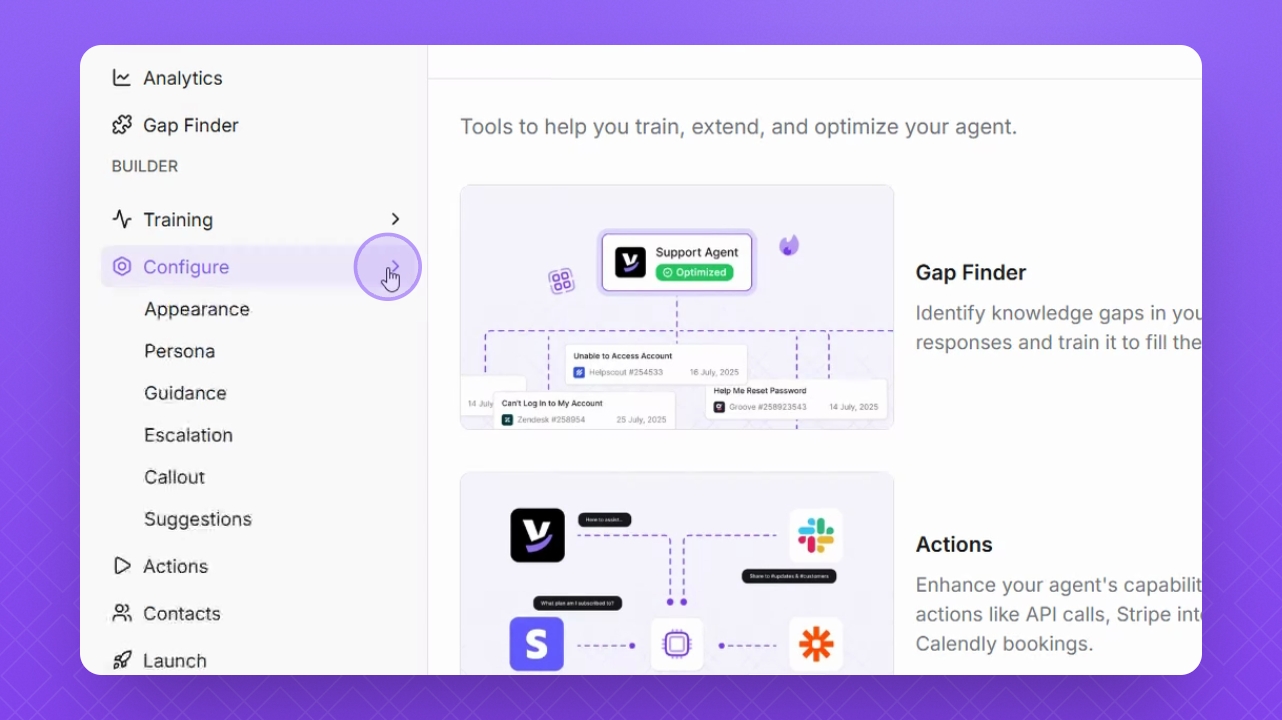
Step 1: Navigate to Configure
On the left panel, navigate to Configure to access suggestion settings.
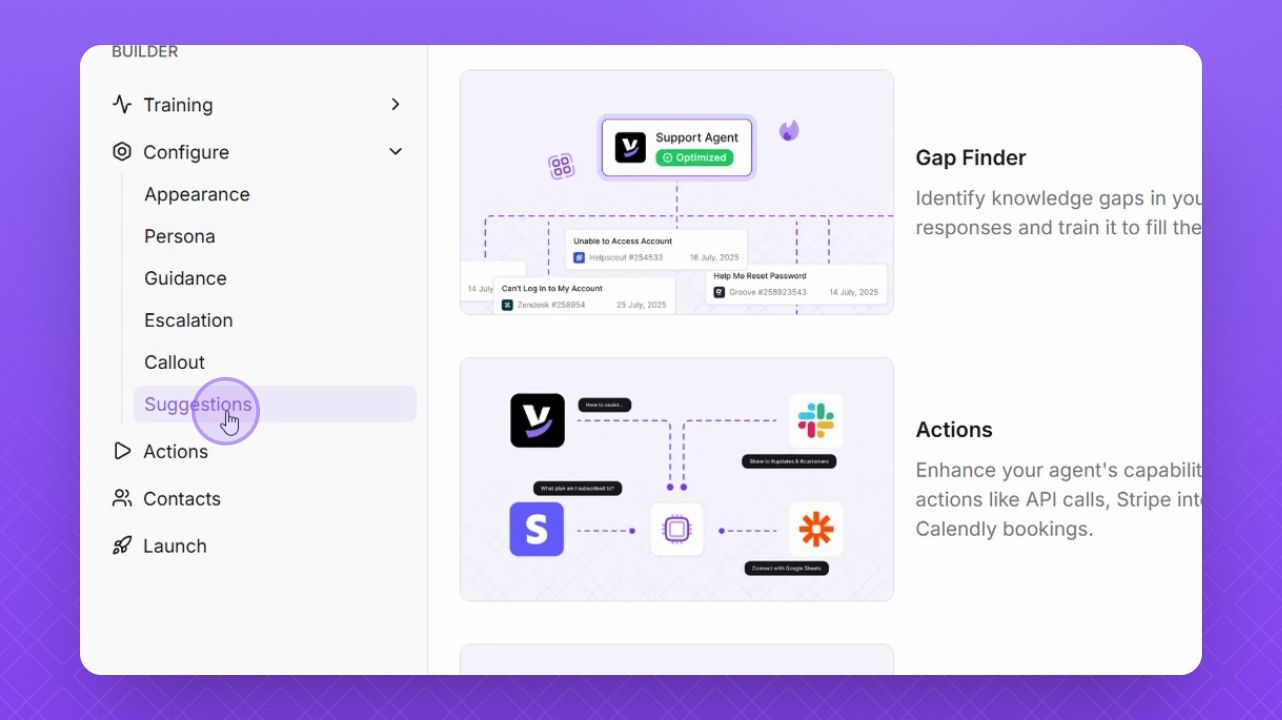
Step 2: Select Suggestions
From the Configure menu, select Suggestions.
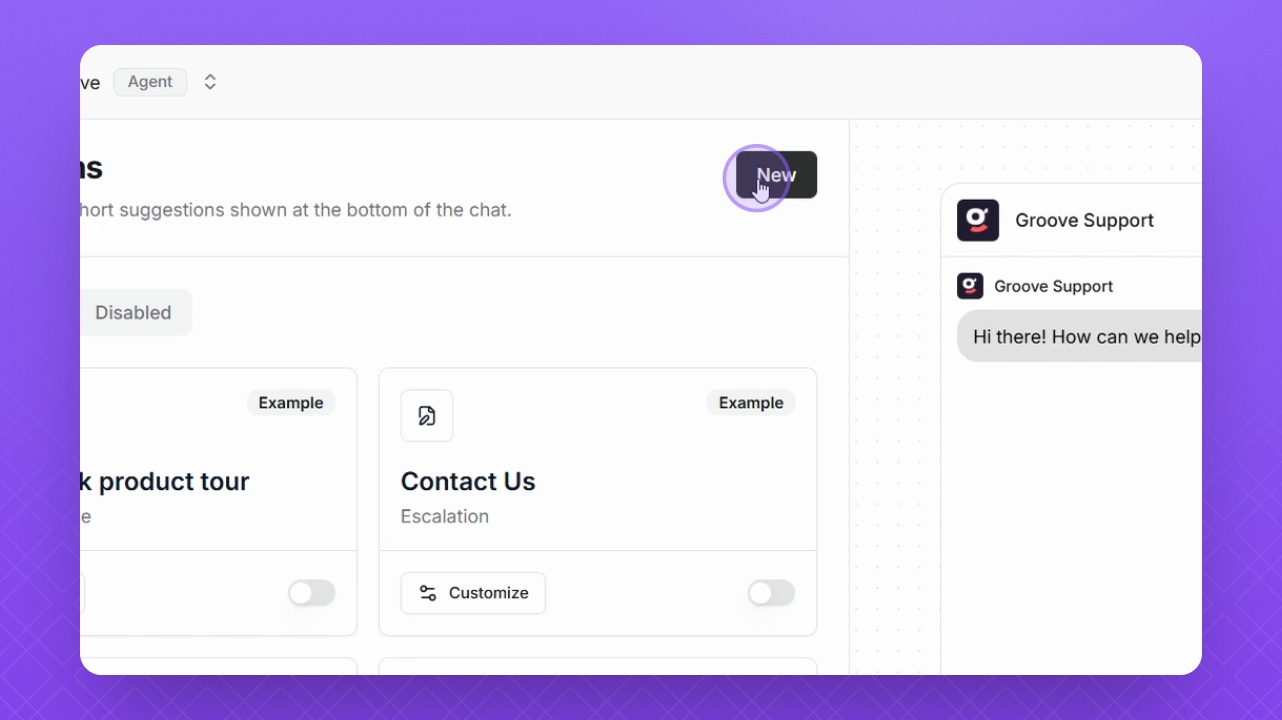
Step 3: Create New Suggestion
Click New in the top right corner to start creating a suggestion.
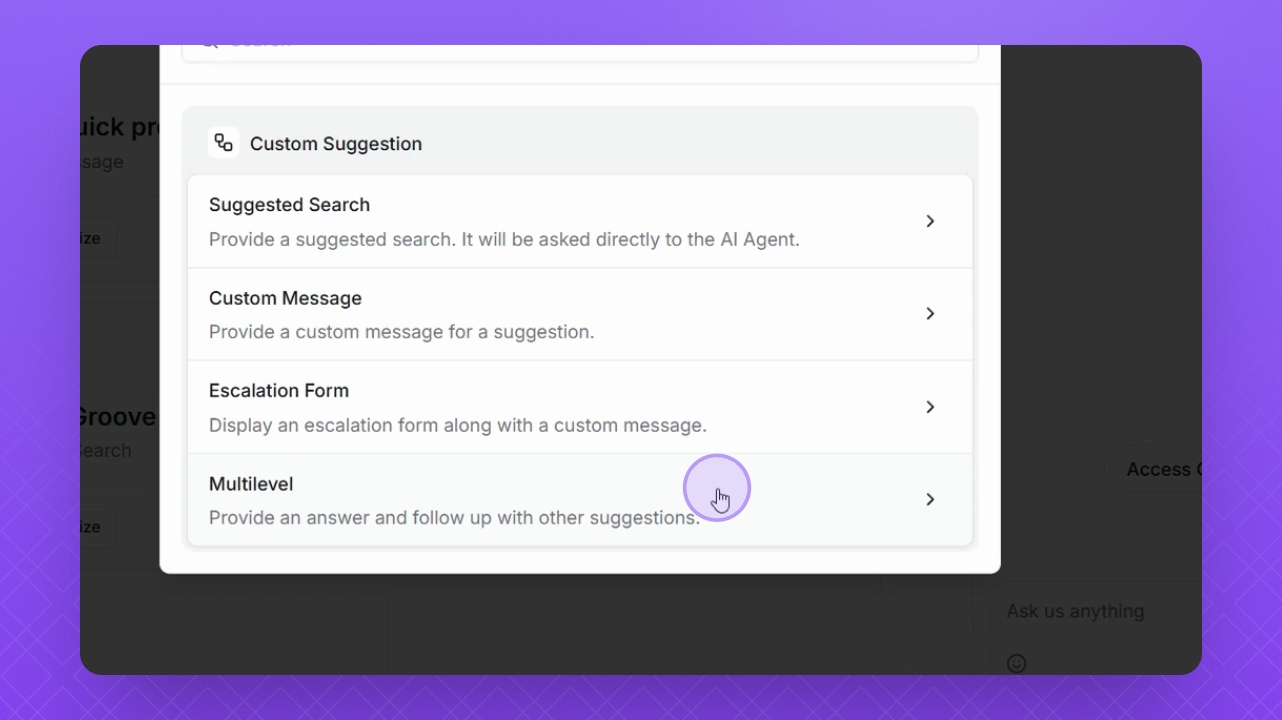
Step 4: Choose Multi Level
Select Multilevel to provide answers with follow-up suggestions.
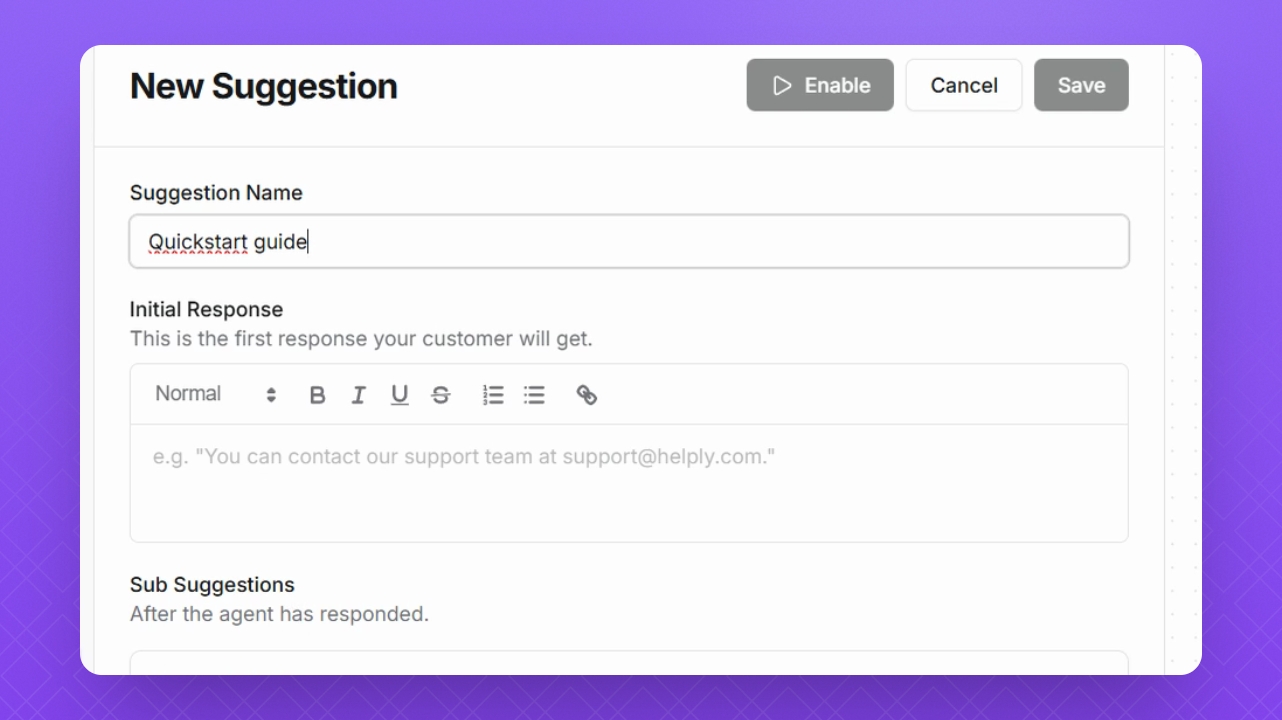
Step 5: Name Your Suggestion
Give your suggestion a name to identify it later.
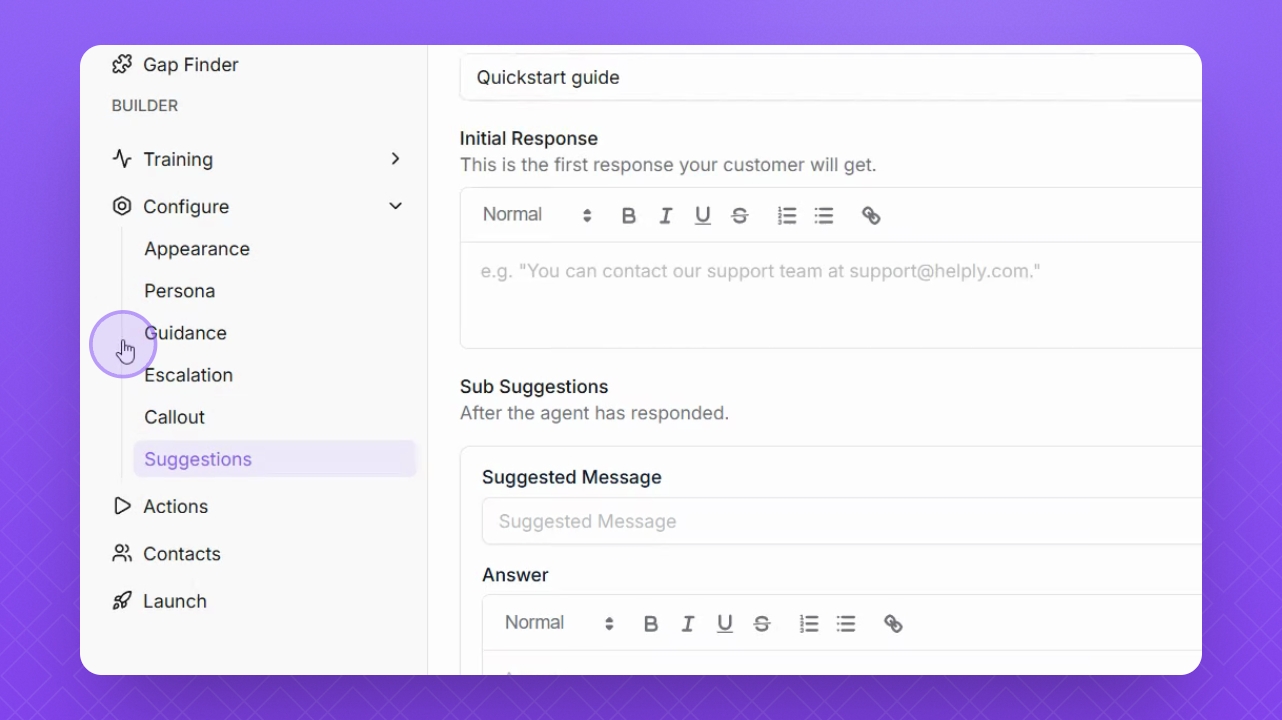
Step 6: Enter Initial Response
Input the initial response for your suggestion.
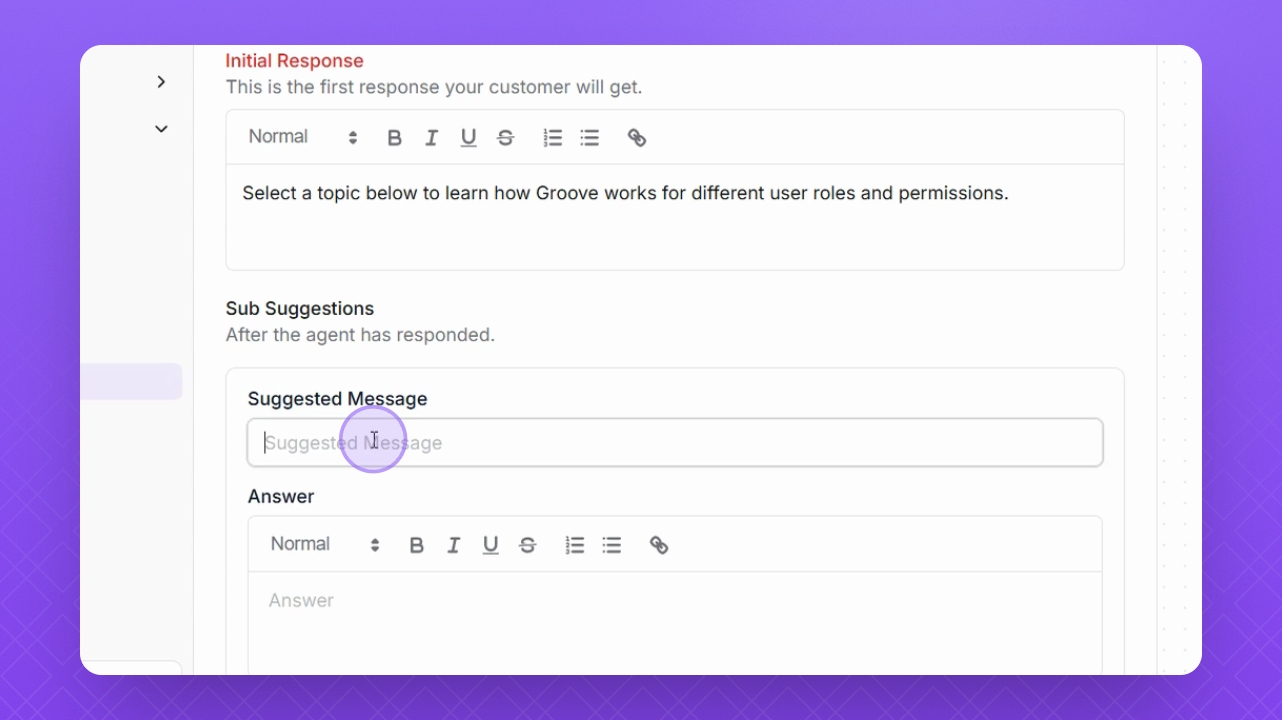
Step 7: Add Sub Suggestions
Start adding sub suggestions by filling in the title and answer for each.
Step 8: Add Sub Suggestion
Click the Add Sub Suggestion button to include more sub suggestions.
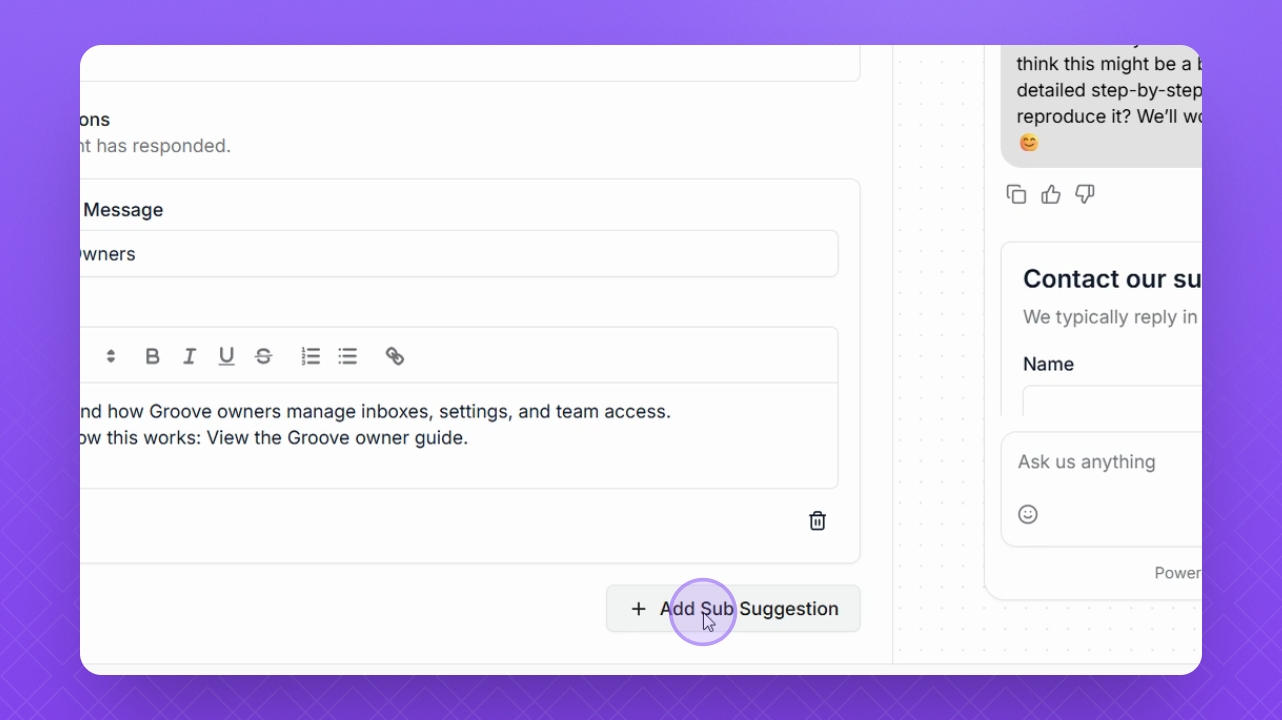
Step 9: Continue Adding Suggestions
Keep adding as many suggestions as needed for your multi-level response.
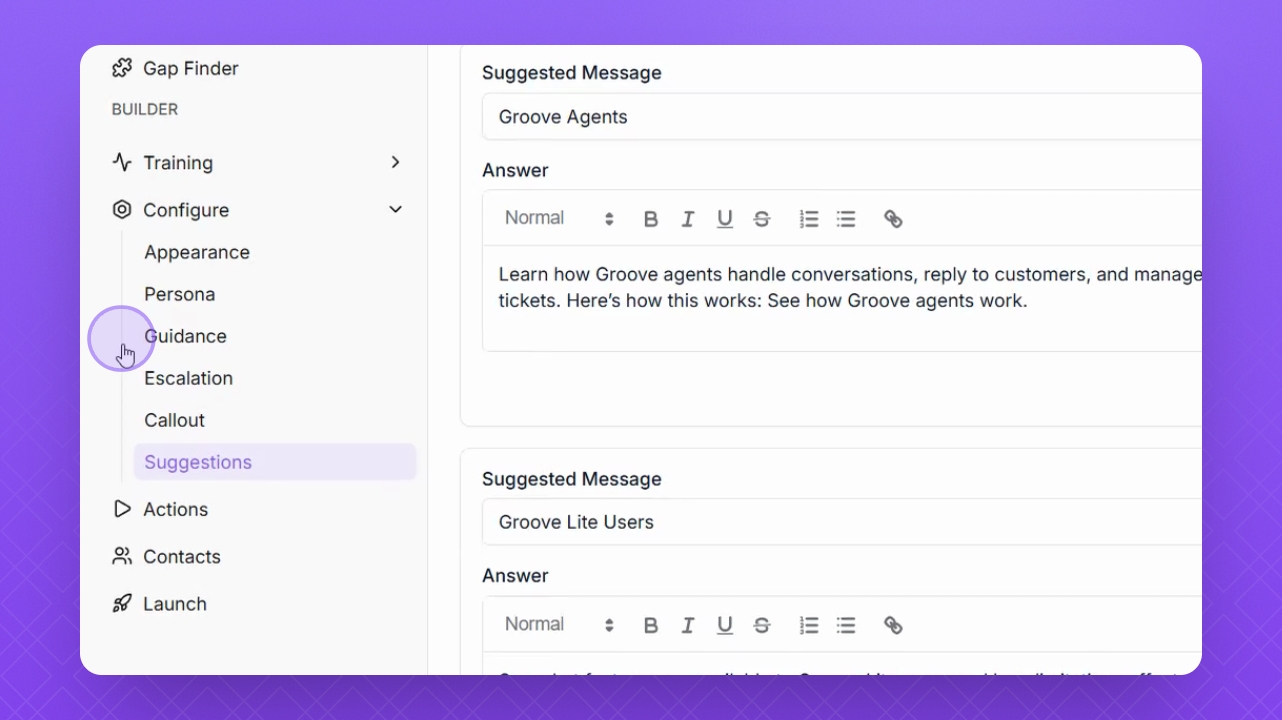
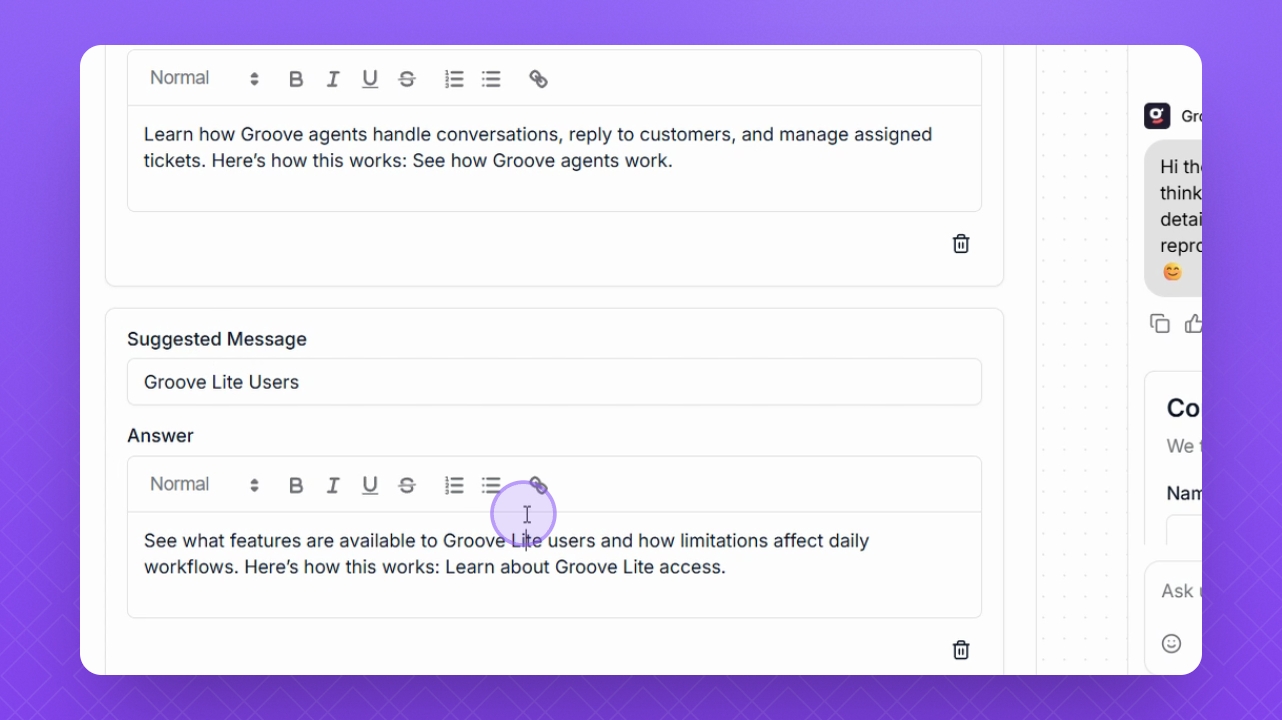
Step 10: Format Your Text
Use the formatting bar to format your text as desired.
Step 11: Refresh Preview
Refresh the preview window on the right to see your changes.
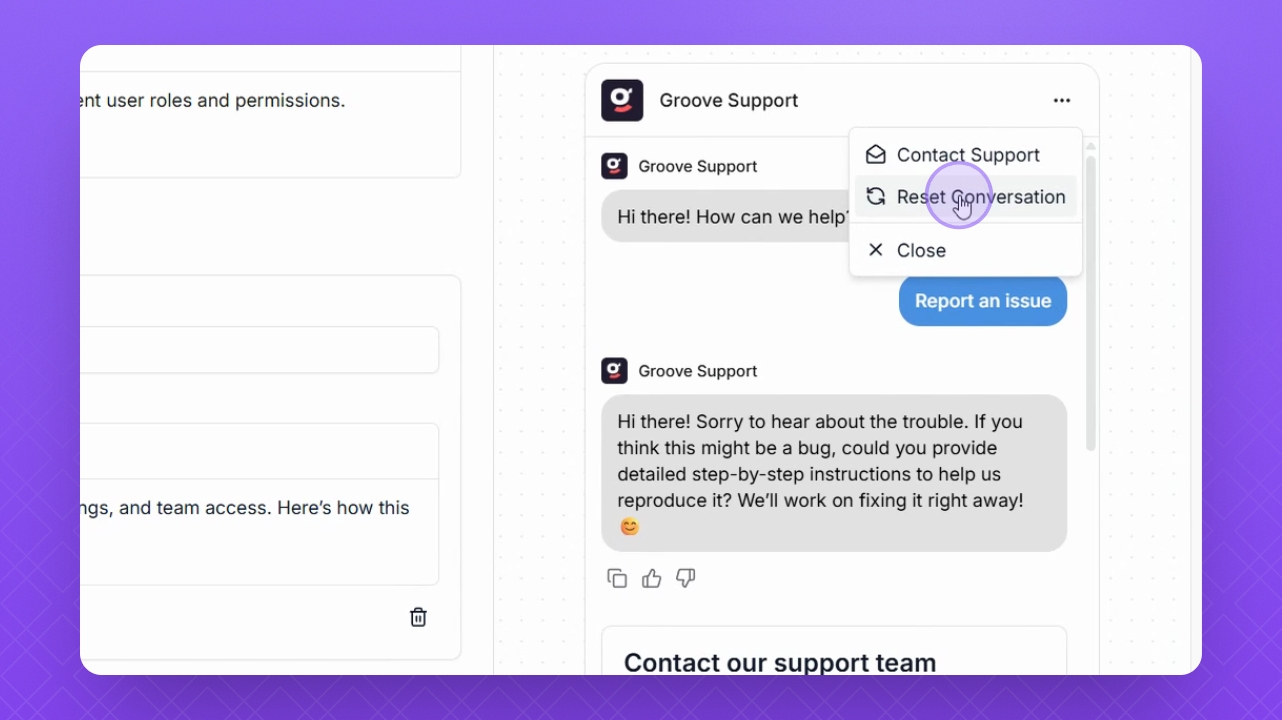
Step 12: Test Your Suggestion
Click the Suggestion button to test how it responds.
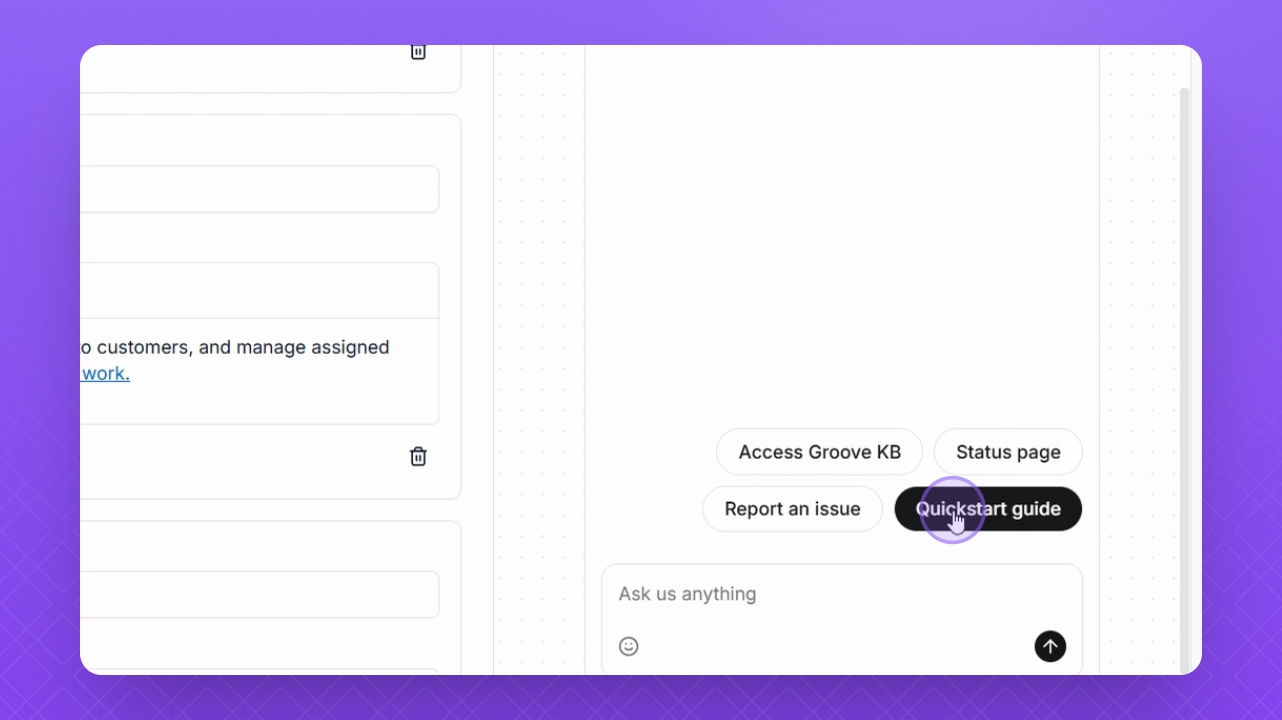
Step 13: Save Your Work
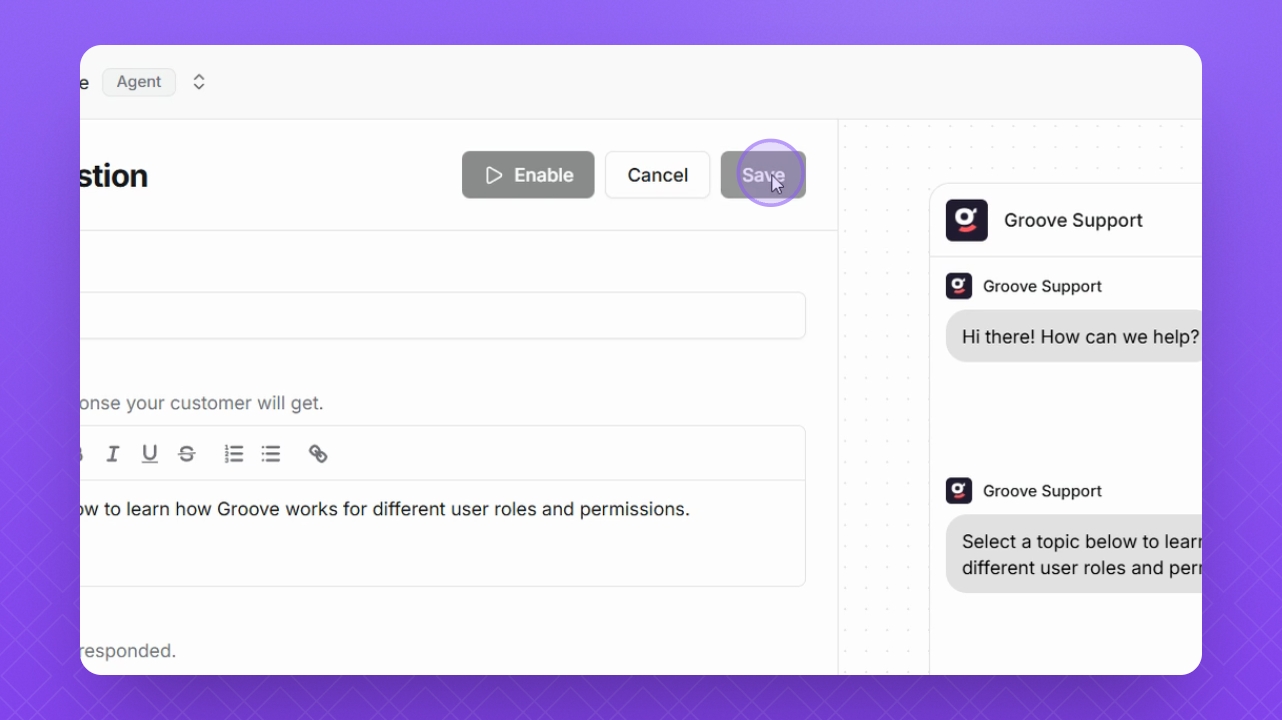
Click Save at the top of the page to save your multi-level suggestion.