

This article describes how a user can set up and configure Helply for Zendesk Messaging.
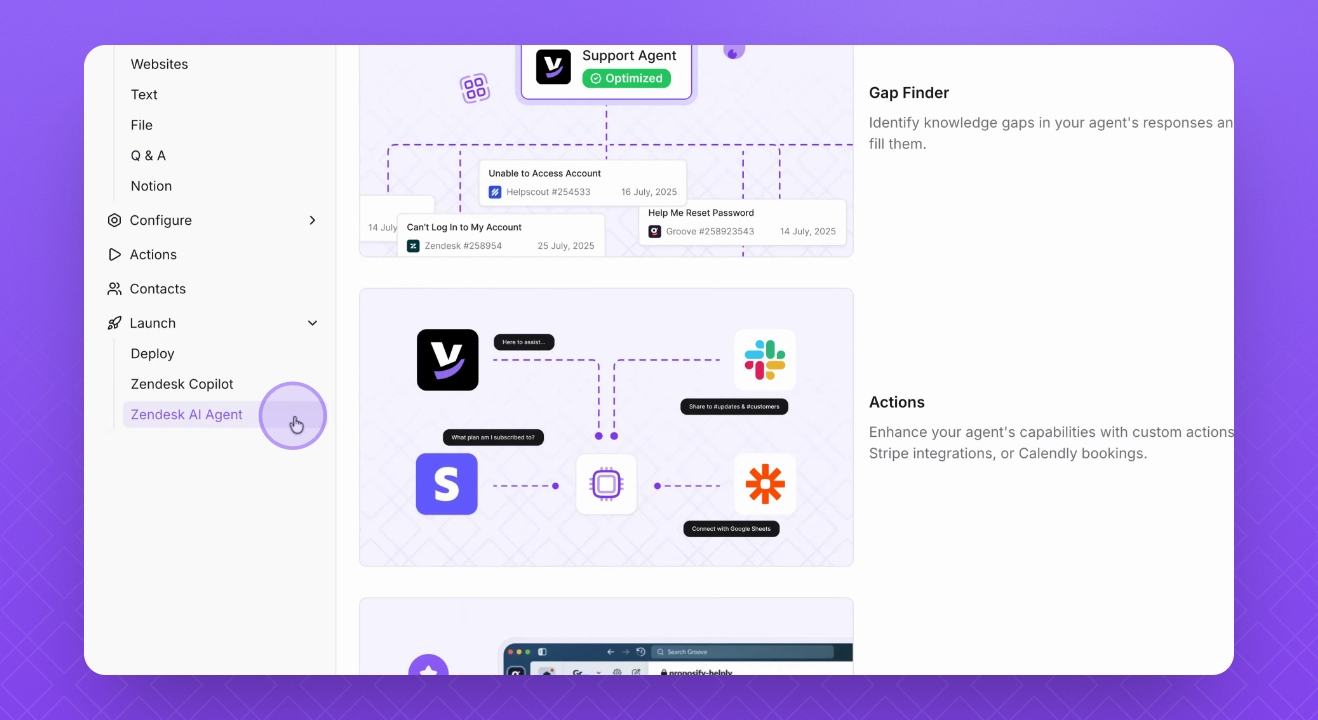
Step 1: Access Zendesk AI Agent
Go into the Zendesk AI Agent tab.
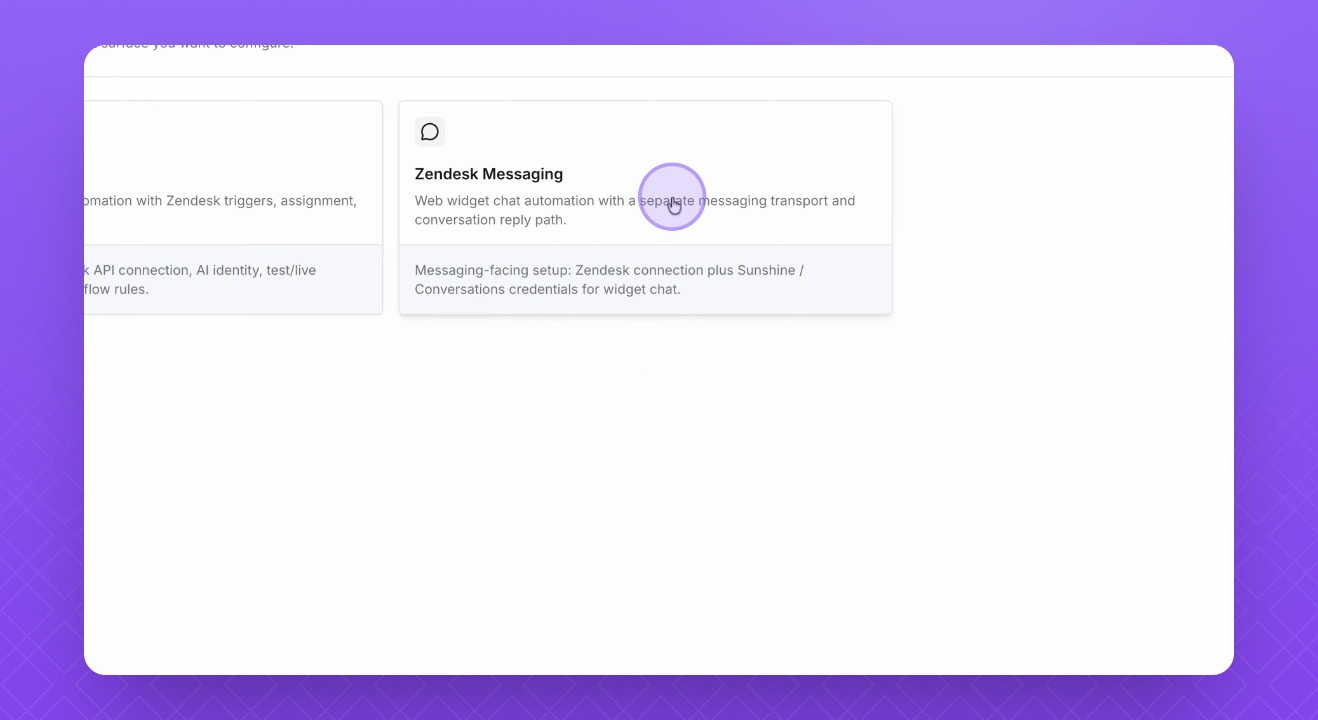
Step 2: Select Zendesk Messaging
Select Zendesk Messaging.
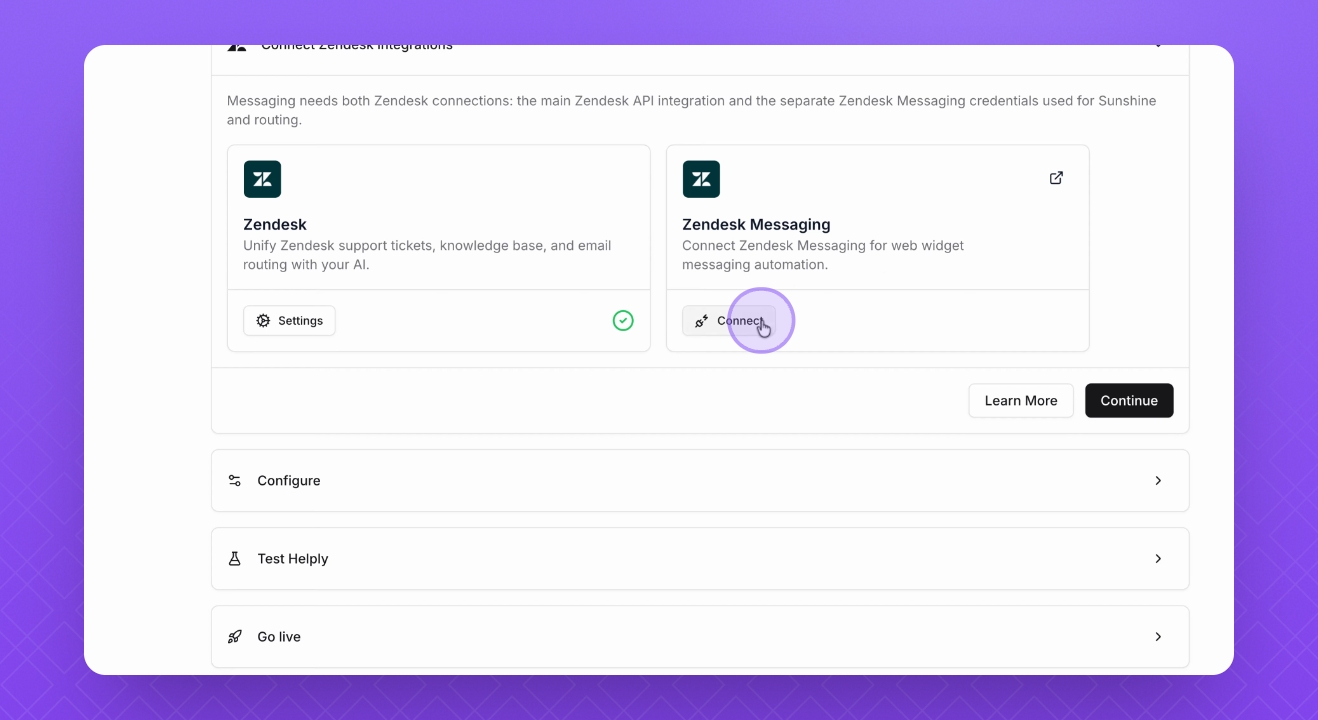
Step 3: Connect Integrations
Connect two integrations: Regular Zendesk Integration and Zendesk Messaging Integration.
For the Zendesk Messaging integration, go into Zendesk Admin Center, then Apps and Integrations, followed by APIs, and select Conversation API. Create it there, then copy and paste the App ID, Key ID, and Secret.
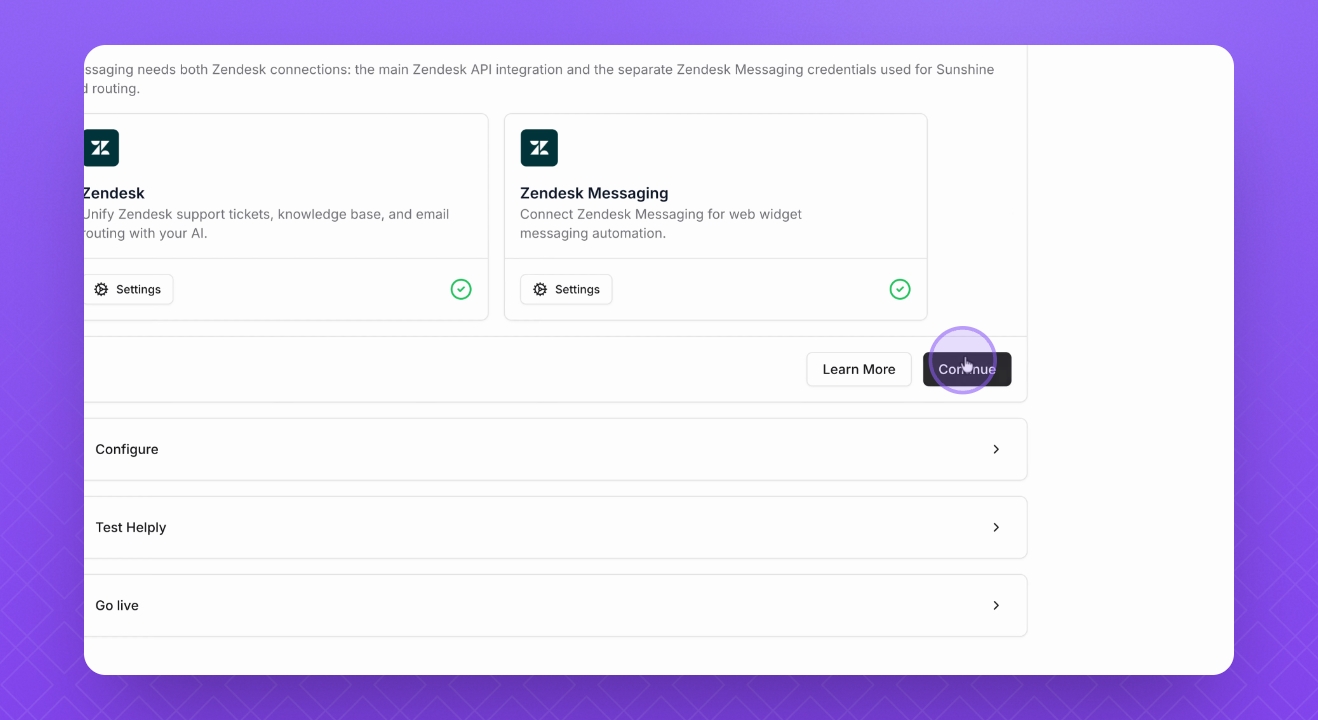
Step 4: Continue Setup
Once connected, click Continue.
Step 5: Configure Helply
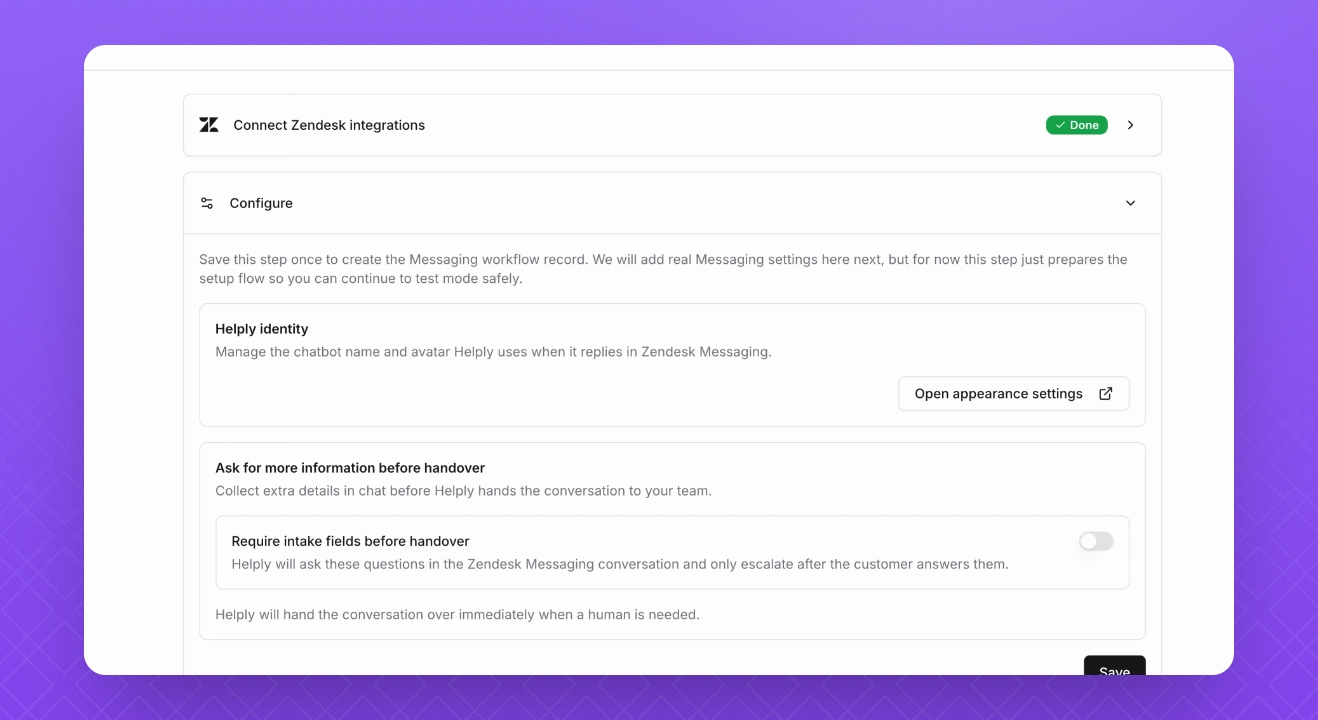
In the configuration step, control how the Helply AI Agent will look like in the Helply Identity section. You can configure AI Agent name and avatar from your appearance settings.
Step 6: Additional Configuration
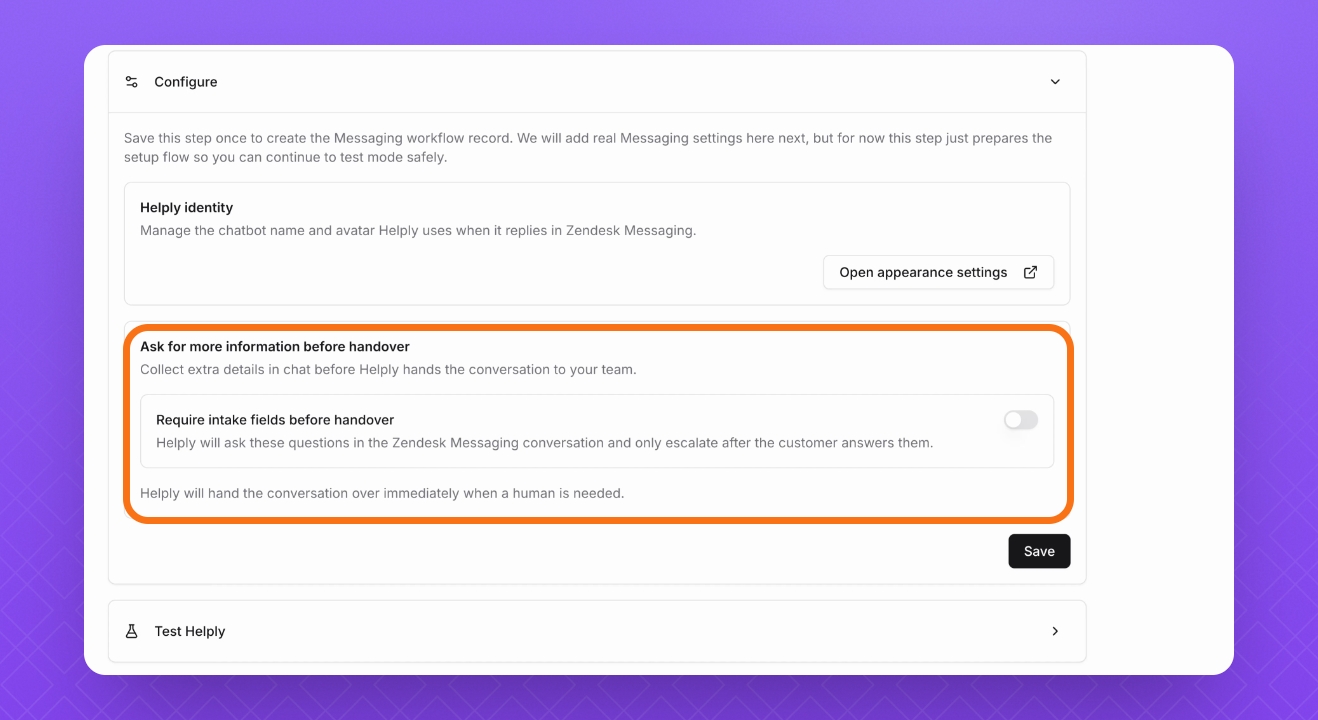
Configure if Helply should ask for more information before escalation.
Step 7: Save Configuration
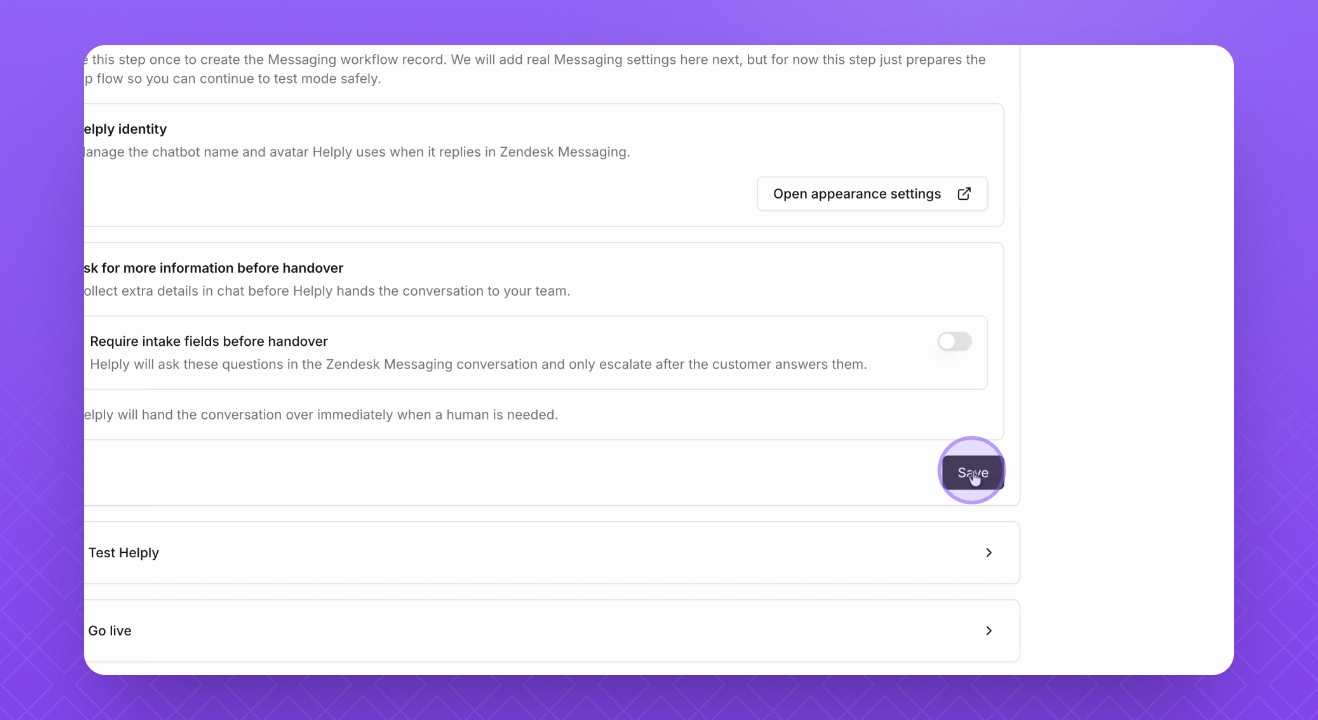
If satisfied with the configuration, click Save.
Step 8: Set Up Test Mode
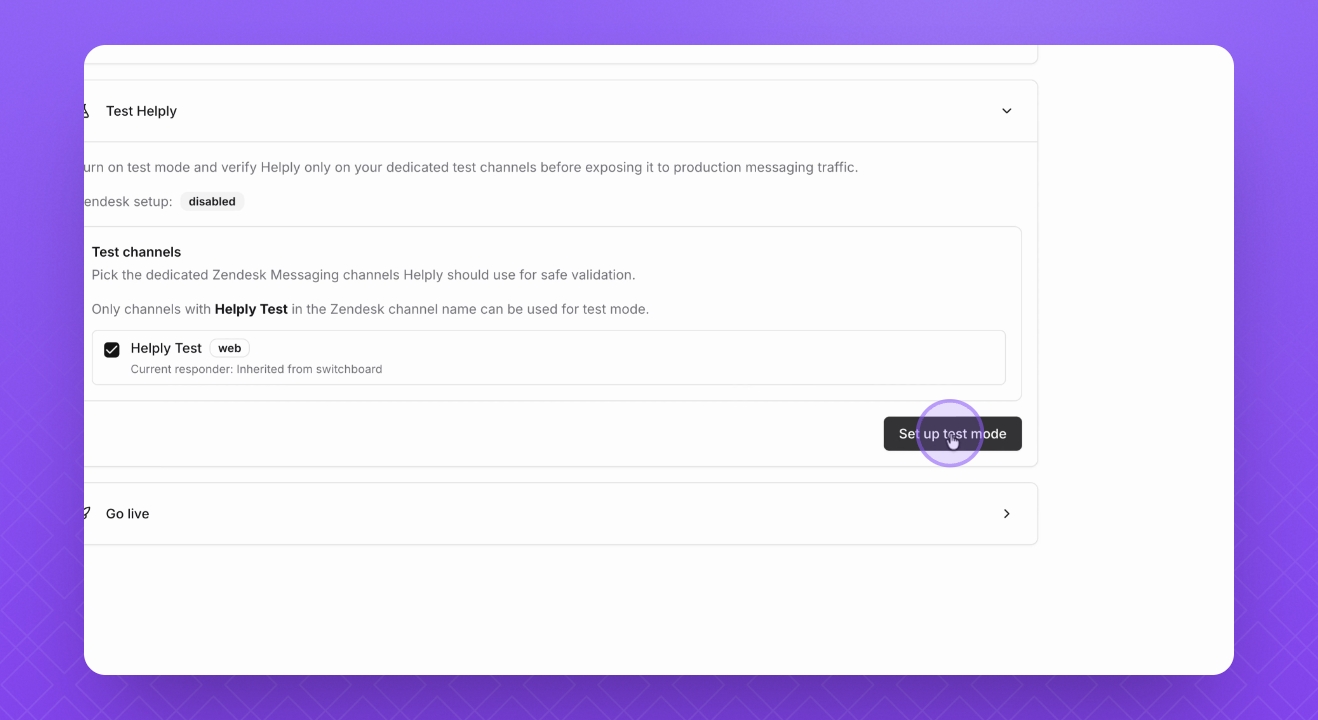
Set up a test mode to ensure the Helply AI agent functions correctly by creating a "Helply Test" Web Widget channel. Go to Zendesk Admin Center, then Channels, and select Messaging.
Step 9: Select "Helply Test" Channel
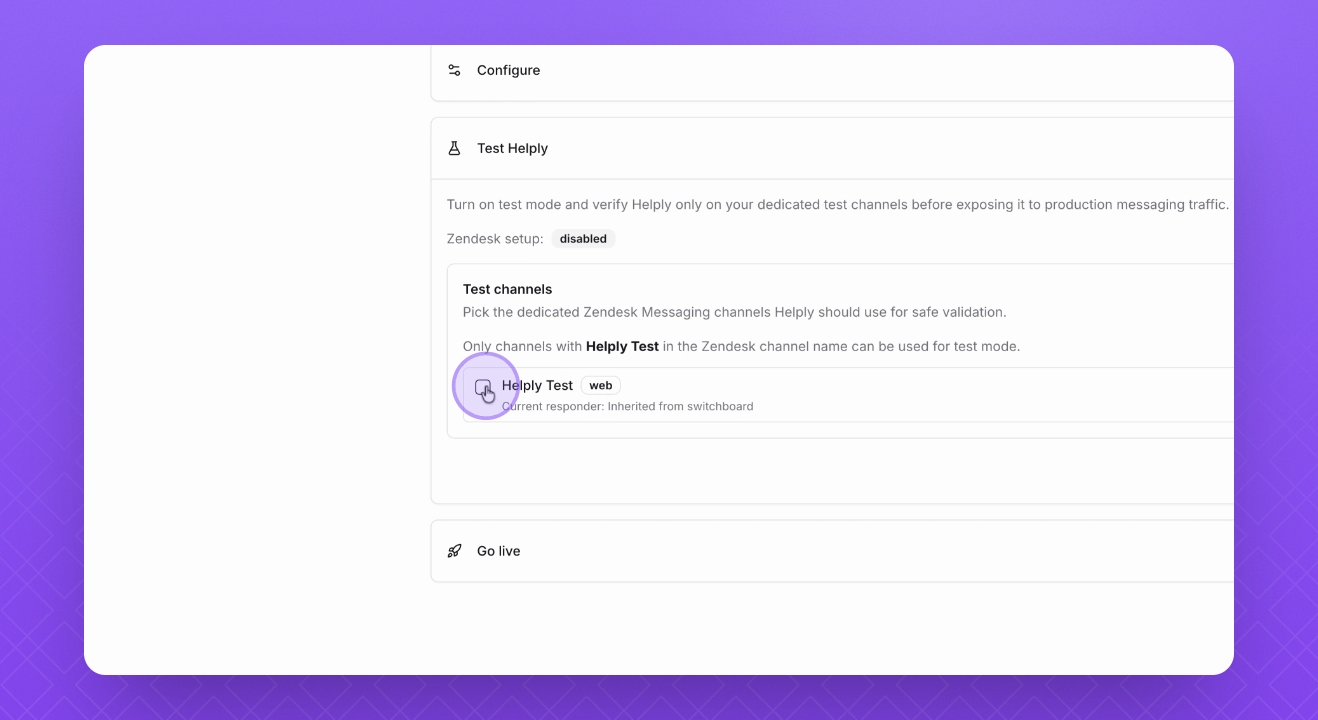
Once created, the channel named Helply Test will be listed. Select it for testing.
Step 10: Setup Test Mode
Click Setup Test Mode.
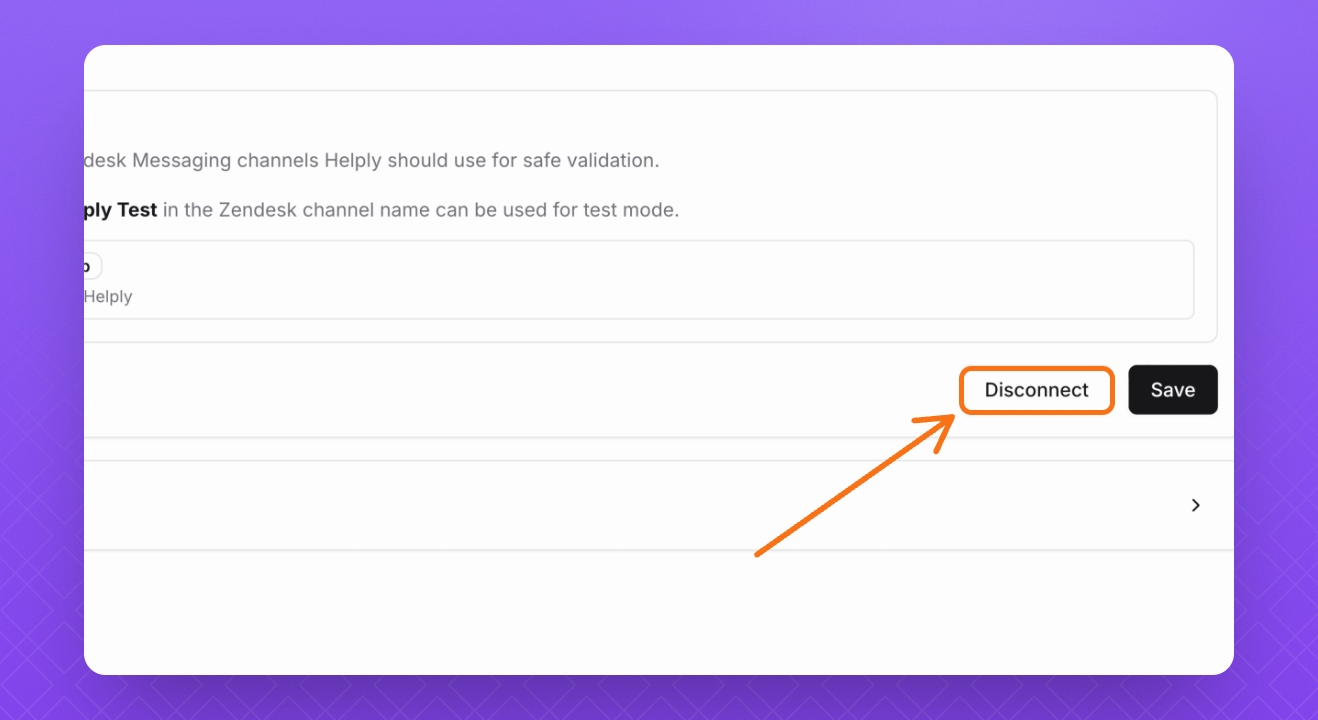
Step 11: Disconnect Test Mode
To turn off testing mode, click Disconnect.
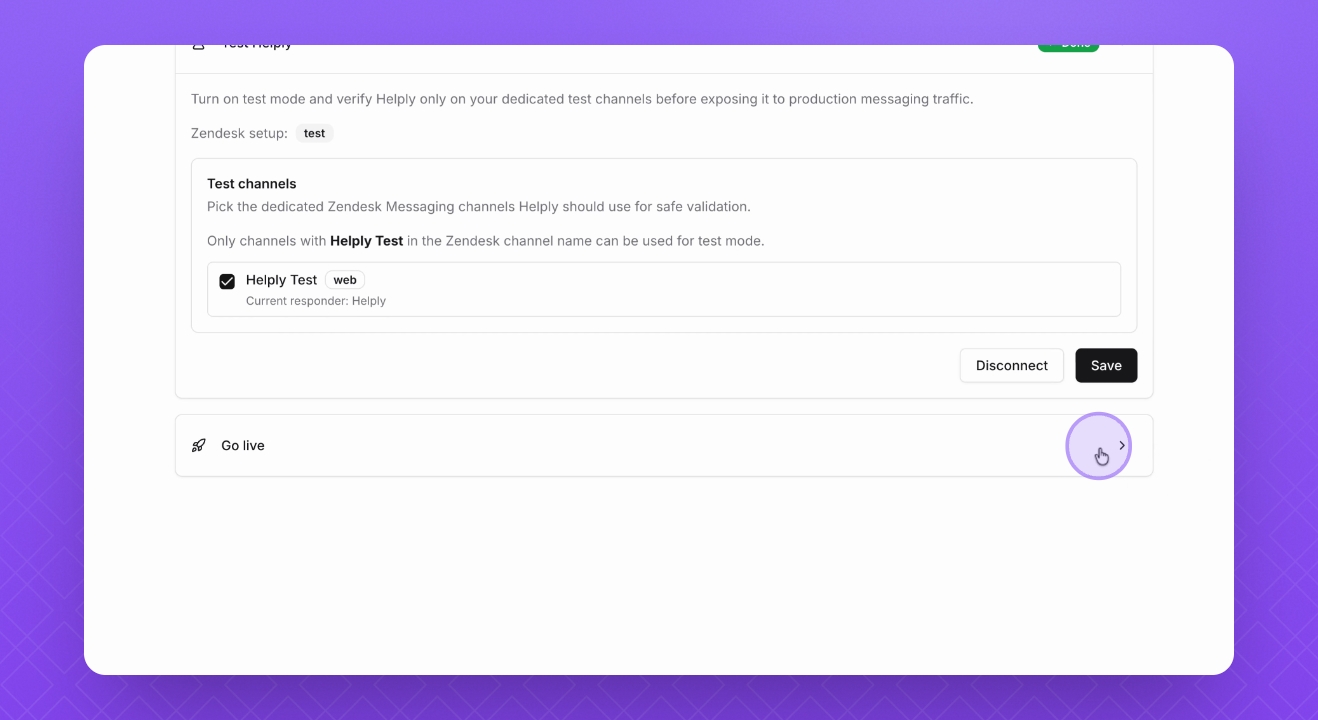
Step 12: Go Live
If you are satisfied with testing results, go to the Go Live section and select a channel that Helply should handle in Live mode.
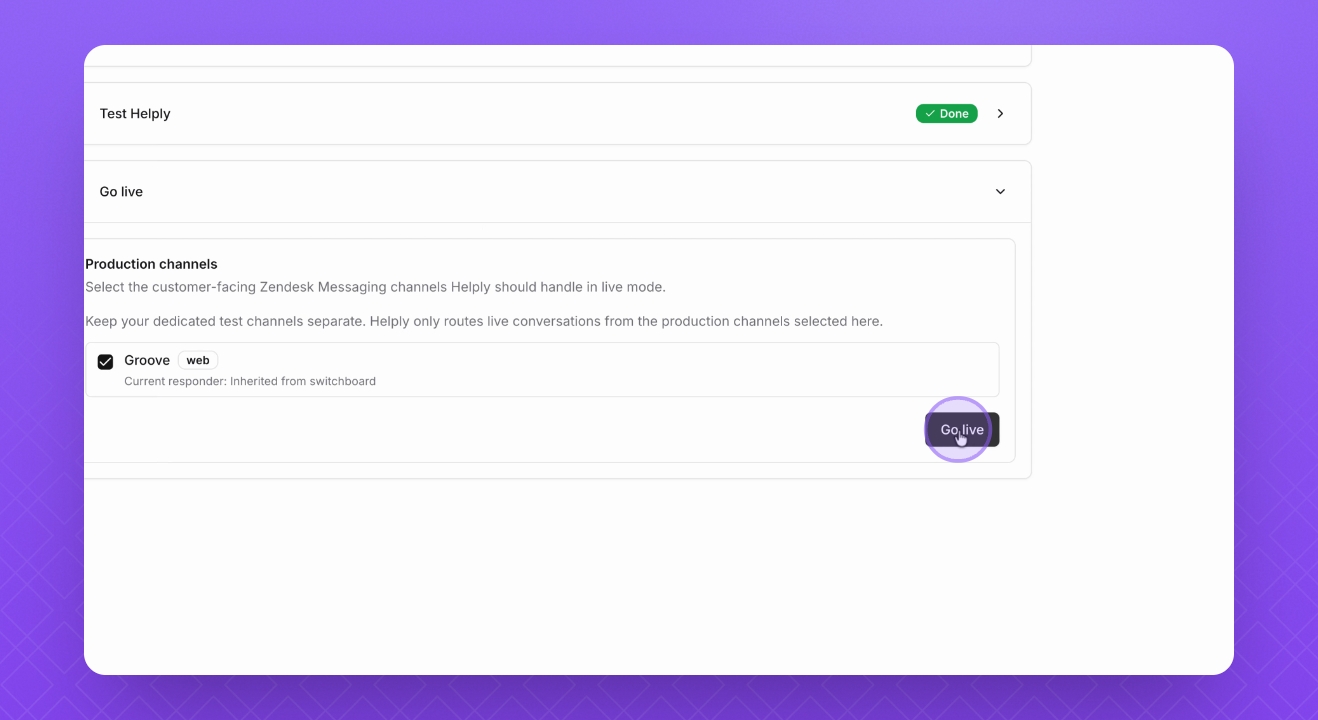
Step 13: Activate Live Mode
Click Go Live.
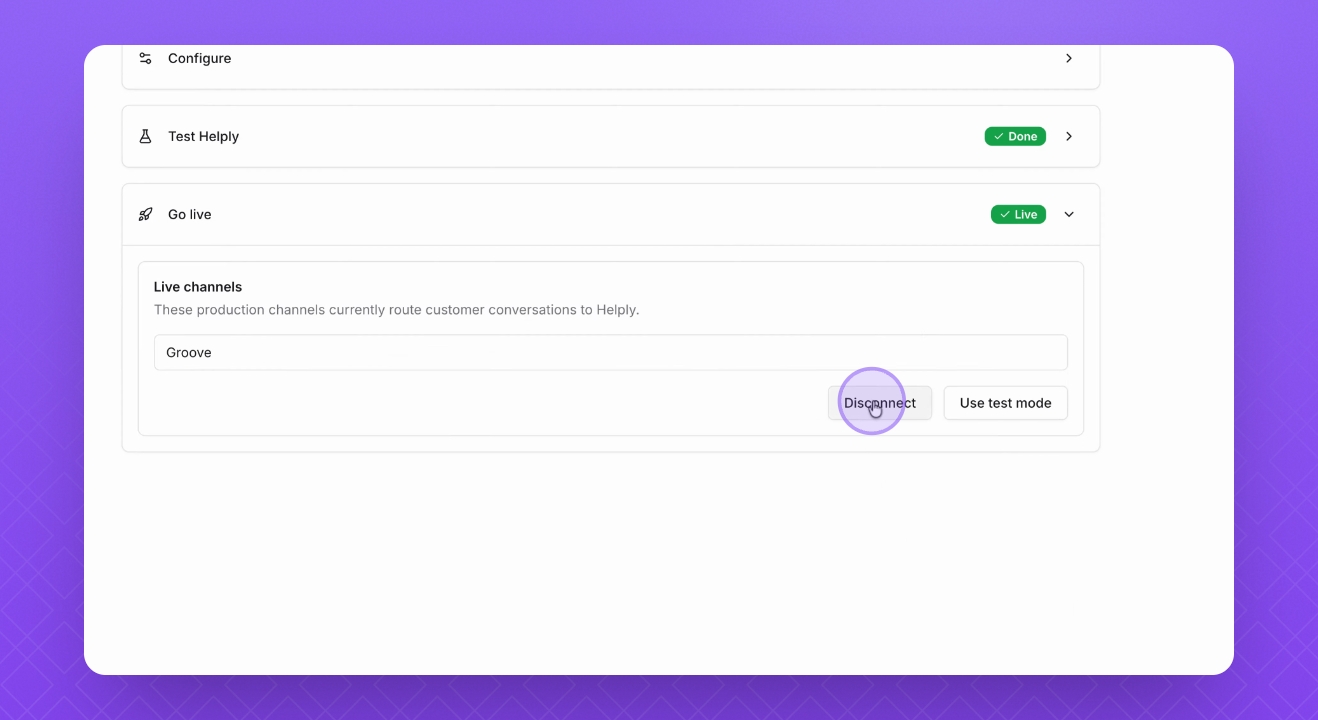
Step 14: Disconnect Live Mode
If you want to disconnect Live mode, click Disconnect.
FAQ
How does conversation resolution work in Zendesk Messaging?
Helply automatically marks inactive Messaging conversations as resolved after about 2 hours with no customer activity. This is the default behavior for Zendesk Messaging.
Why might a message not get an AI reply?
A reply may not be sent if:
The message is system/setup content (not a real customer question).
Helply AI is temporarily unable to generate replies for this connected agent (for example usage limits).
Request volume is too high at that moment (temporary rate limiting).
Or the integration is not currently active for handling that conversation.
What happens when a Zendesk Messaging conversation is escalated?
Helply sends a handoff response to the customer and transfers the conversation to Agent Workspace, so your human support team can continue from there.