Let's do it together!
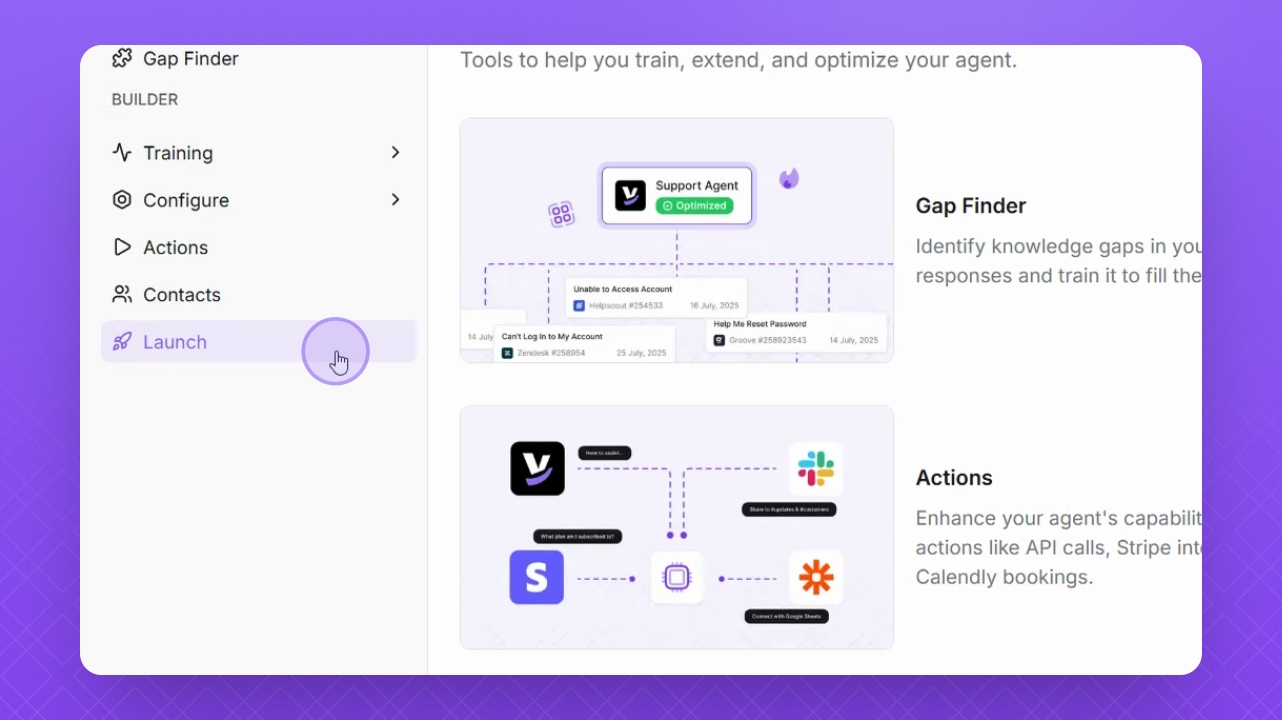
Step 1: Select Launch
Click on Launch on the left side of the interface.
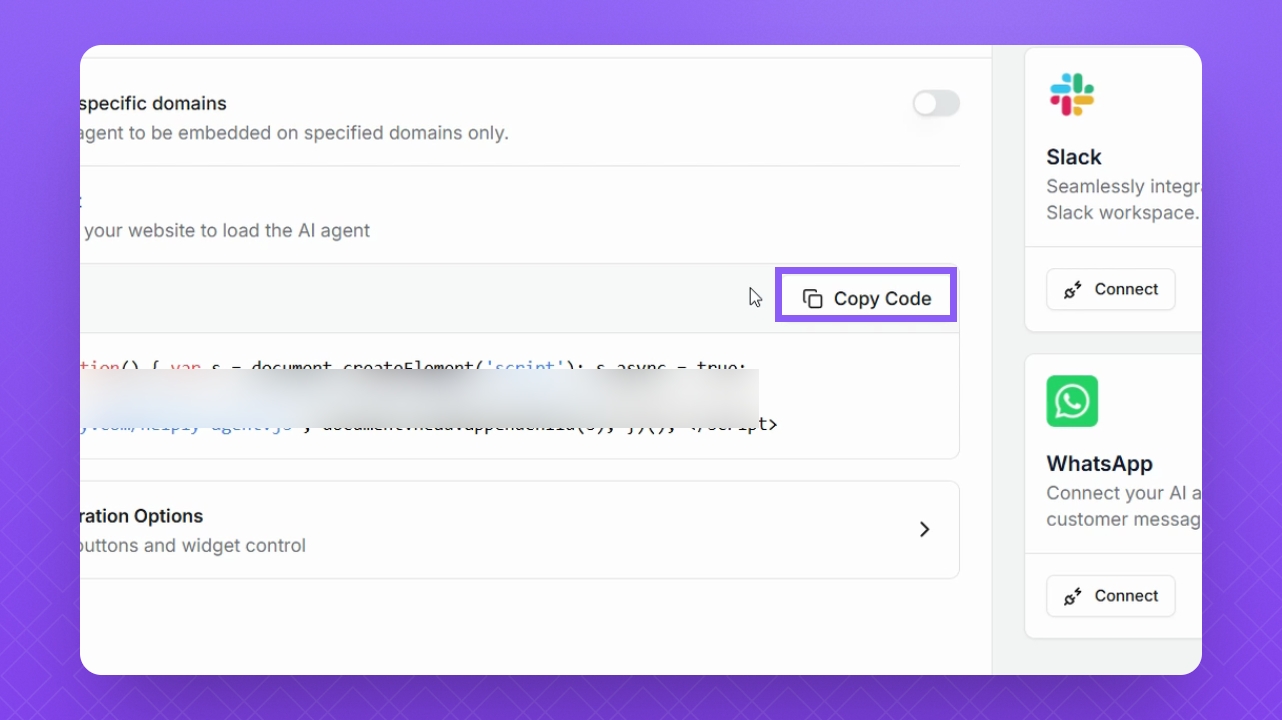
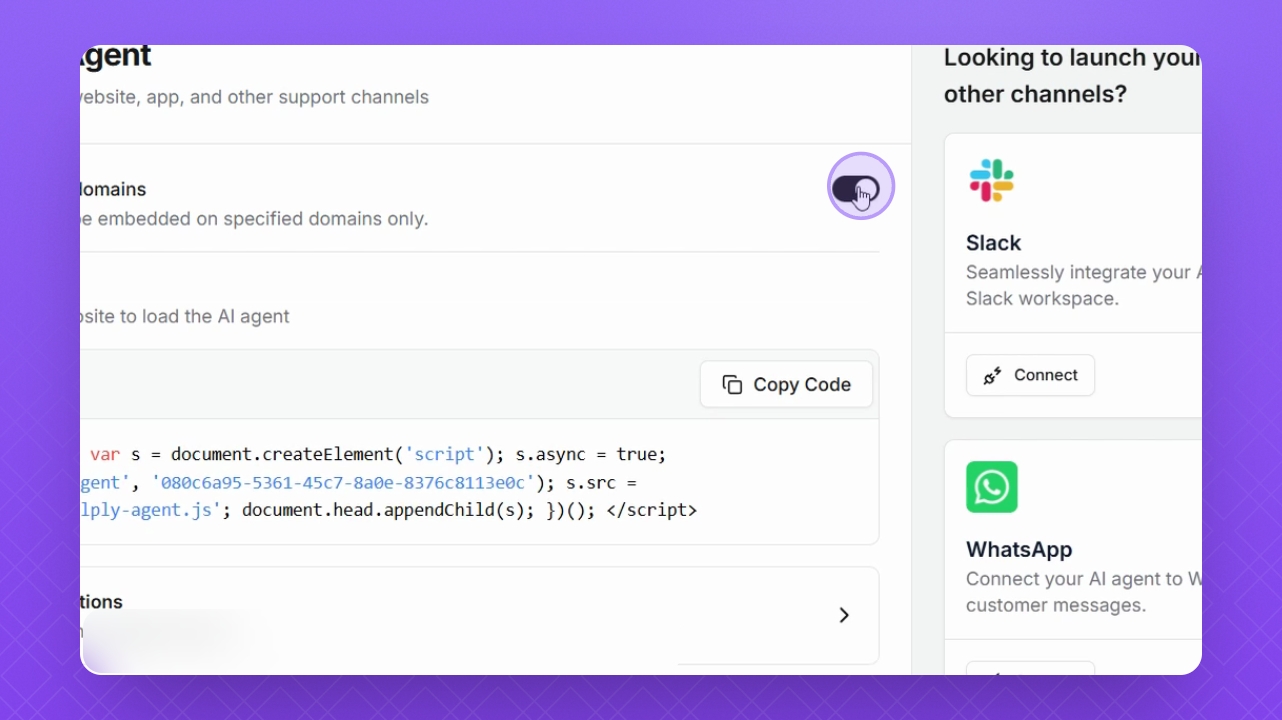
Step 2: Copy Snippet
Copy the provided JavaScript snippet code to load your AI agent onto your website.
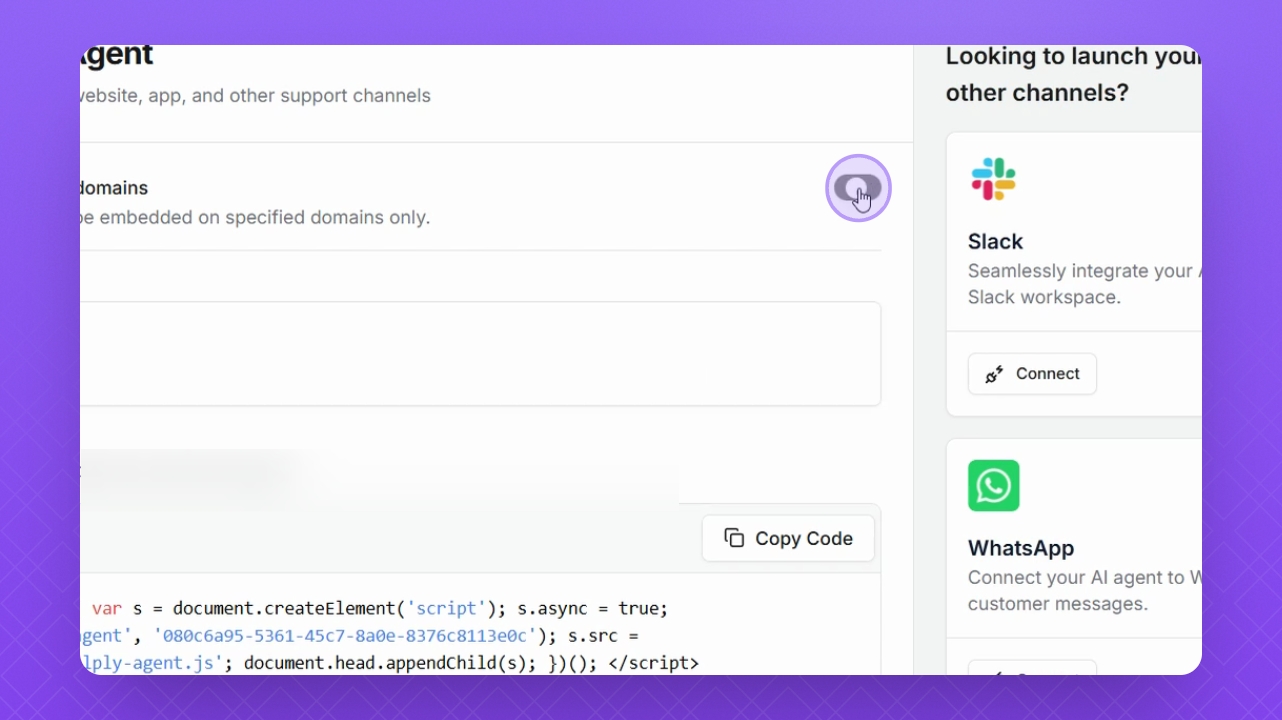
Step 3: Restrict Domains
If needed, click the Restrict Toggle button to limit access to specific domains.
Step 4: Advanced Options
For custom triggers and widget control, click on Advanced Integrations options below.
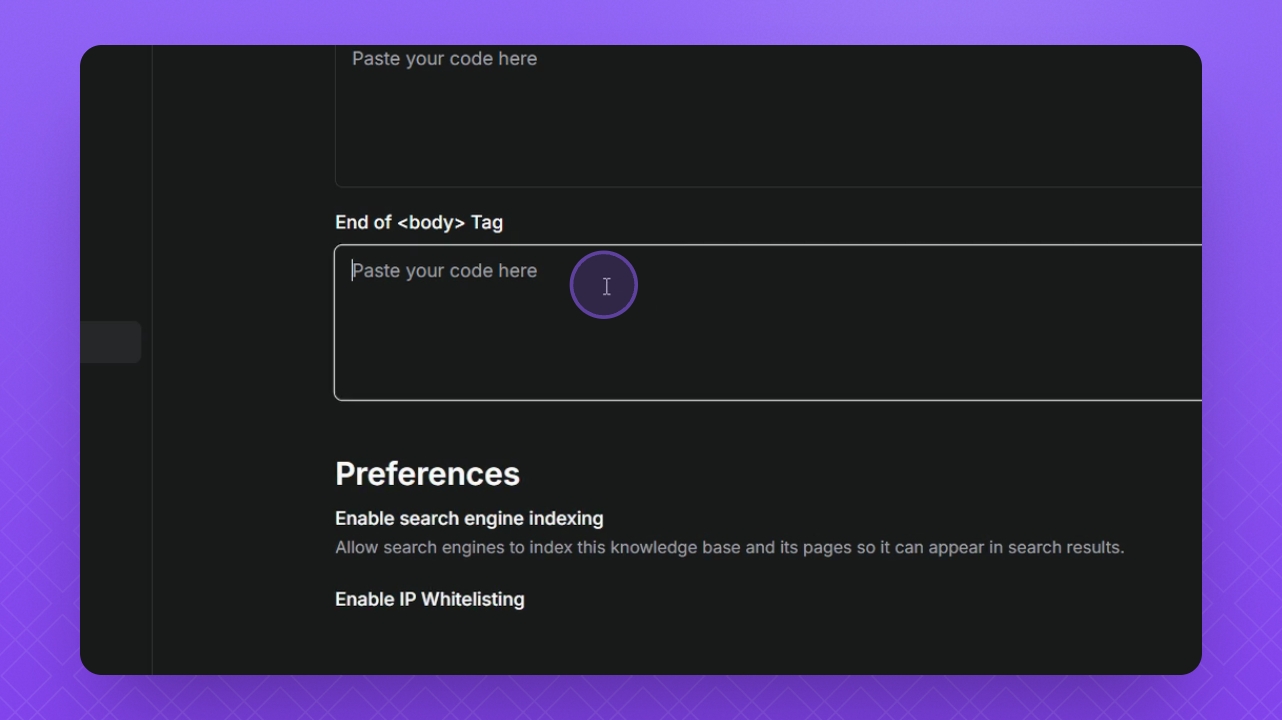
Step 5: Paste Widget Code
Paste the copied widget code into your website's code section.
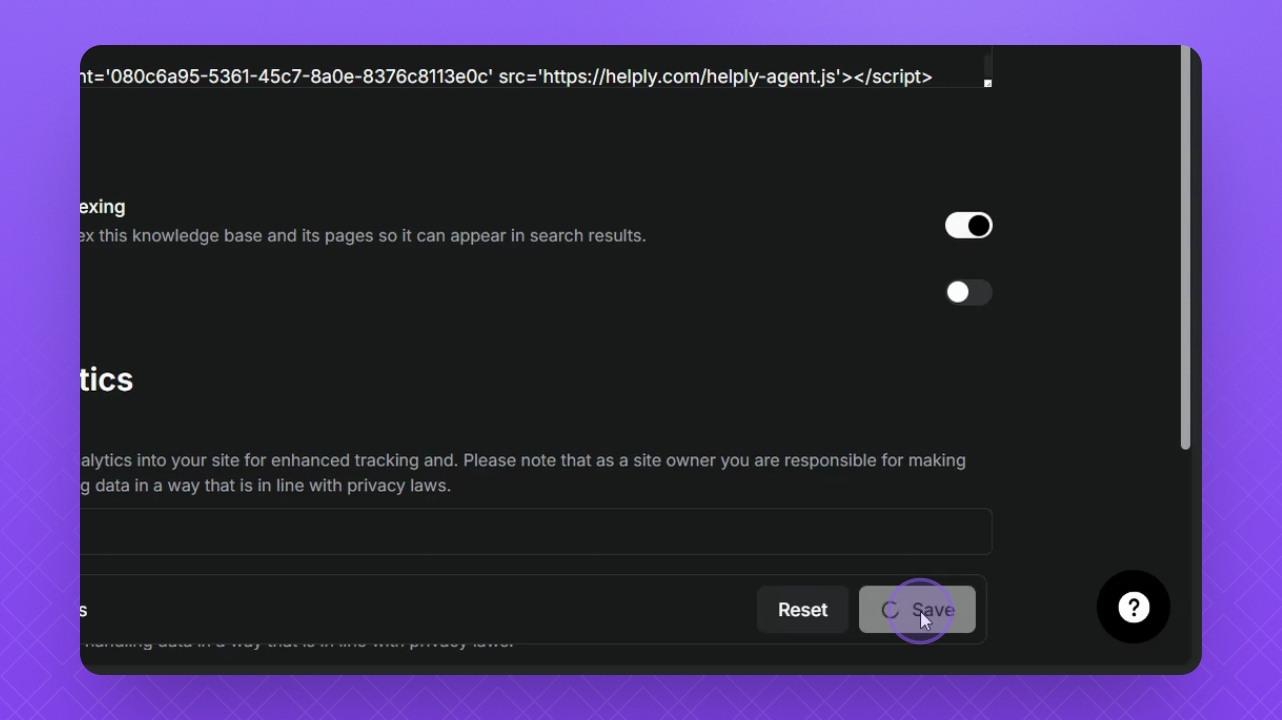
Step 6: Save Changes
Click Save to apply your changes.
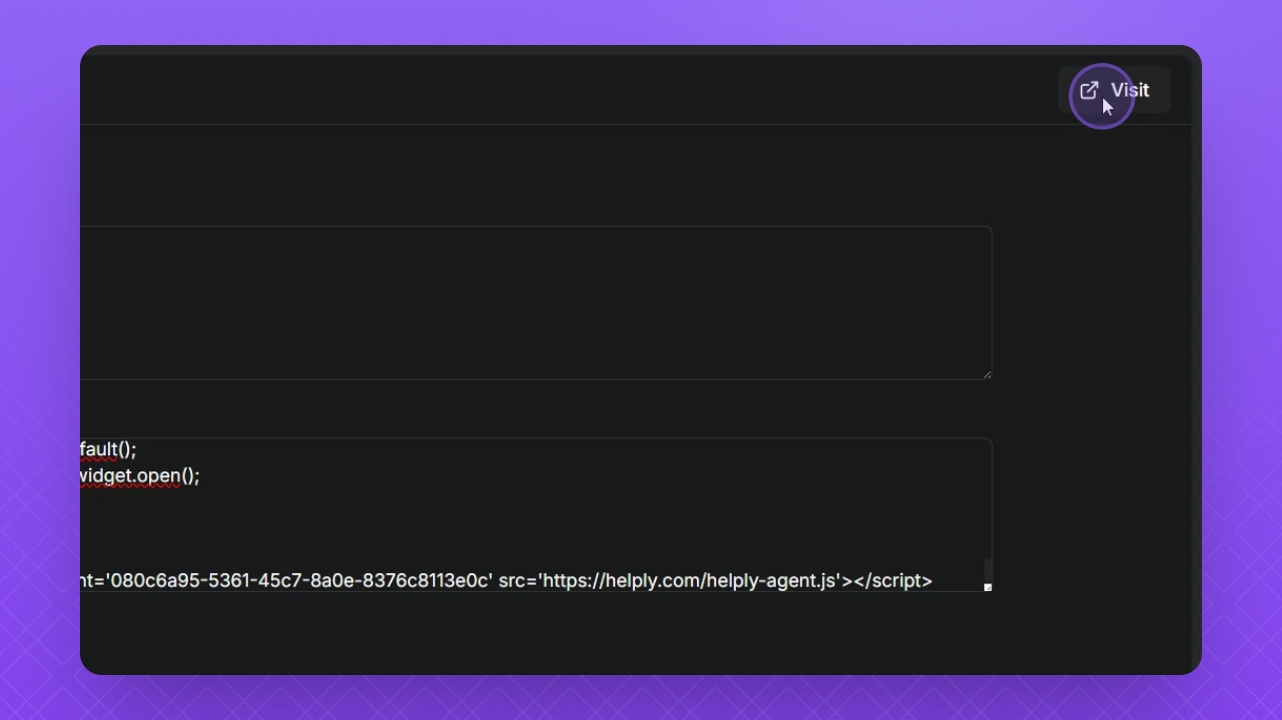
Step 7: Test Widget
Navigate to your website to test if the widget is functioning correctly.
Step 8: Verify Loading
Ensure that the Helply widget has loaded successfully on your site and is operational.