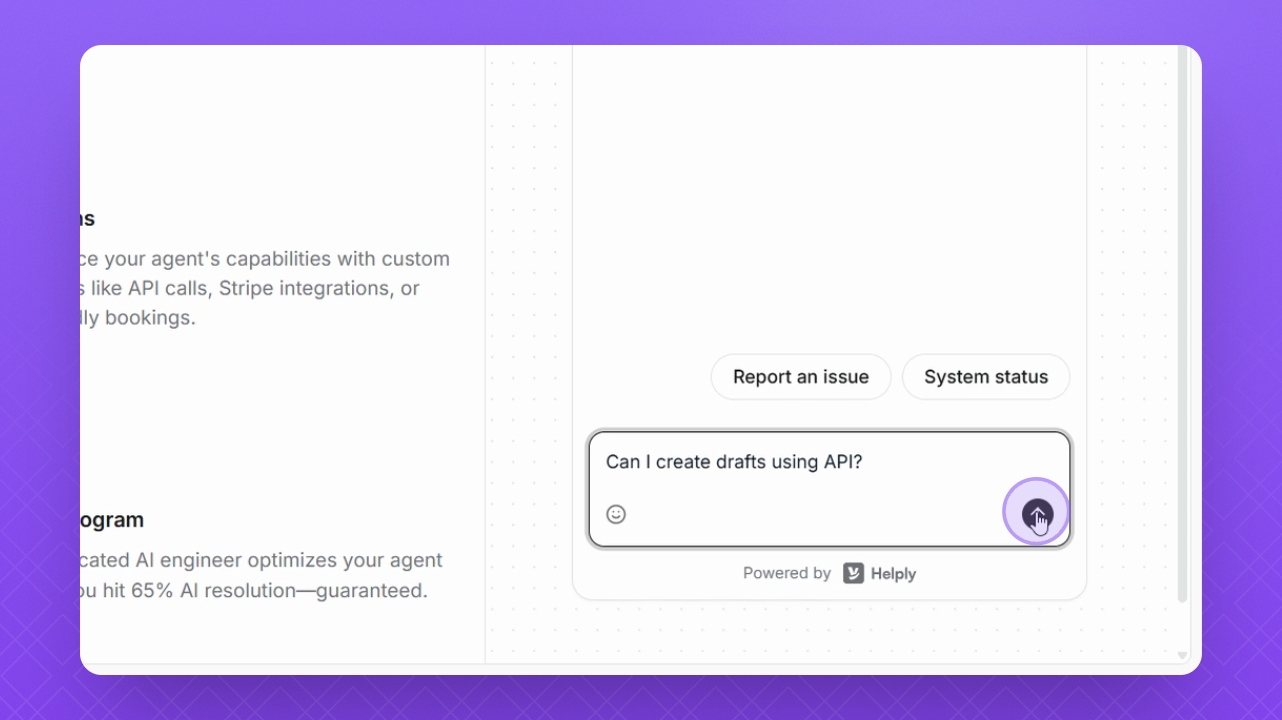
Let's do it together!
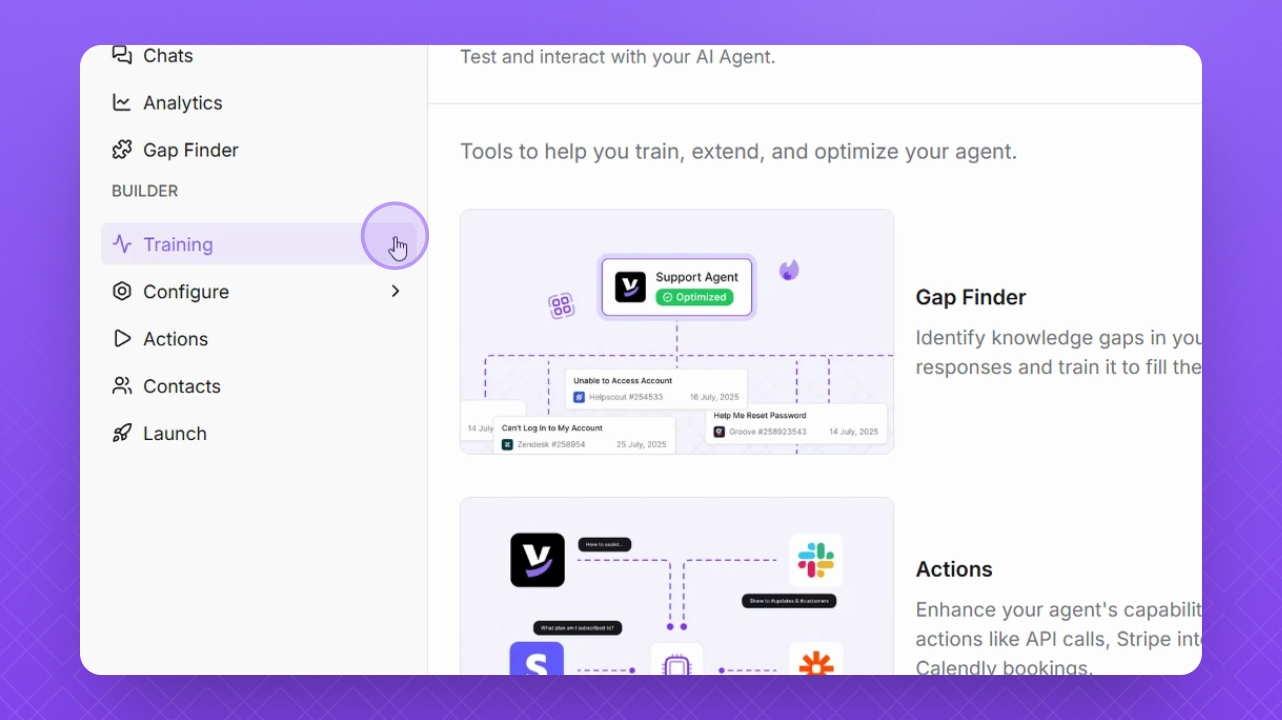
Step 1: Open Training
Click Training on the left to access the training materials.
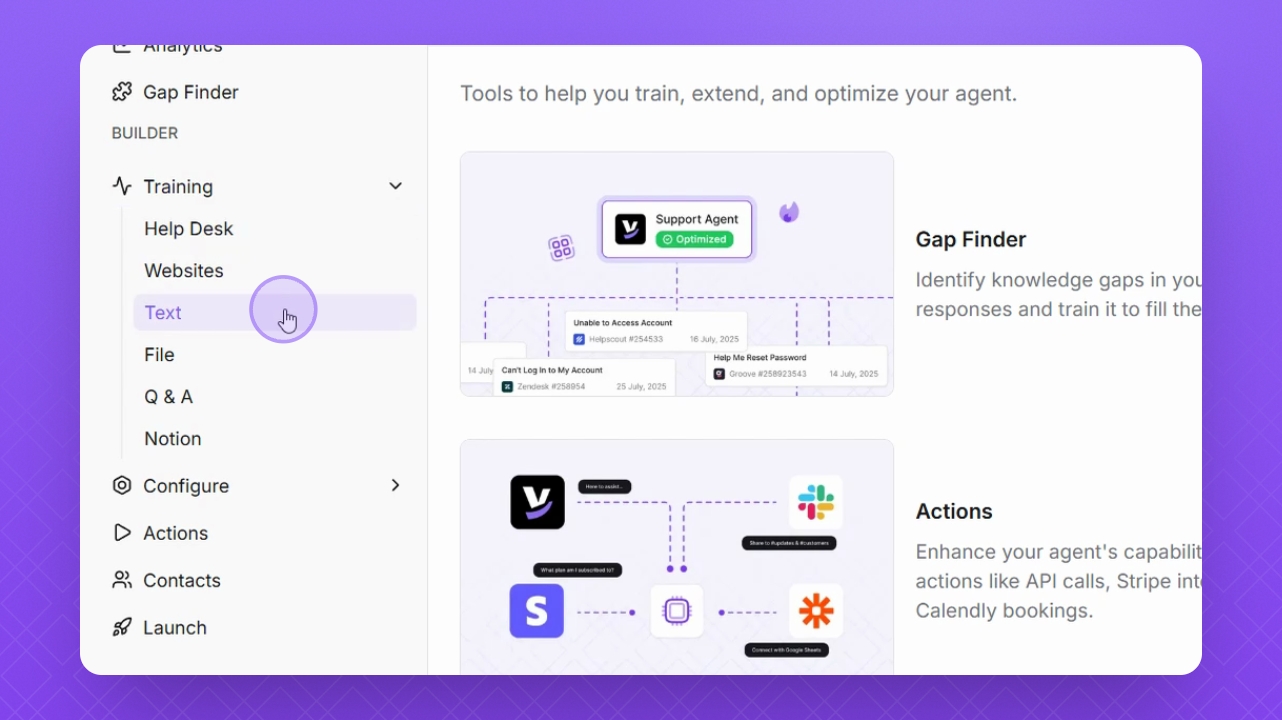
Step 2: Select Text
Select Text to manage text training materials.
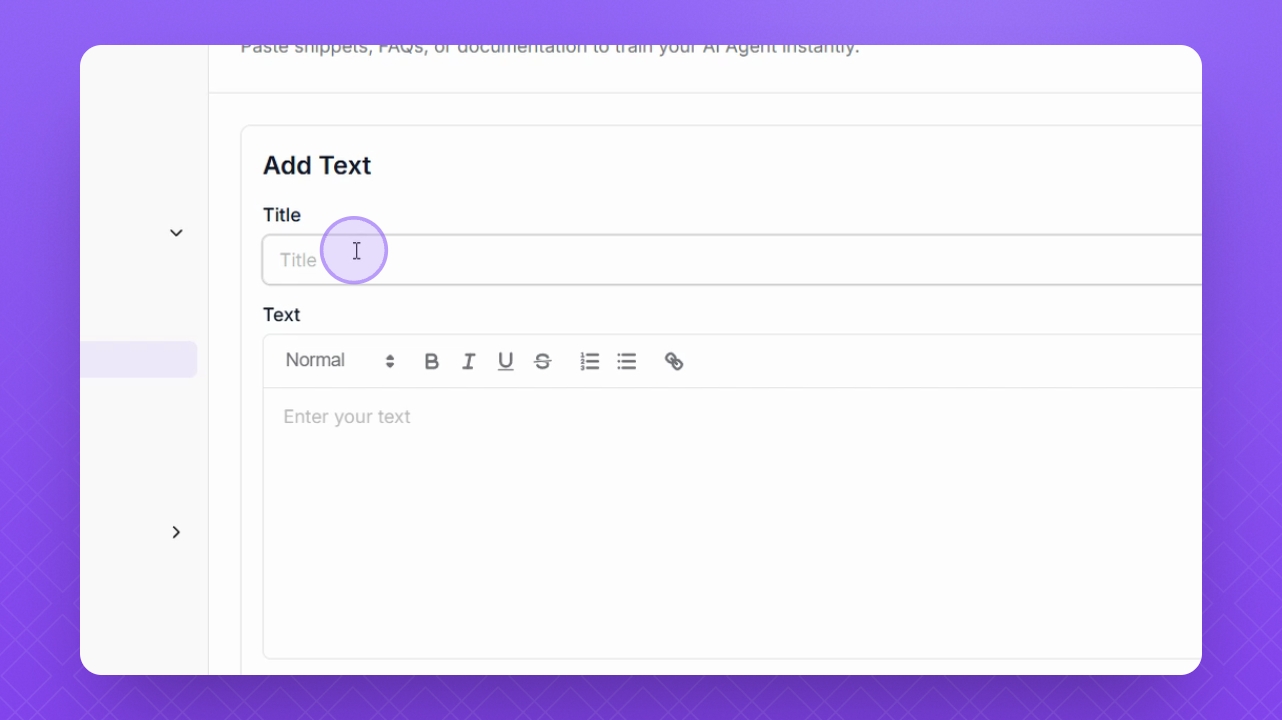
Step 3: Add Title
Add a title for your text training material.
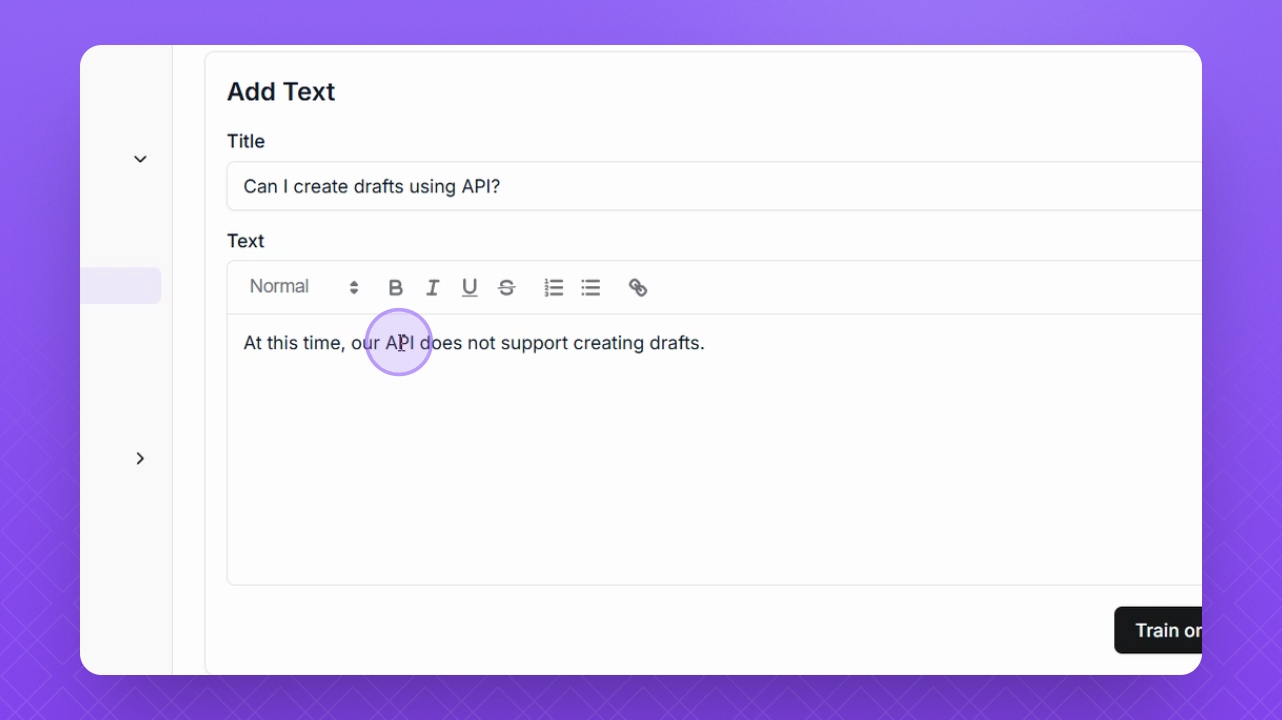
Step 4: Provide Answer
In the Text field, add the Answer corresponding to the title.
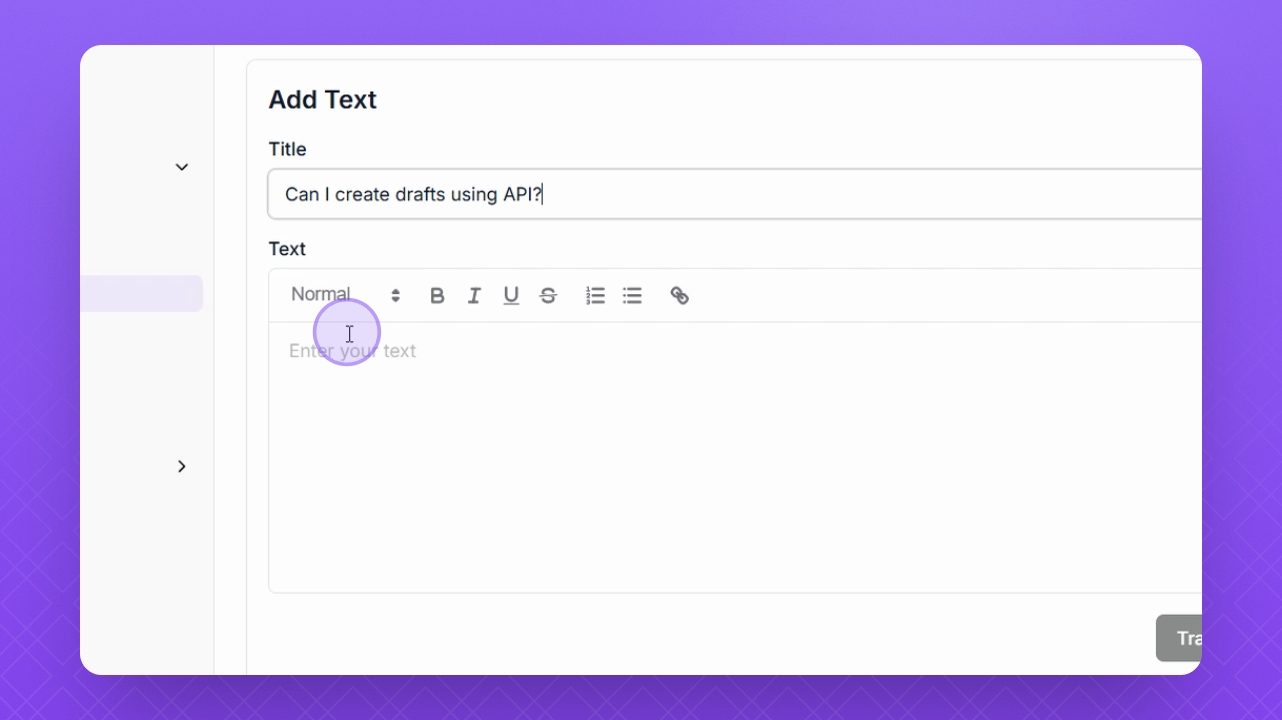
Step 5: Format Text
You can use the toolbar above to format your text as needed.
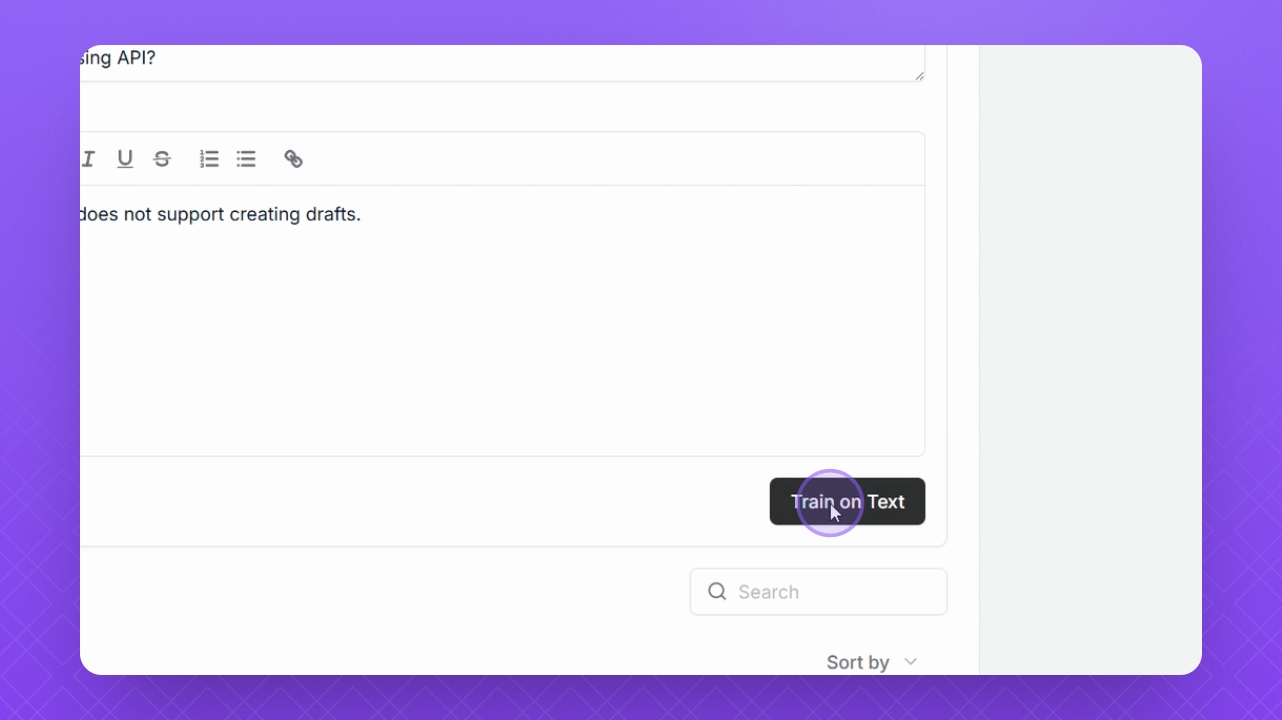
Step 6: Train Text
Once done, click Train on Text to save your training material.
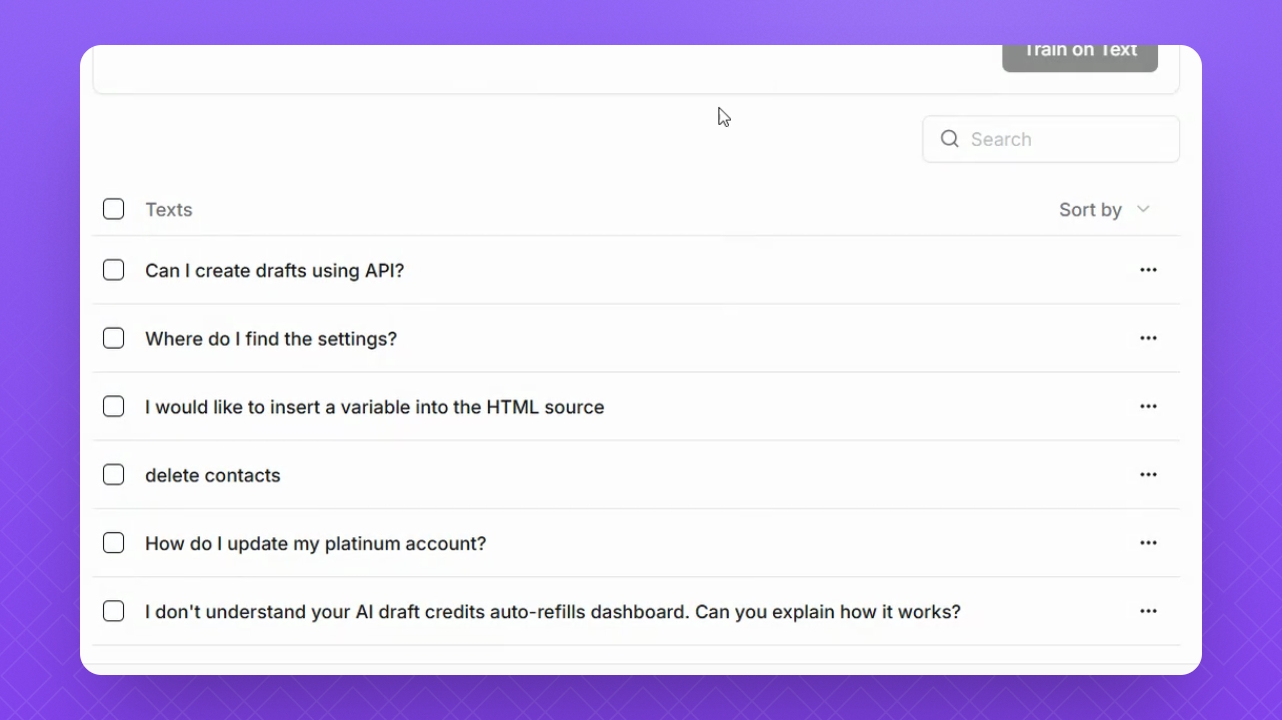
Step 7: Review Training Material
Below, you will see a list of the text training material added to Helply Agent.
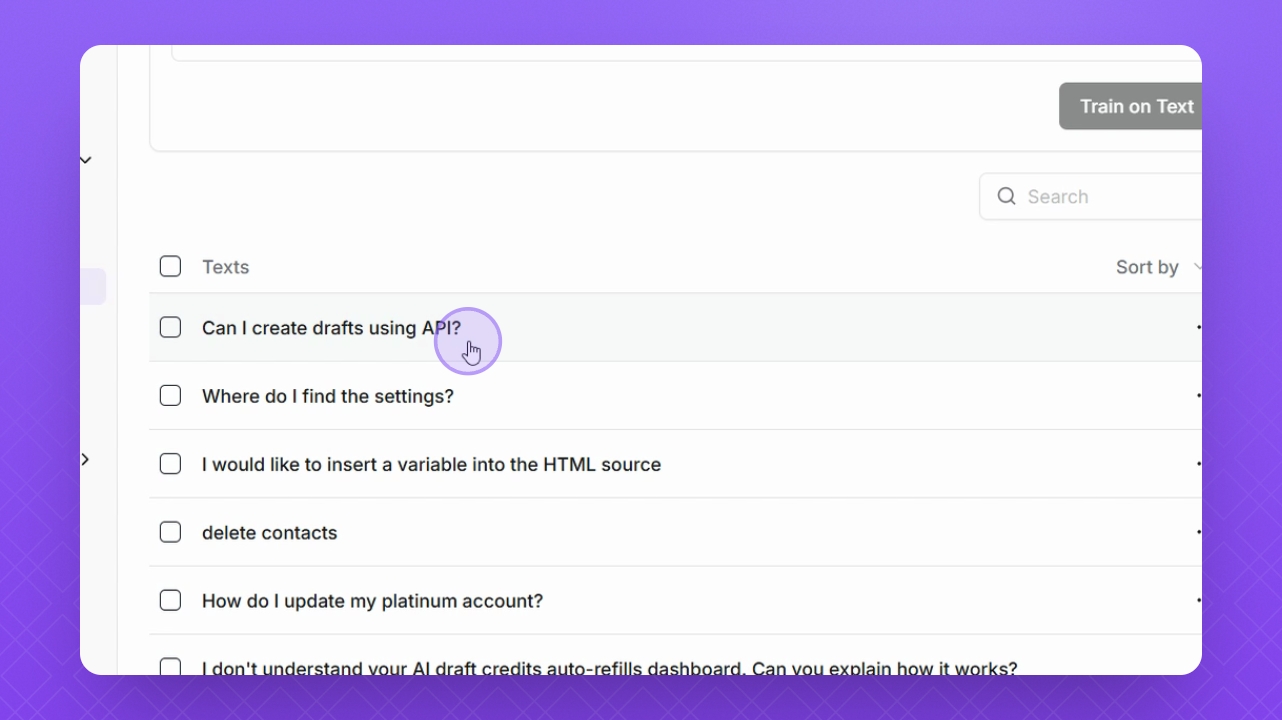
Step 8: Edit Material
Select the text to edit it if necessary.
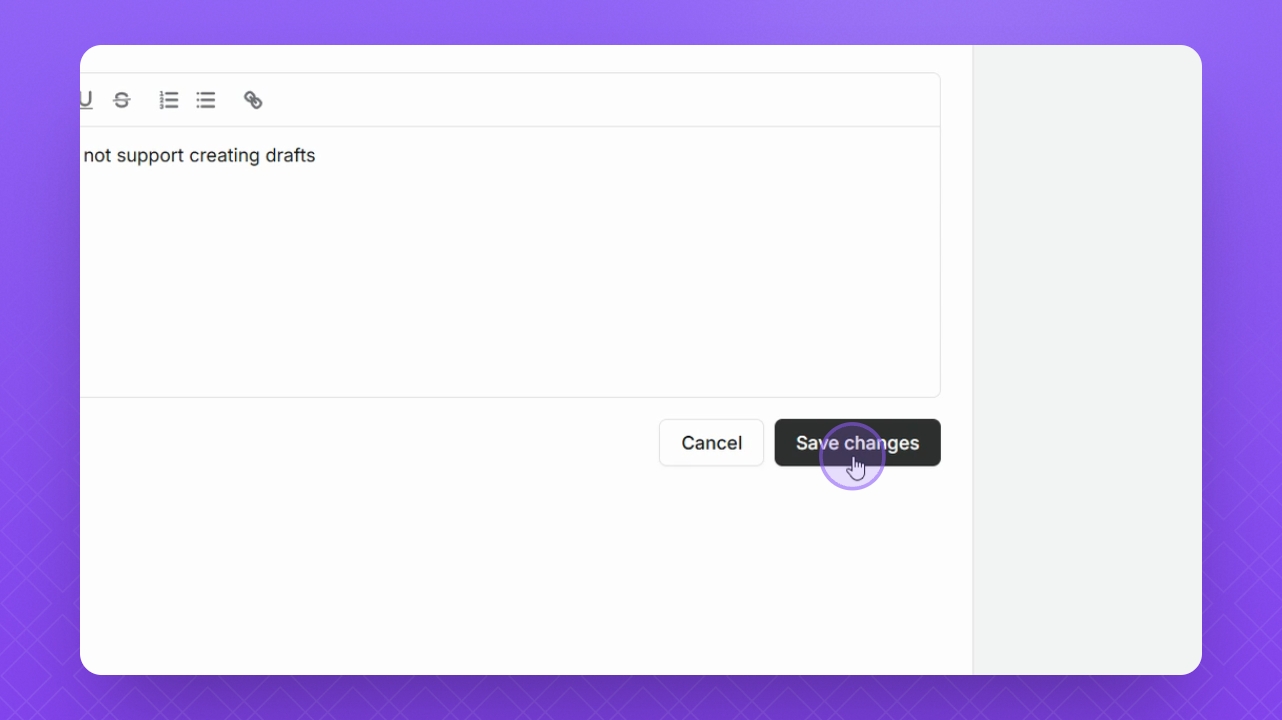
Step 9: Save Changes
Click Save Changes to save any modifications.
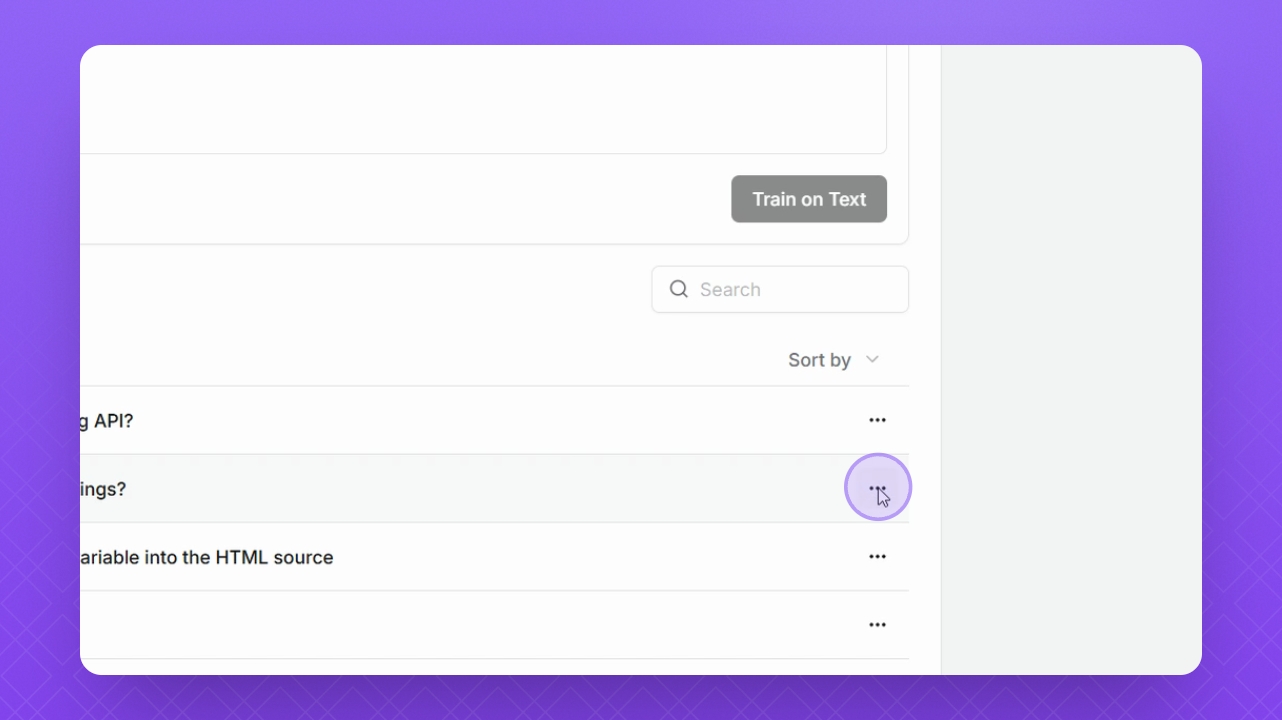
Step 10: Delete Material
To delete training material, click the three dots and select Delete.
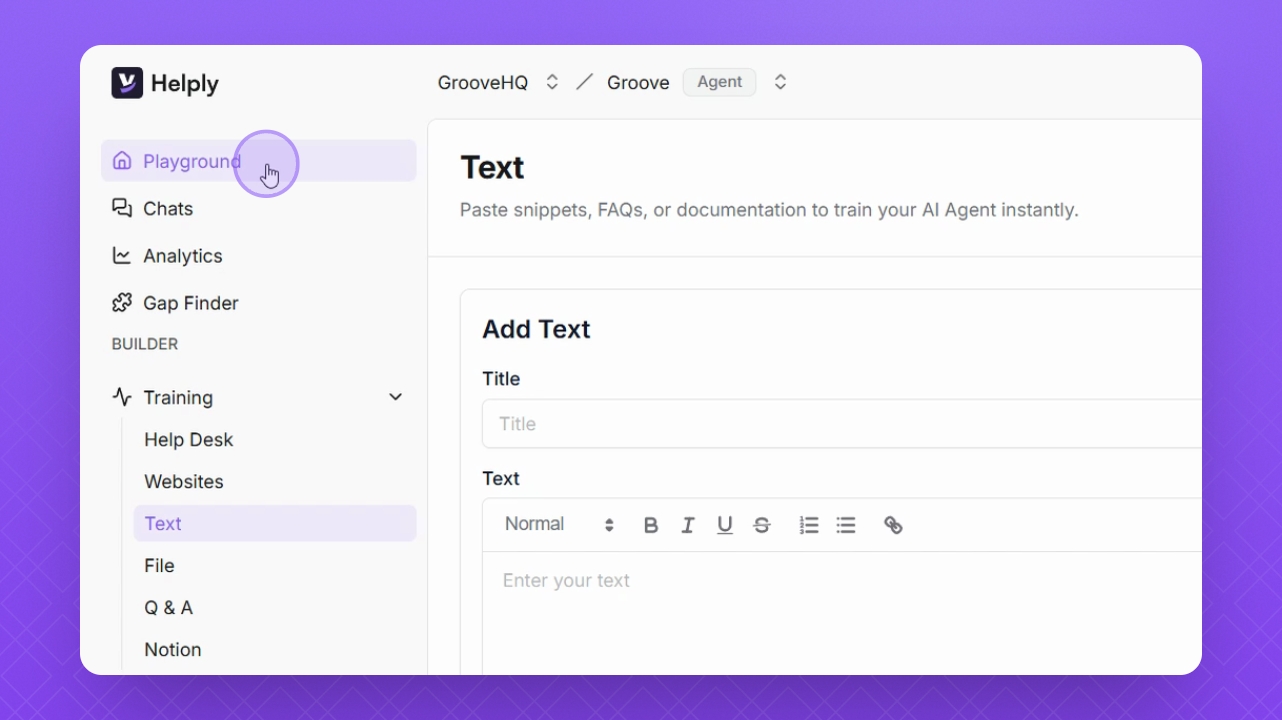
Step 11: Test in Playground
Go to Playground on the left to test the Helply Test Agent.
Step 12: Reset Conversation
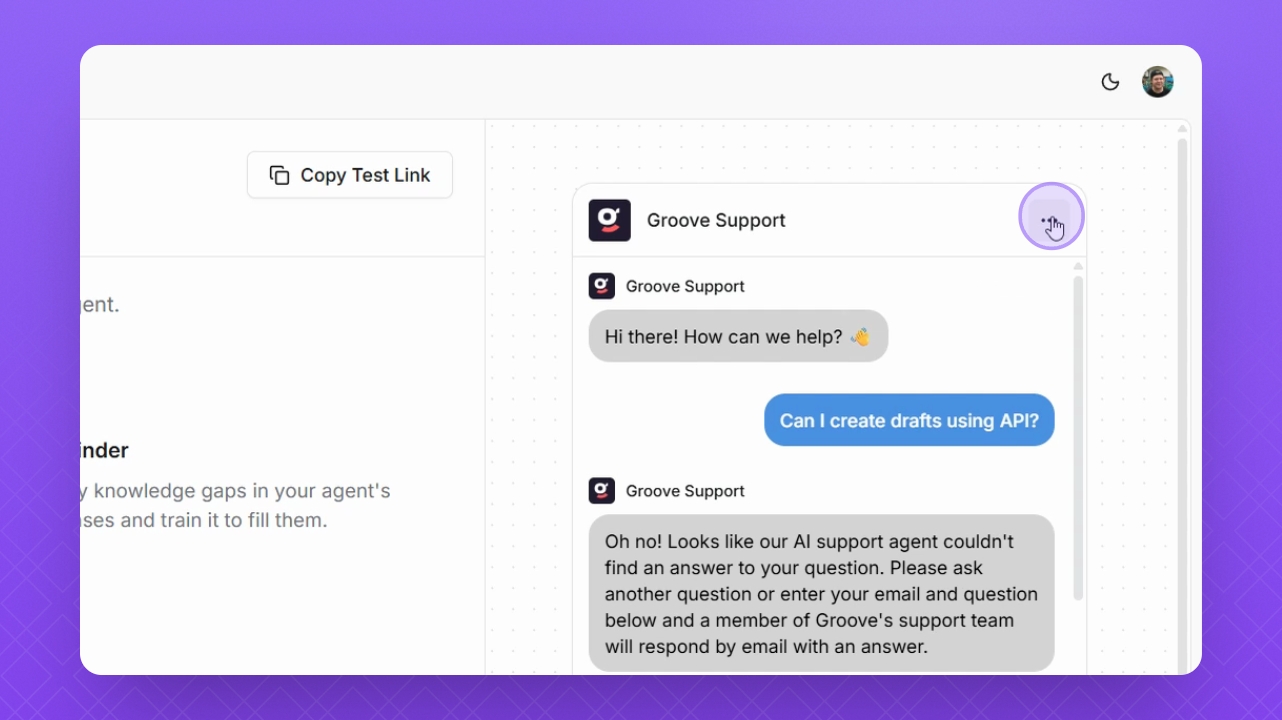
Before testing, click the three dots on the top right and reset the conversation.
Step 13: Ask a Question
Type the question in the text box below and click Send.