Let's do it together!
Step 1: Access Chats
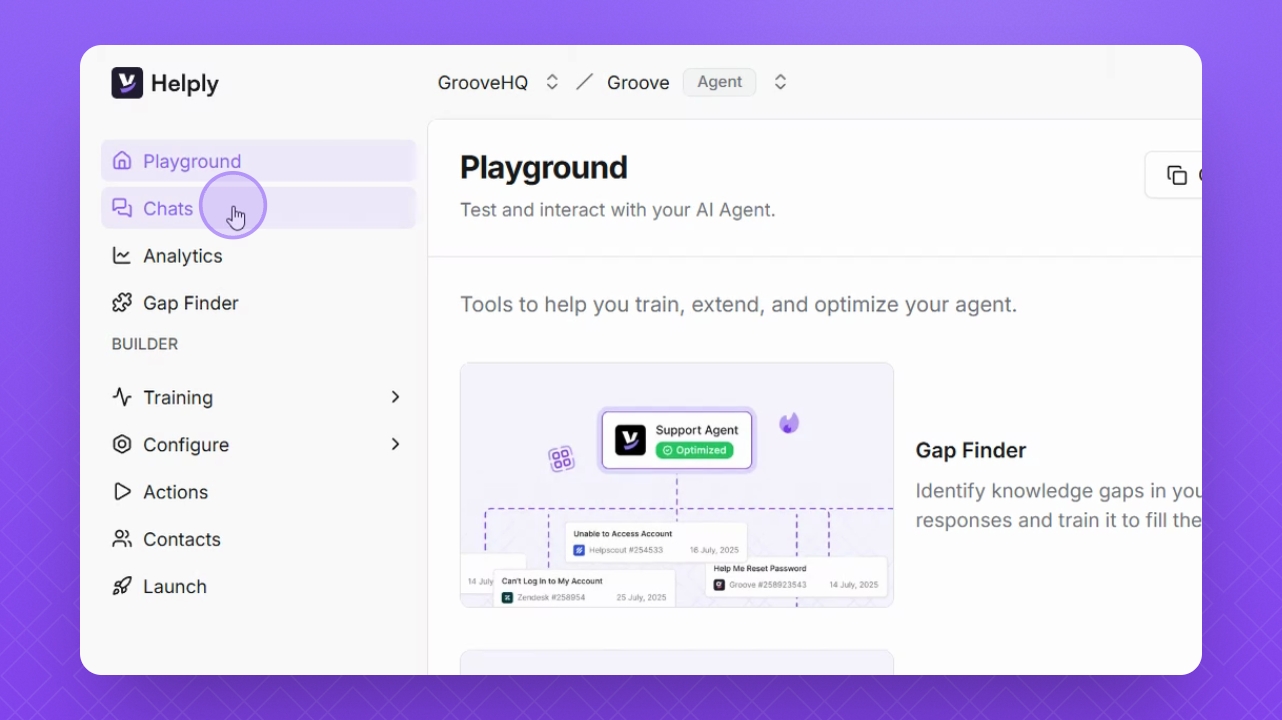
Navigate to the Chats section on the left side of your Helply interface.
Step 2: Understand Chats
Chats help you track conversations within your Helply agent and internal tests.
Step 3: View Chat List
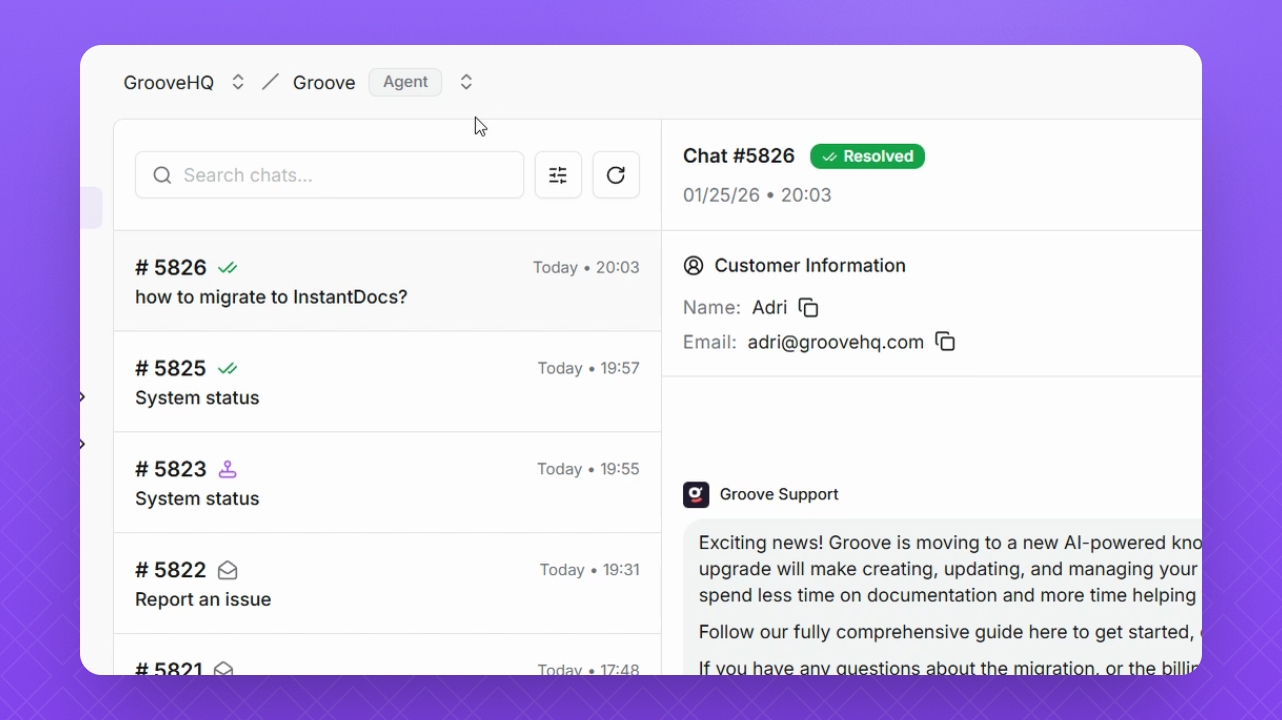
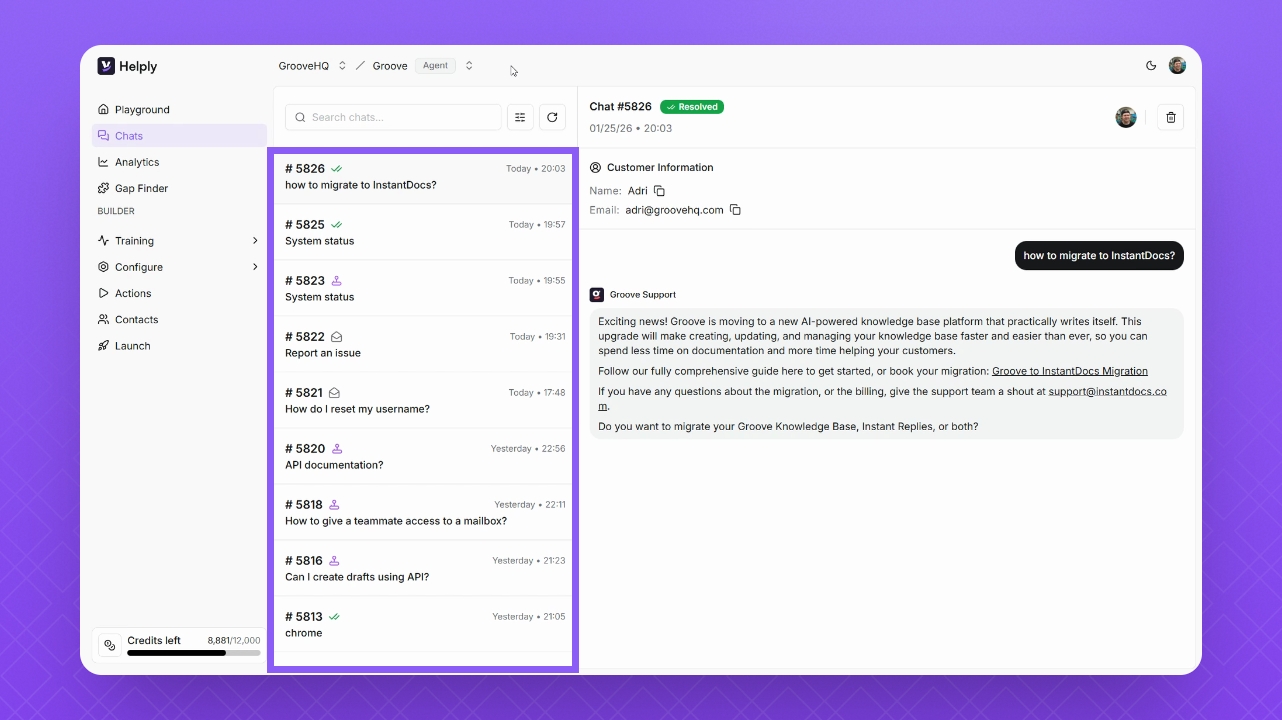
Chats are displayed numerically, with the newest chat at the top of the list.
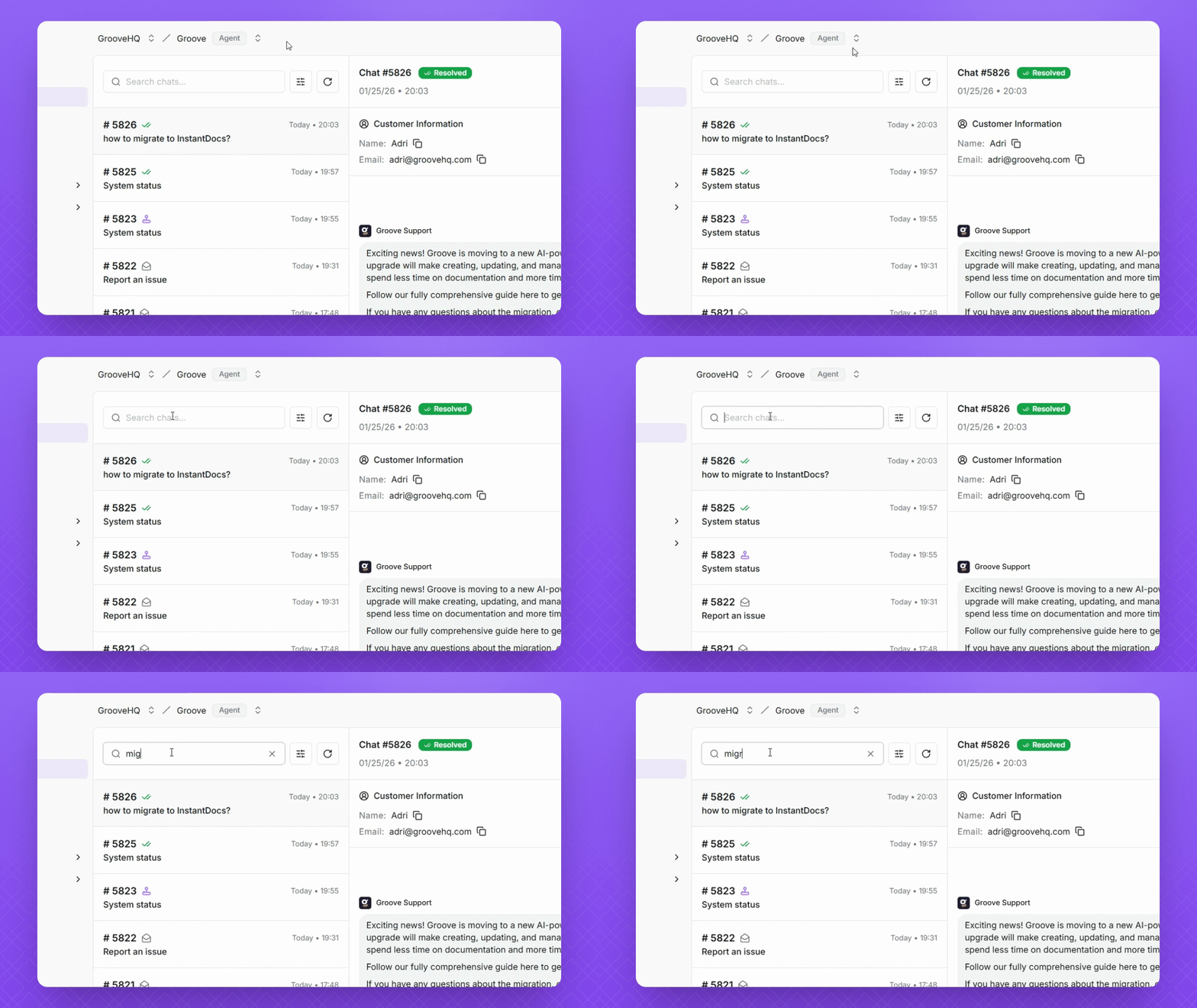
Step 4: Filter Chats
Use the search bar to filter your chats. Alternatively, click the Filter button to filter by date, range, or source.
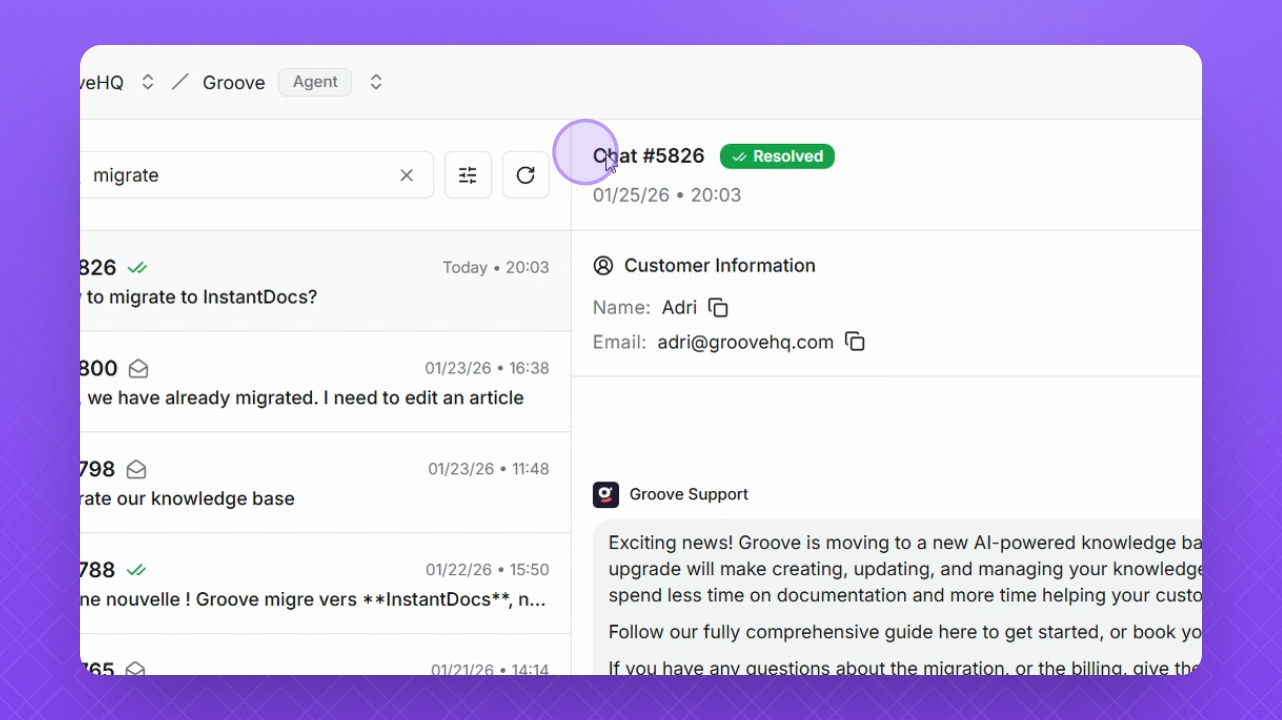
Step 5: Review Chat Details
On the right side, view the chat label, current chat state, and the time and date stamp.
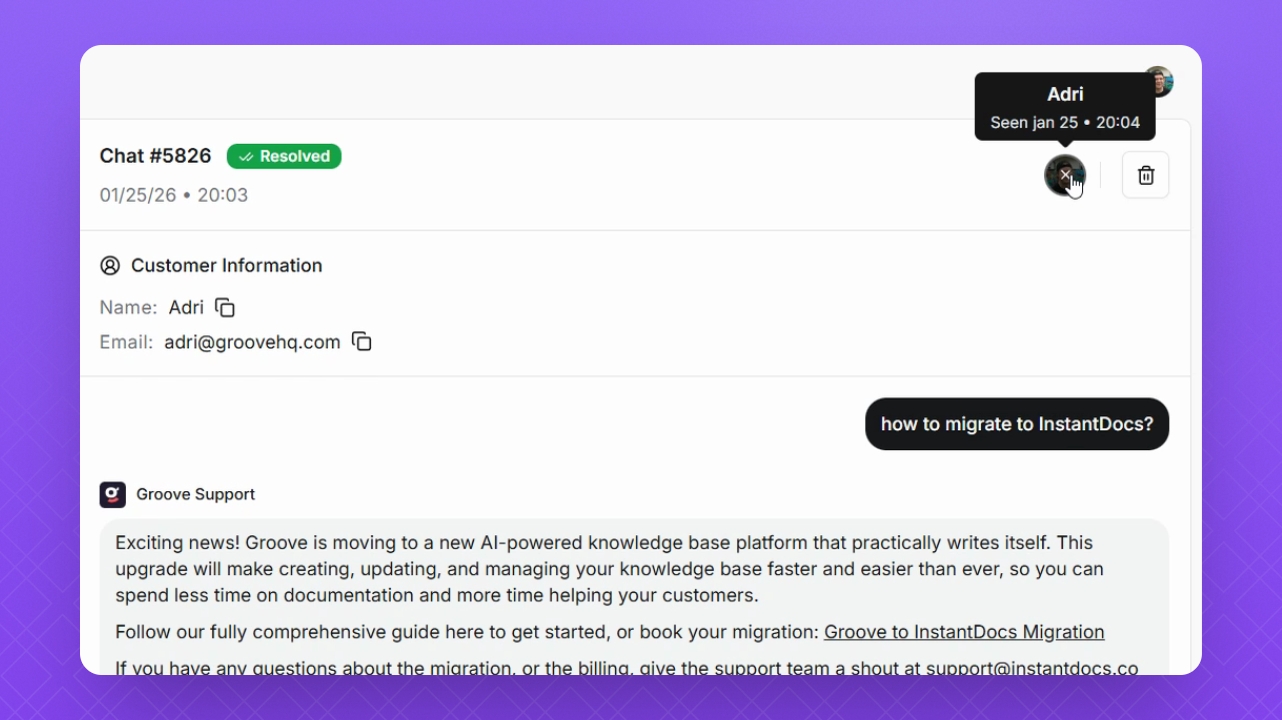
Step 6: Seen Icon
Next to the chat details, the Seen icon indicates which workspace member has viewed the chat along with the timestamp.
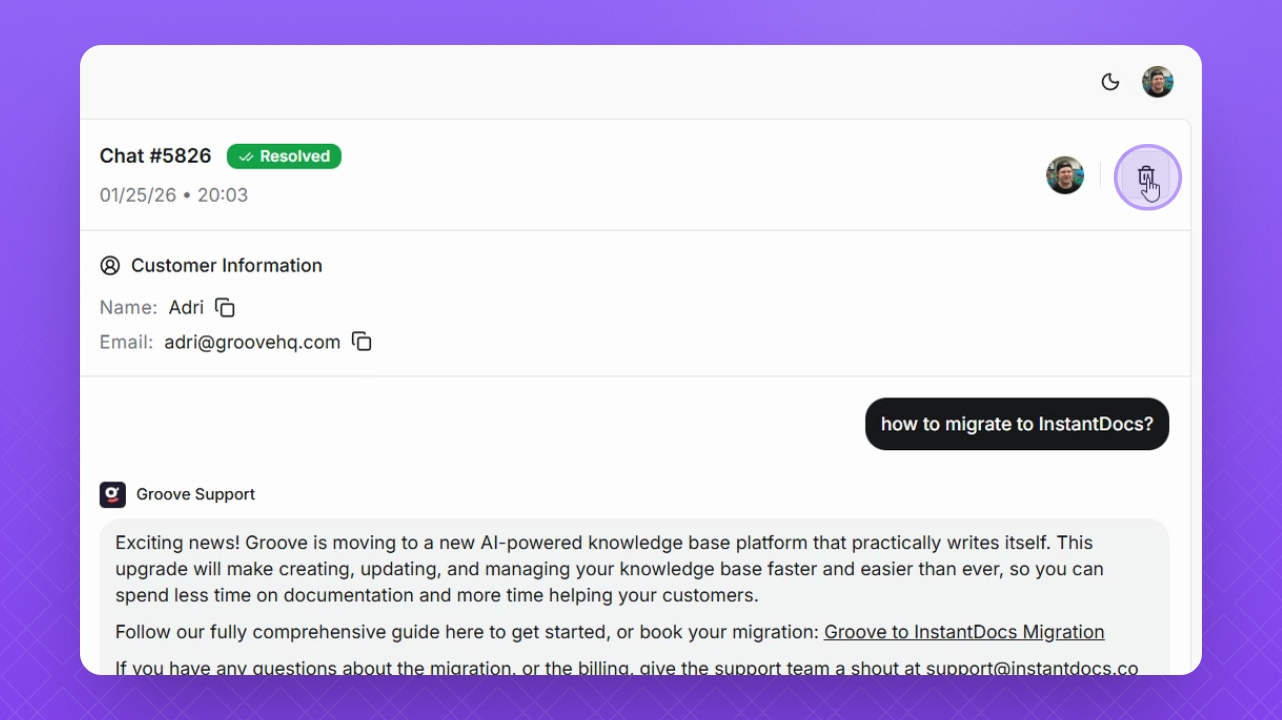
Step 7: Delete Conversation
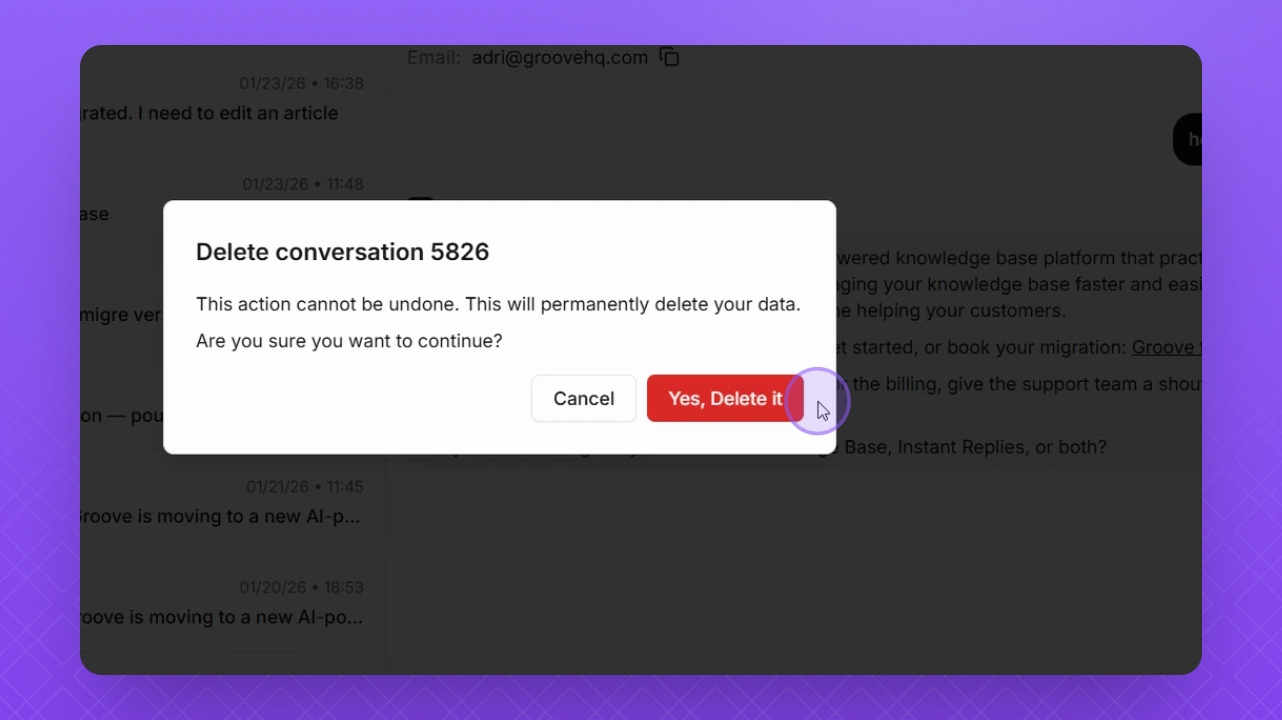
Click the Delete button to remove the conversation permanently.
Step 8: Note Deletion Warning
Be aware that deletion is permanent and cannot be undone.
Step 9: View Customer Info
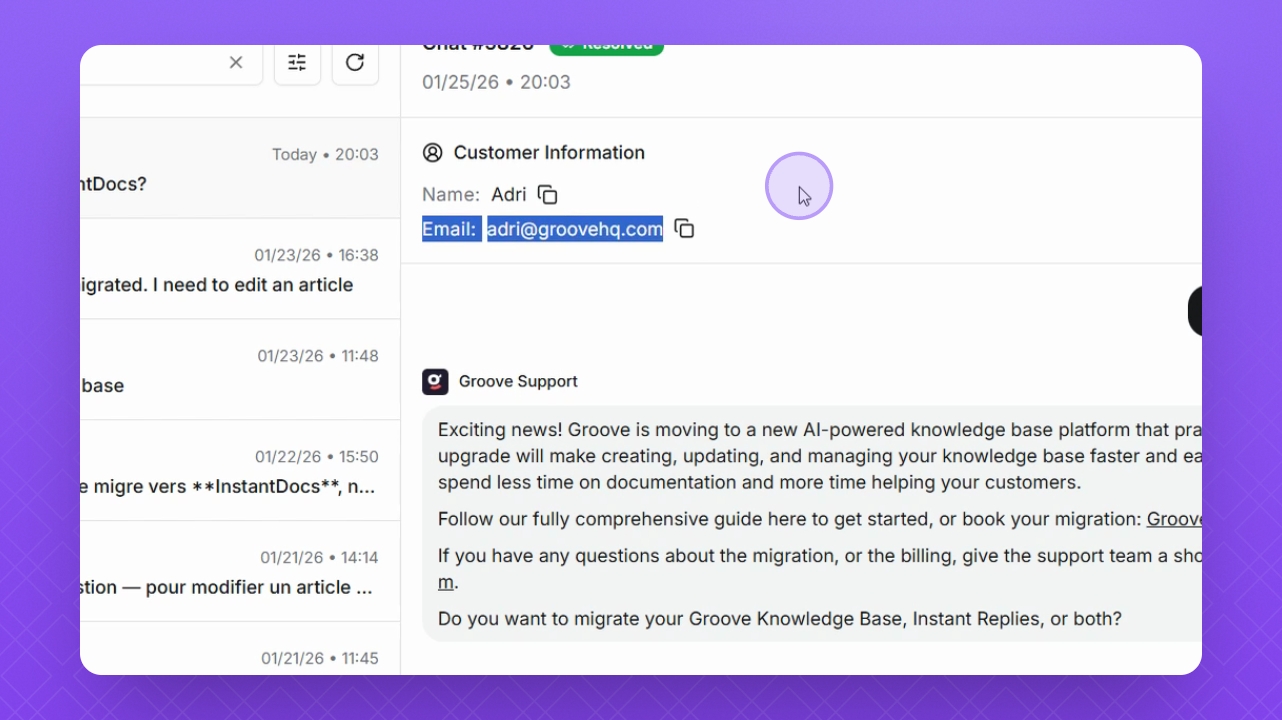
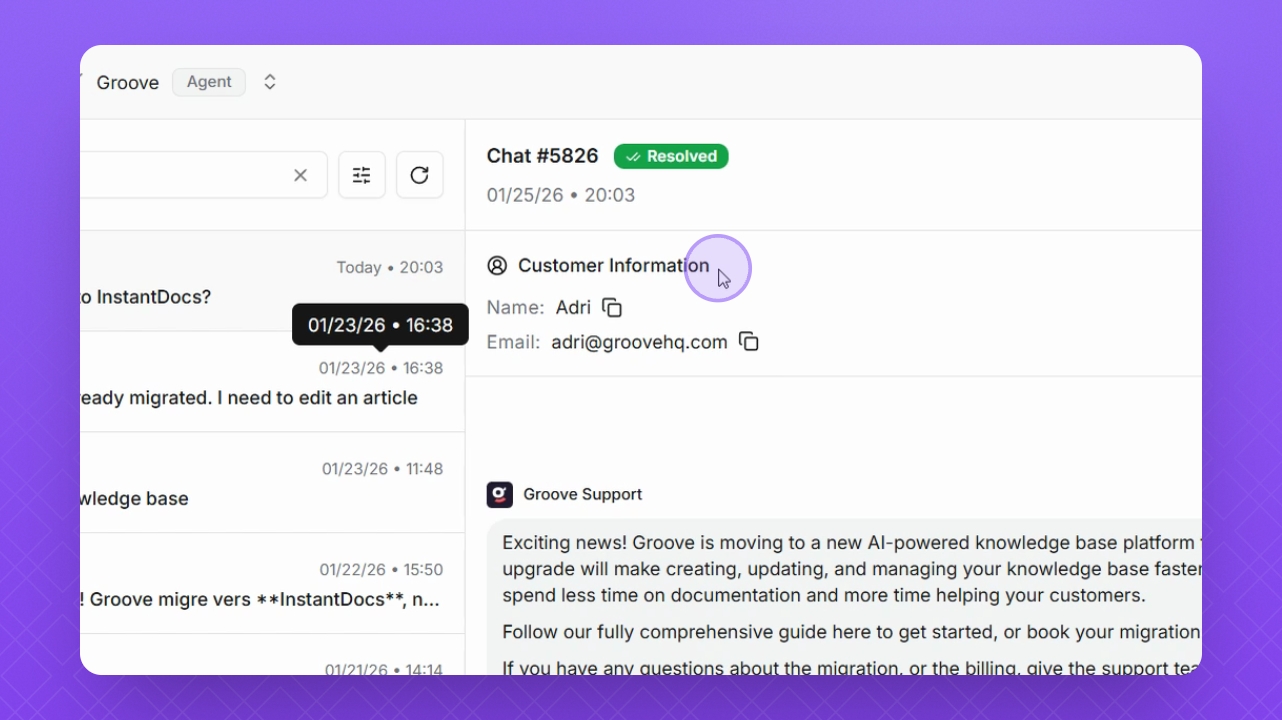
Below the chat, review the customer's contact information if available. If they escalated through a contact form, this information will be displayed.
Step 10: Anonymous Chats
If no information is available, the chat will remain anonymous.