Let's do it together!
Step 1: Access Profile
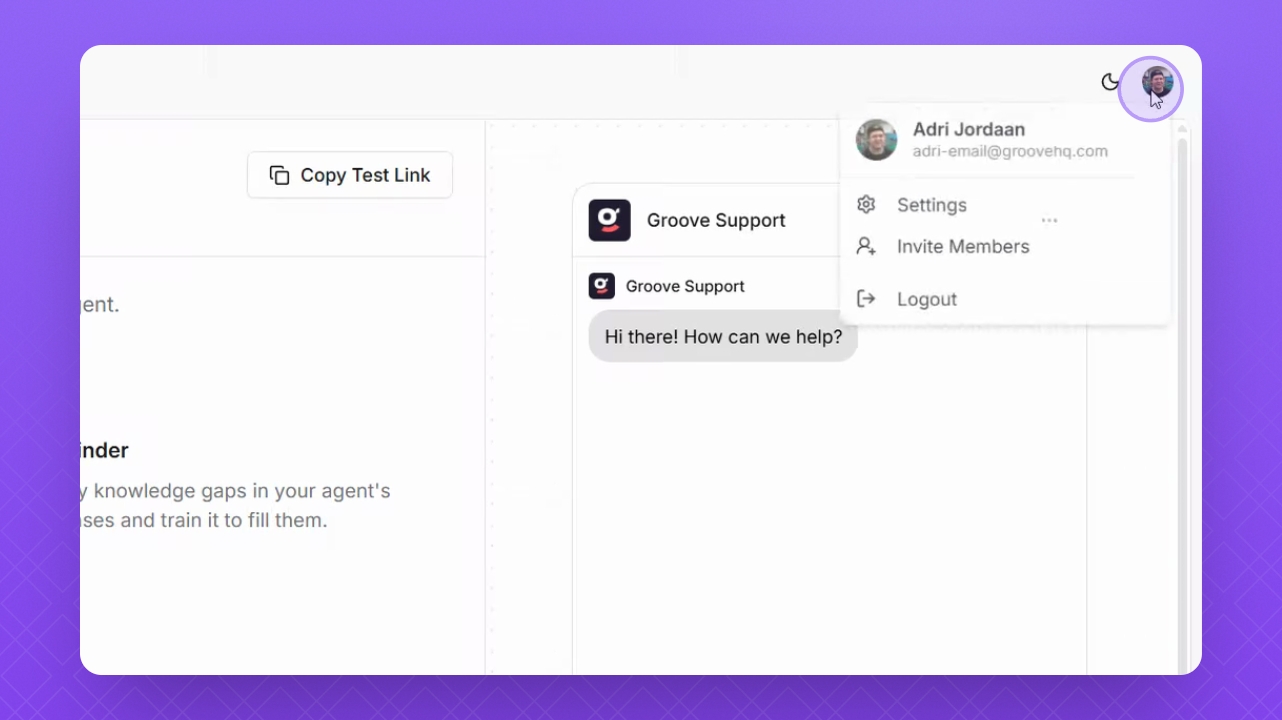
Click your profile icon in the top right corner of the workspace.
Step 2: Open Settings
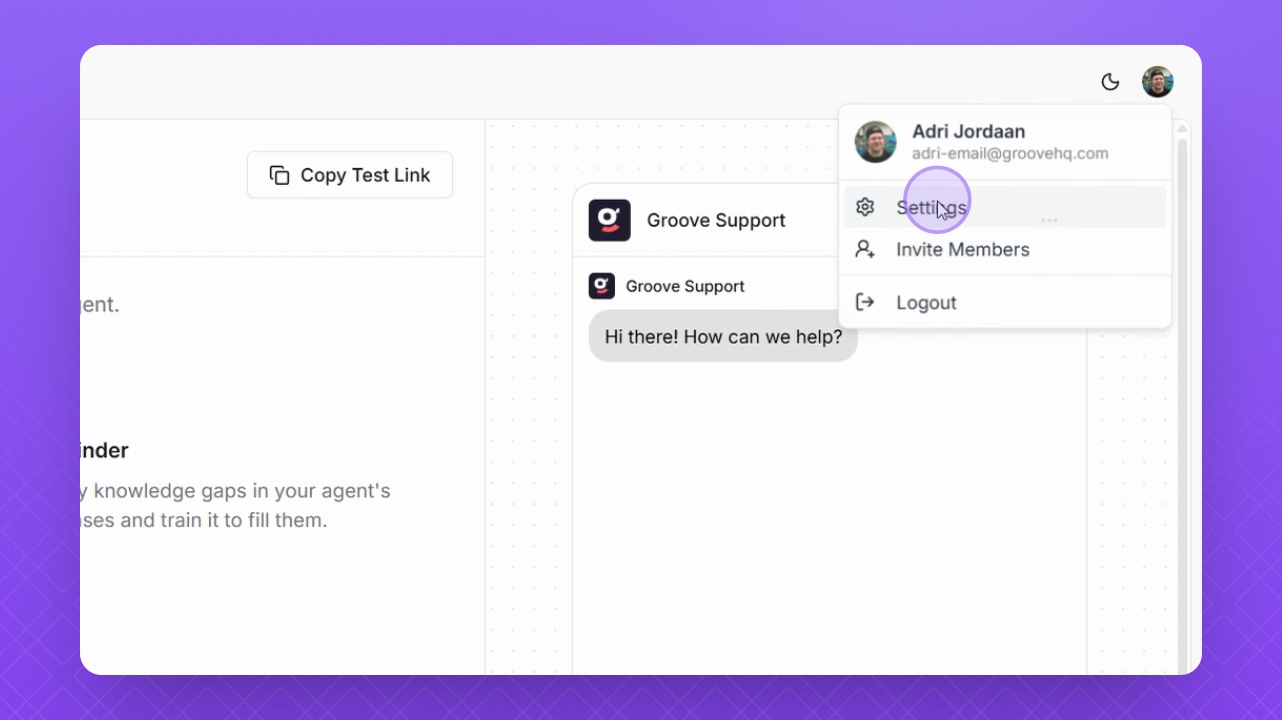
Select Settings from the dropdown menu.
Step 3: Navigate to Members
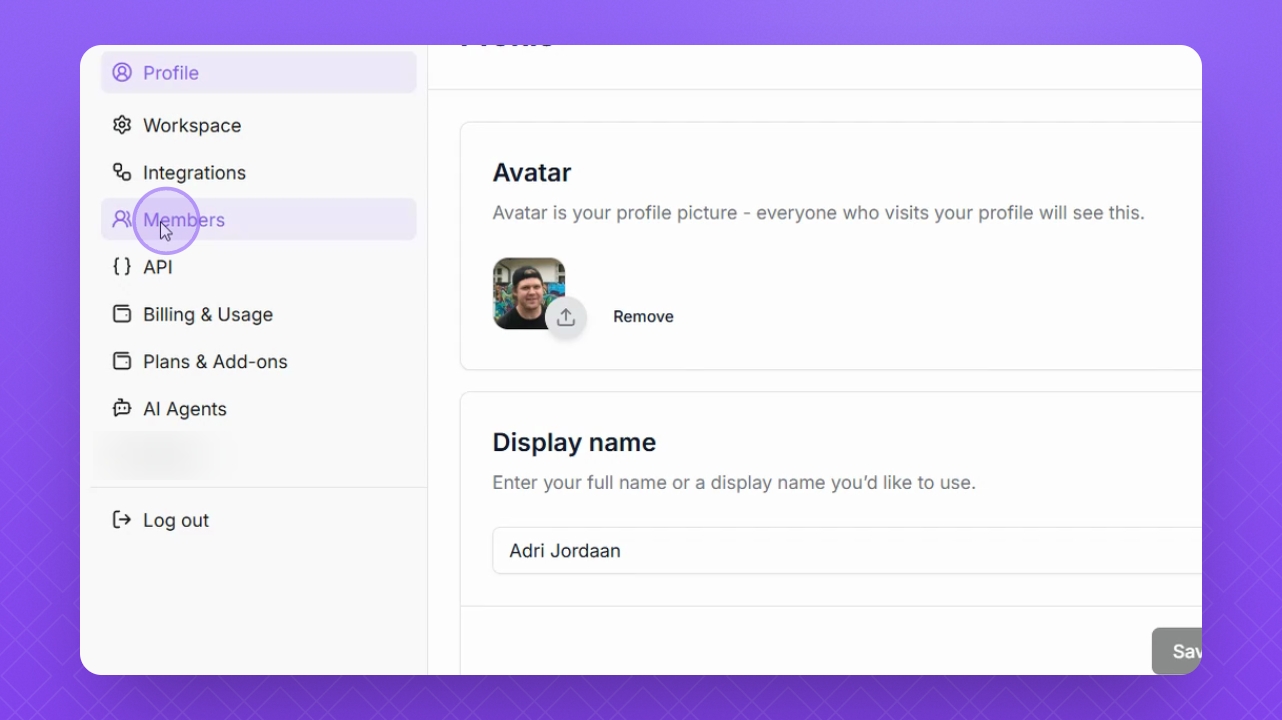
Select Members to view user roles.
Step 4: Understand Roles
There are three different user roles: Primary Owner, Owner, and Member:
Primary Owner: Can manage Members, manage Owners, manage billing, create and configure AI agents.
Owner: Can manage Members, manage billing, create and configure AI agents. They cannot manage other Owners or the Primary Owner.
Member: Cannot manage billing, or other member roles.
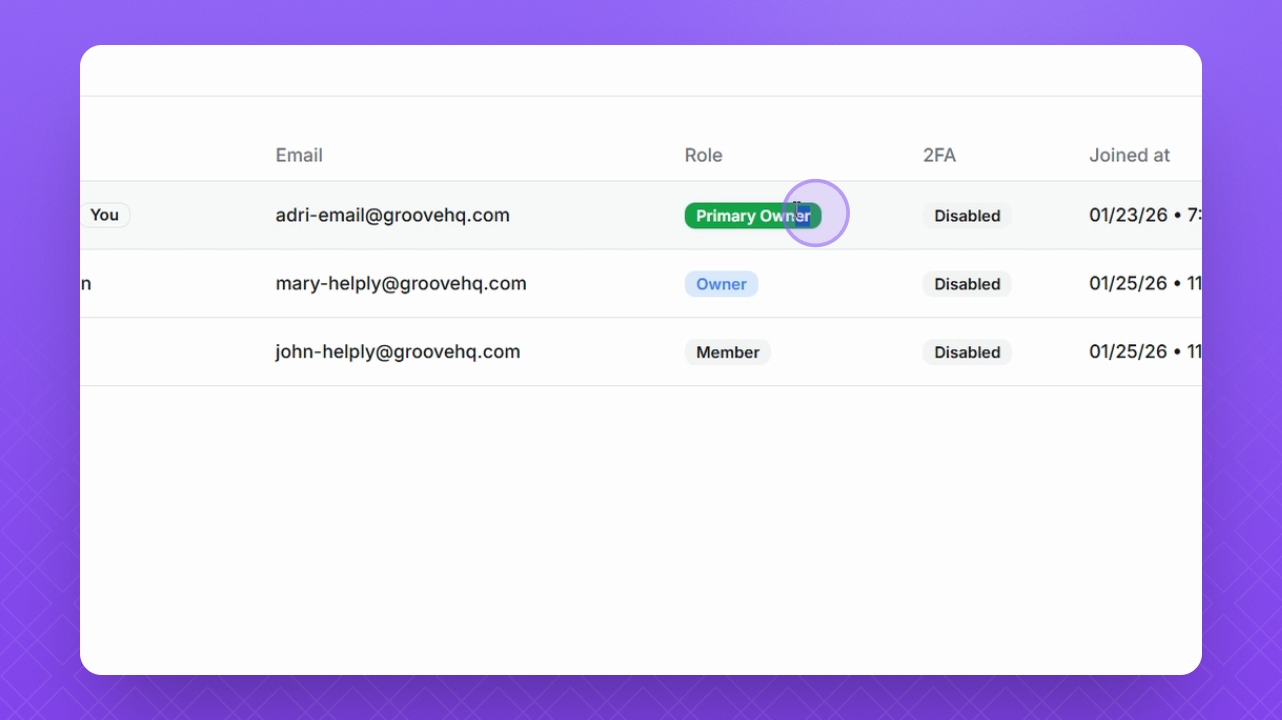
Step 5: Manage Users
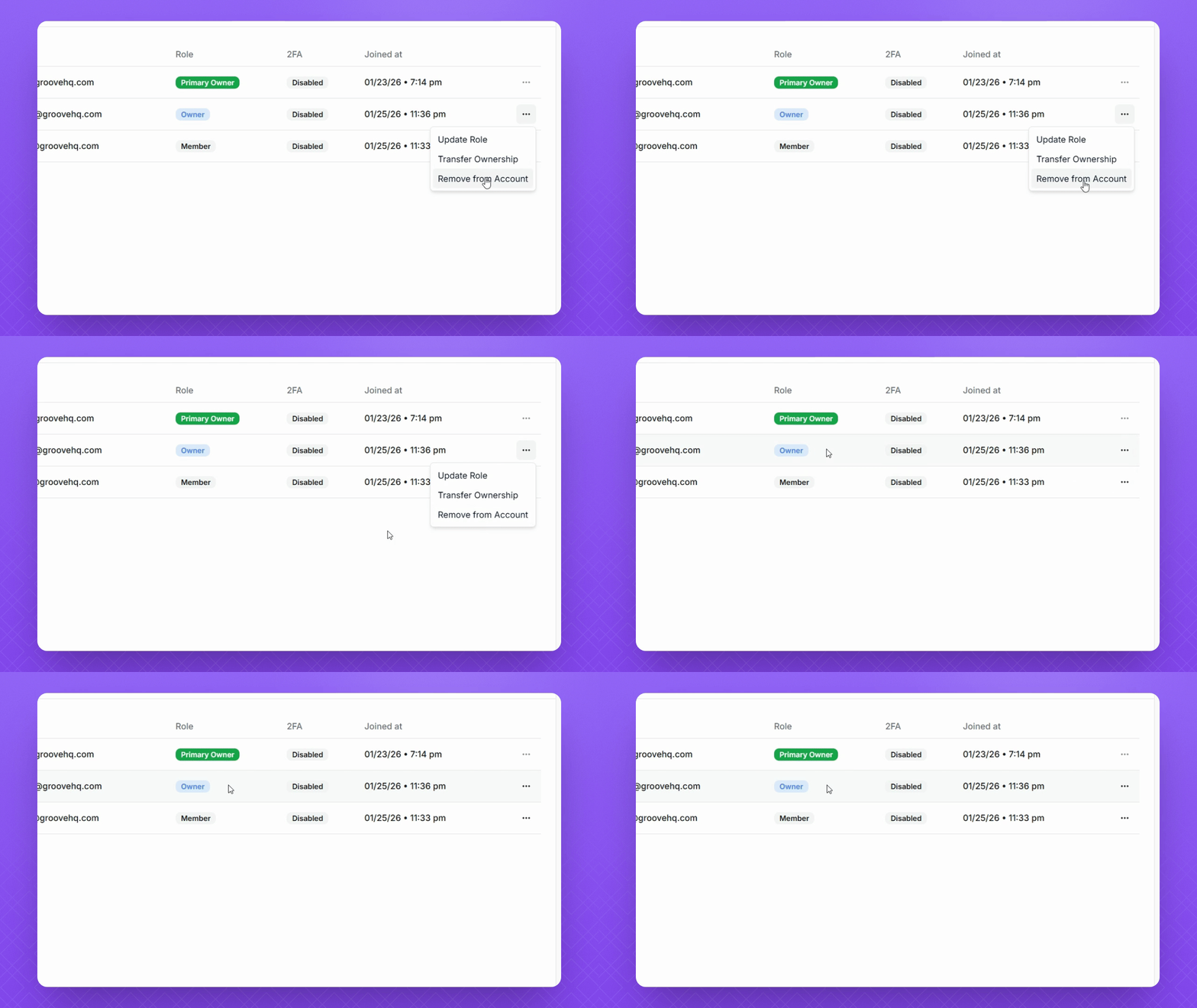
To manage a user, hover over their role and select the three dots.
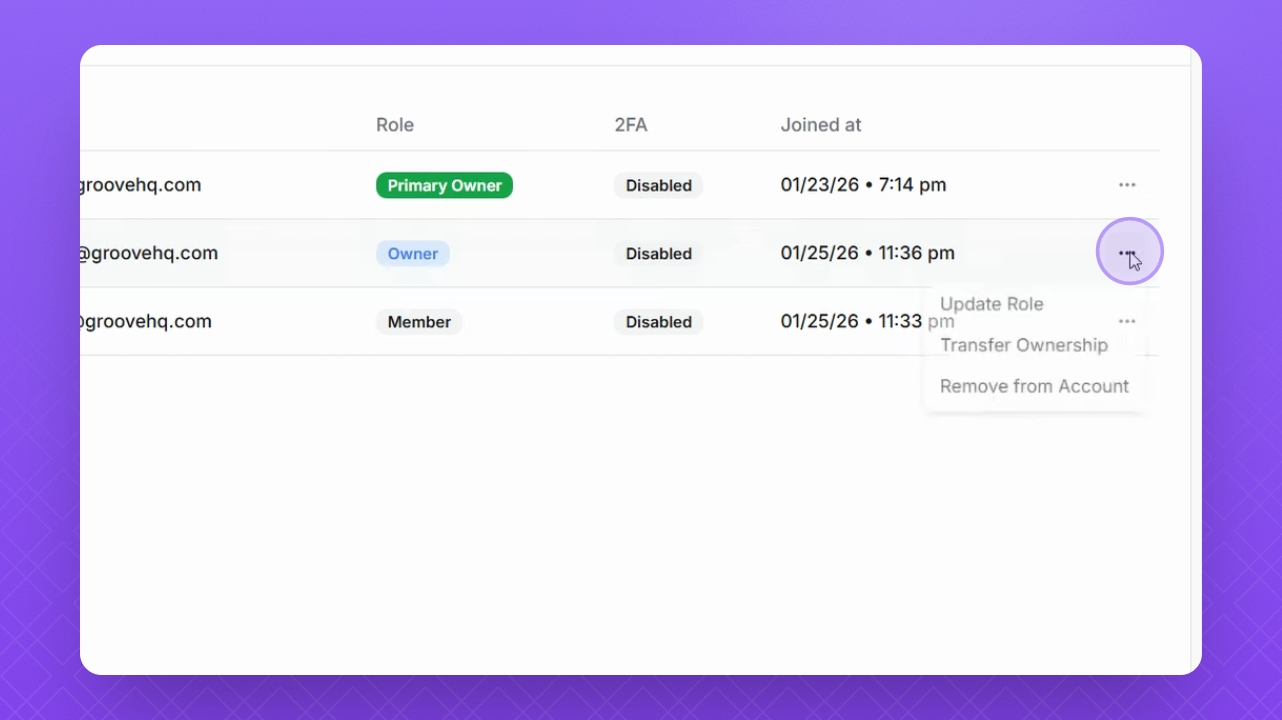
Step 6: Update Role
Select Update Role from the options, choose a new role from the dropdown, and click Update Role.
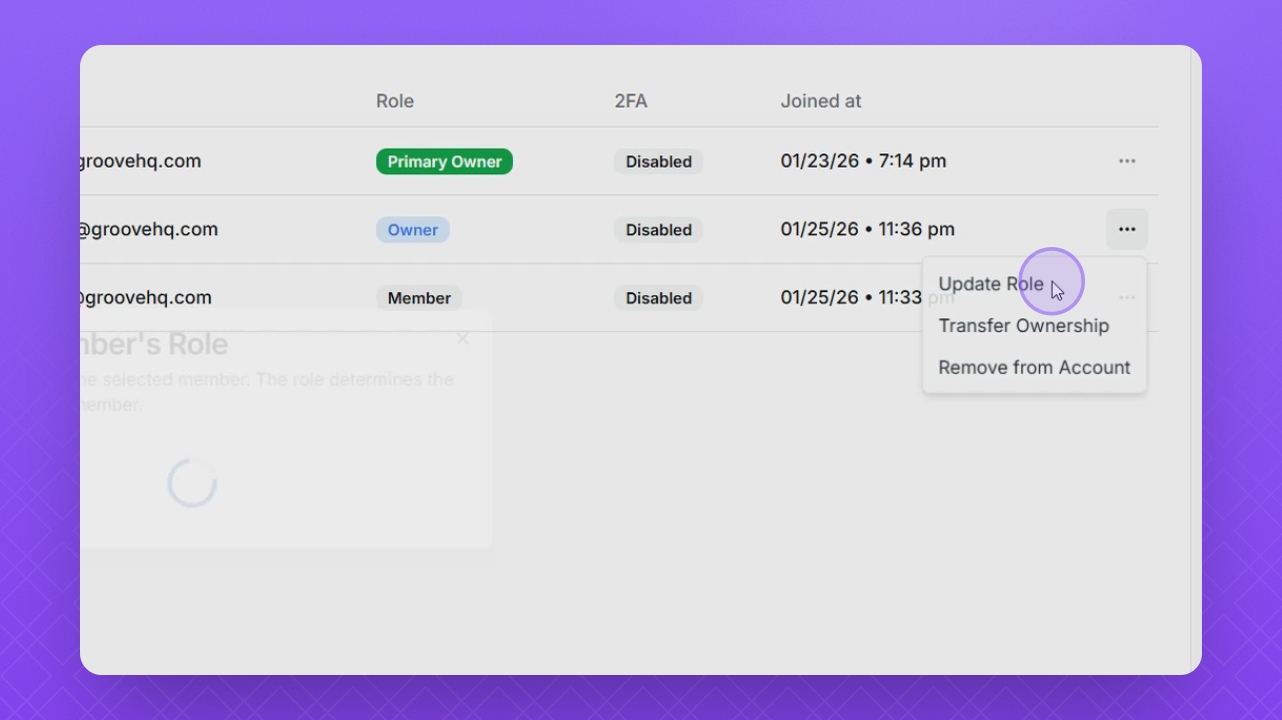
Step 7: Transfer Ownership
Use the three dots while hover over the user to transfer ownership if needed.
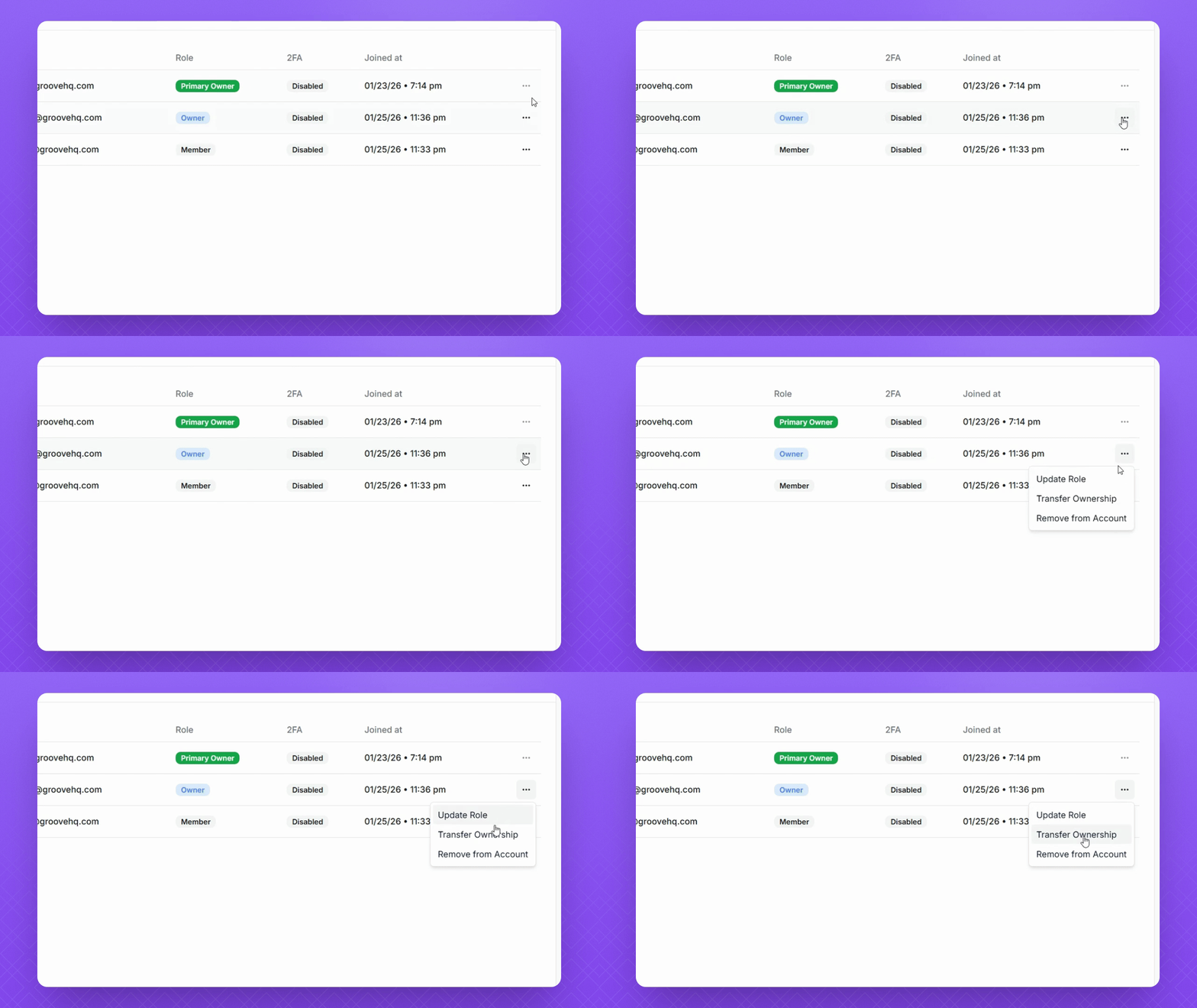
Step 8: Remove User
You can also remove the user account using the three dots while hover over the user role.