Let's do it together!
Step 1: Understand the tool
Gapfinder helps identify and fill gaps in your AI agent's knowledge by analyzing help desk tickets.
Step 2: Review answered questions
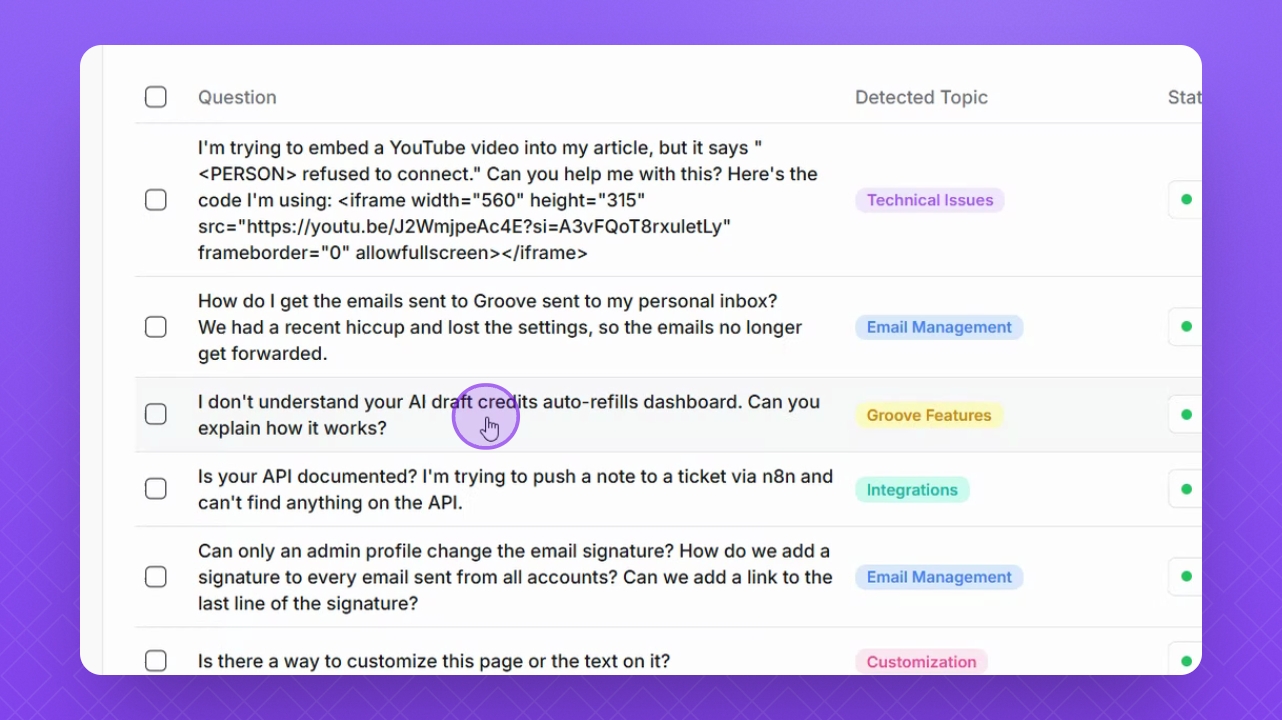
Select a question from the list to explore in depth. The AI provides a suggested answer based on previous tickets.
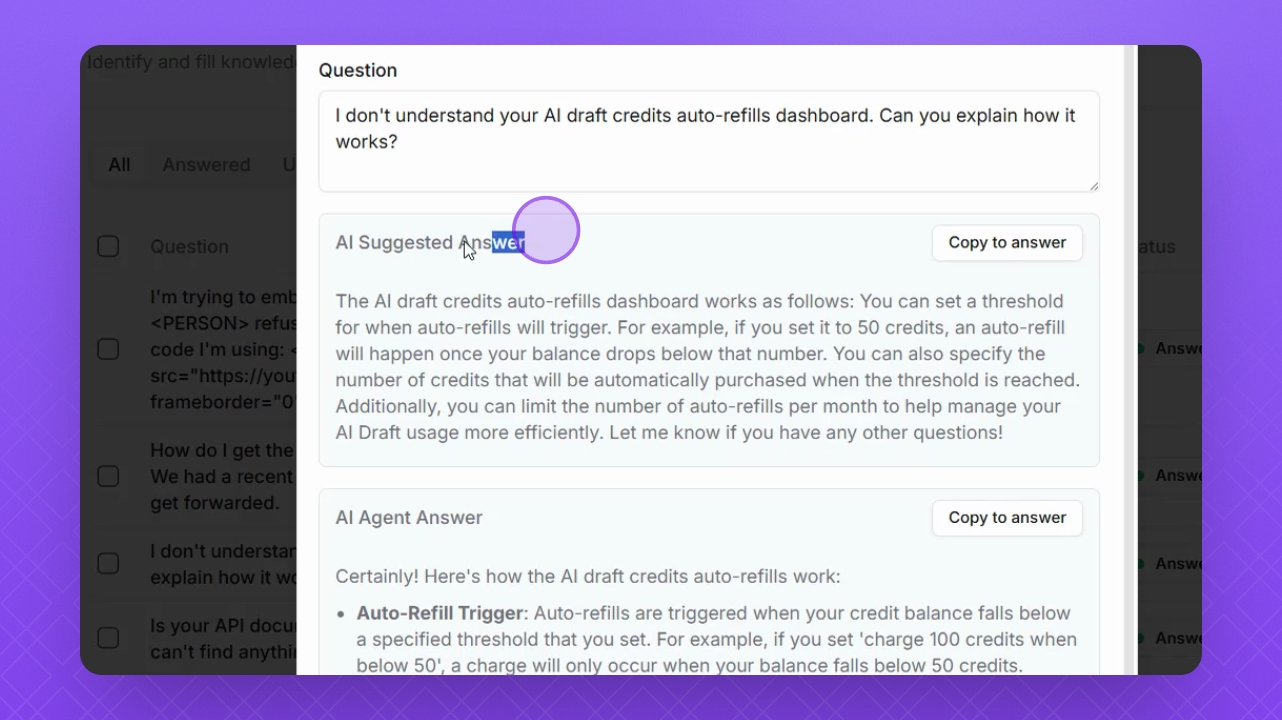
Step 3: Suggested answer
The suggested answer is generated from your help desk history and can be reviewed, edited, and approved.
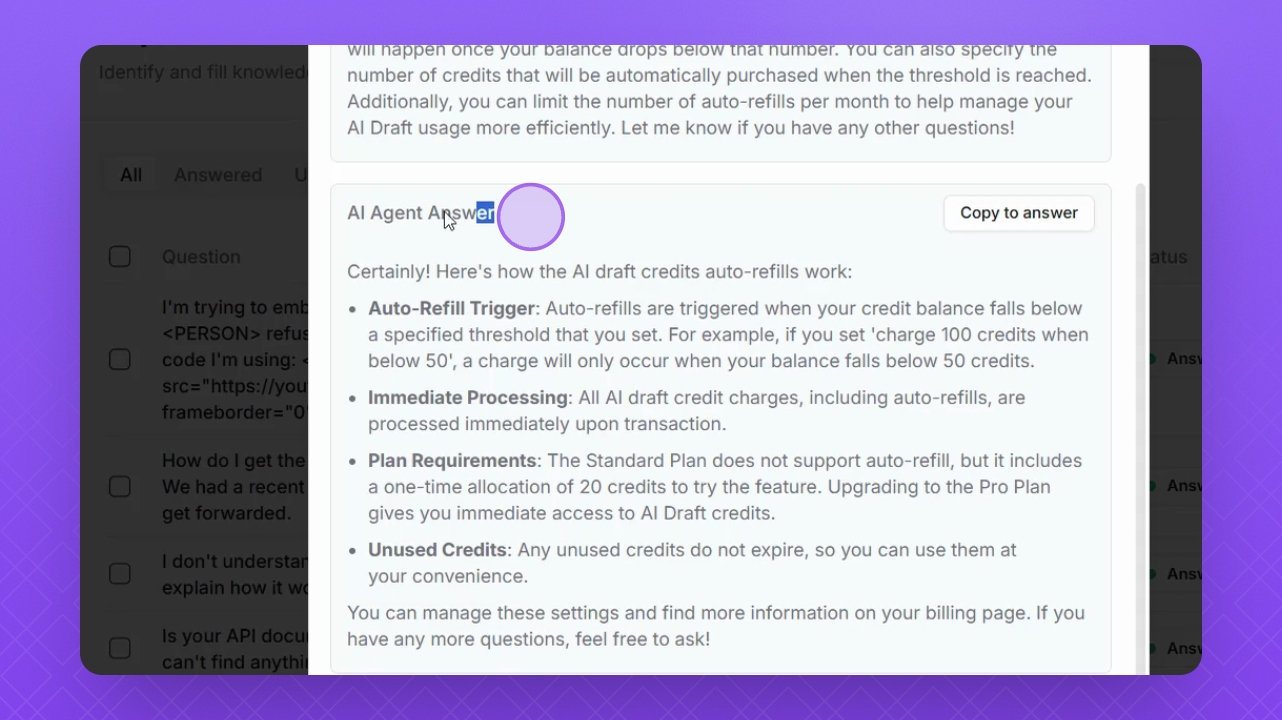
Step 4: Use AI agent's answer
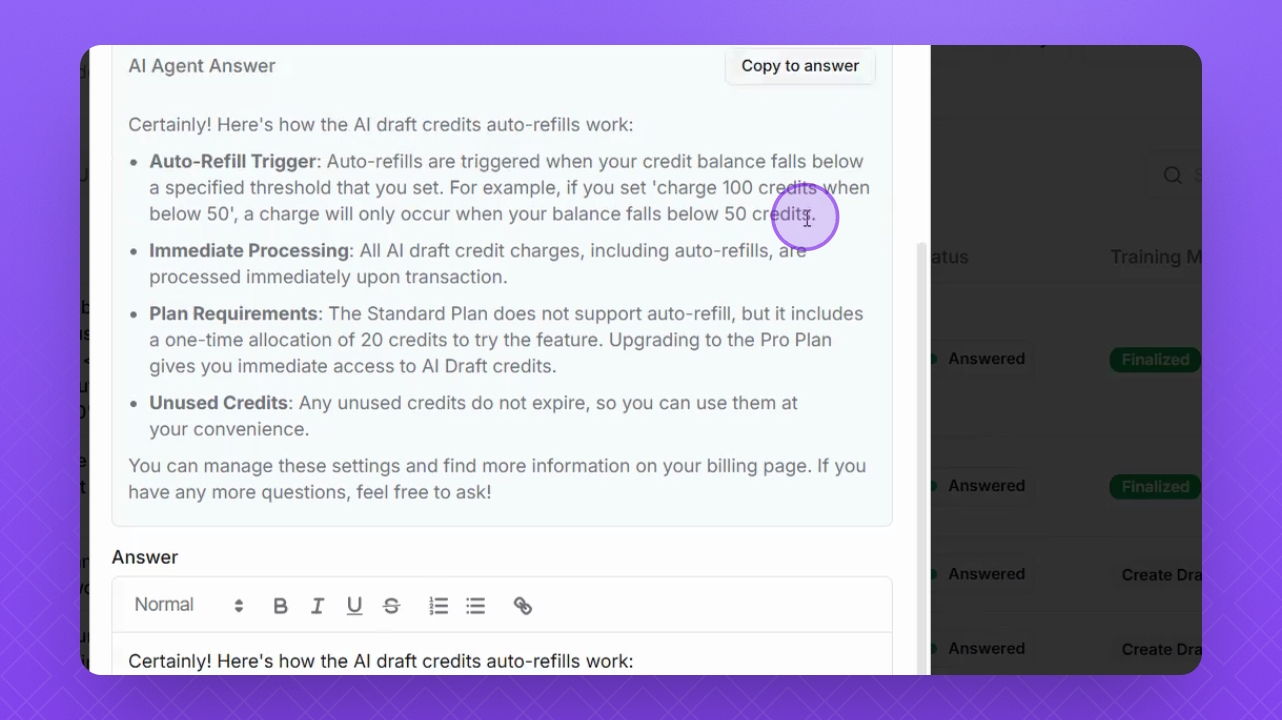
Review the AI's full answer and use it as is if needed; always double-check for accuracy.
Step 5: Apply answer
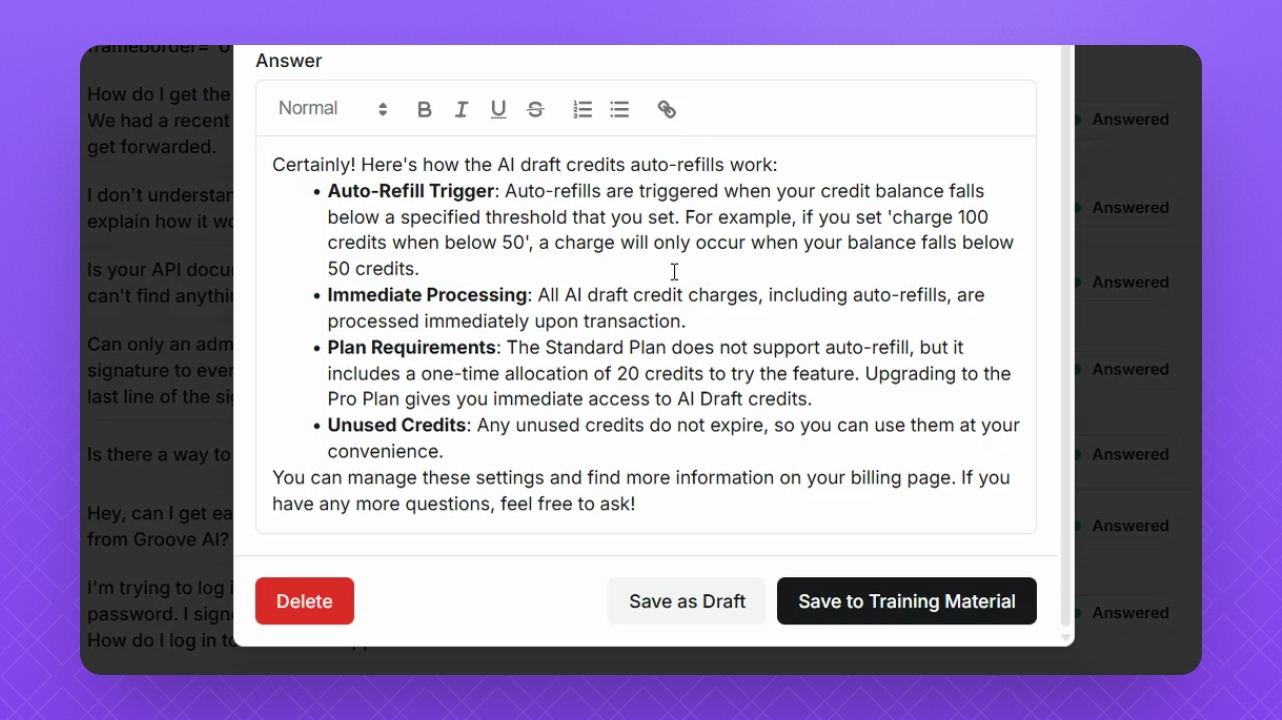
To apply the suggested answer, click Copy to answer and select Save to training material.
Step 6: Update AI agent
This will finalize the training material, updating your AI agent with new context.
Step 7: Address unanswered questions
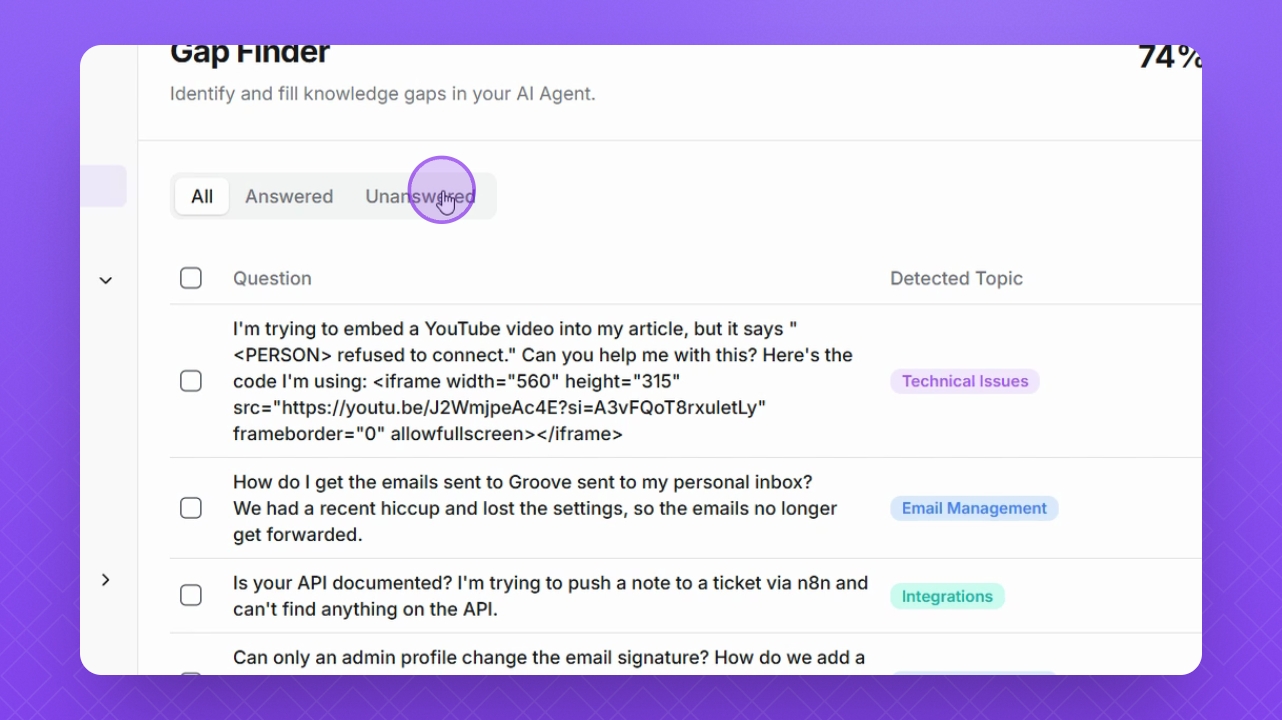
Format answers for questions without responses and save them as training material.
Step 8: Review question states
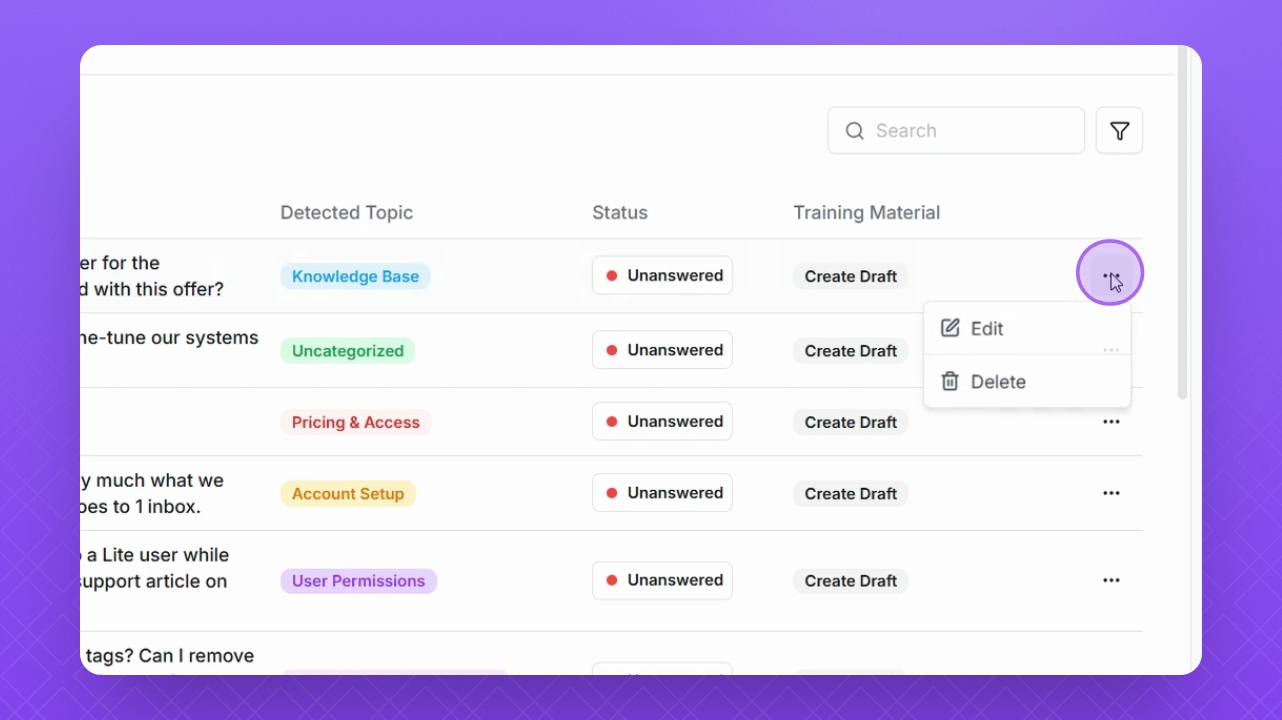
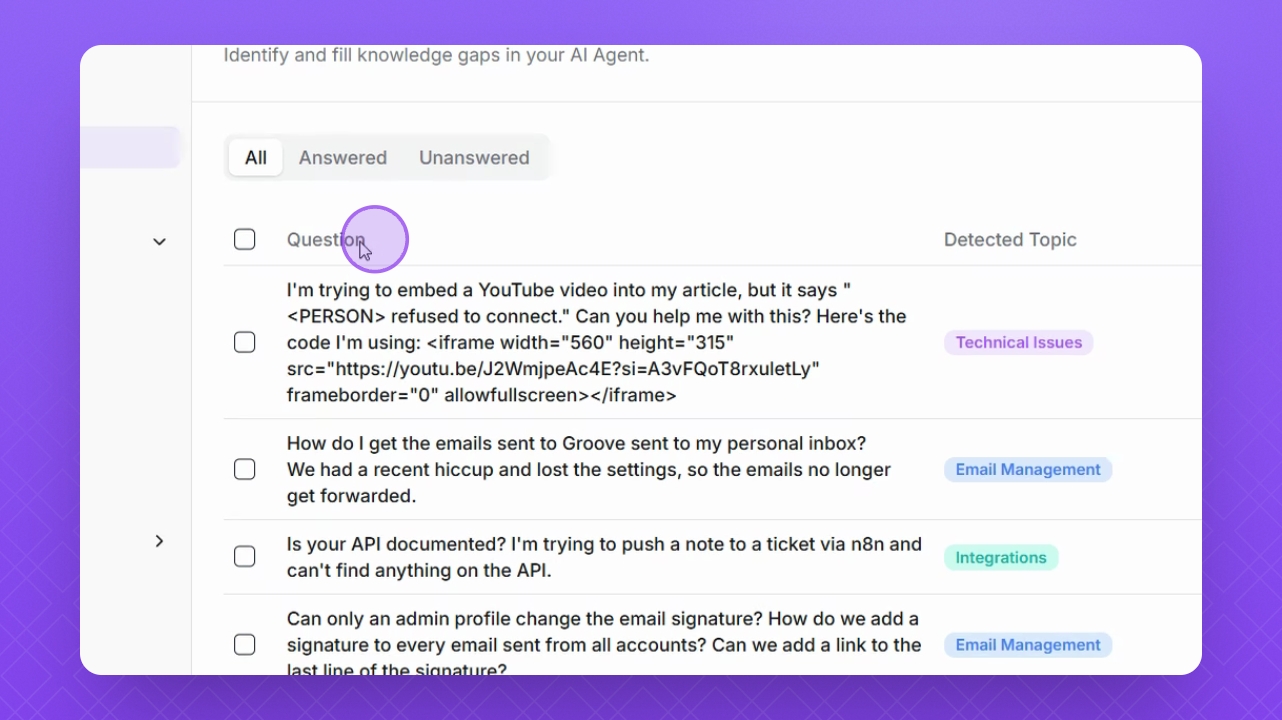
Examine the list of questions, their detected topics, statuses, and training material states.
Step 9: Save drafts
You can save drafts for questions to return later if needed.
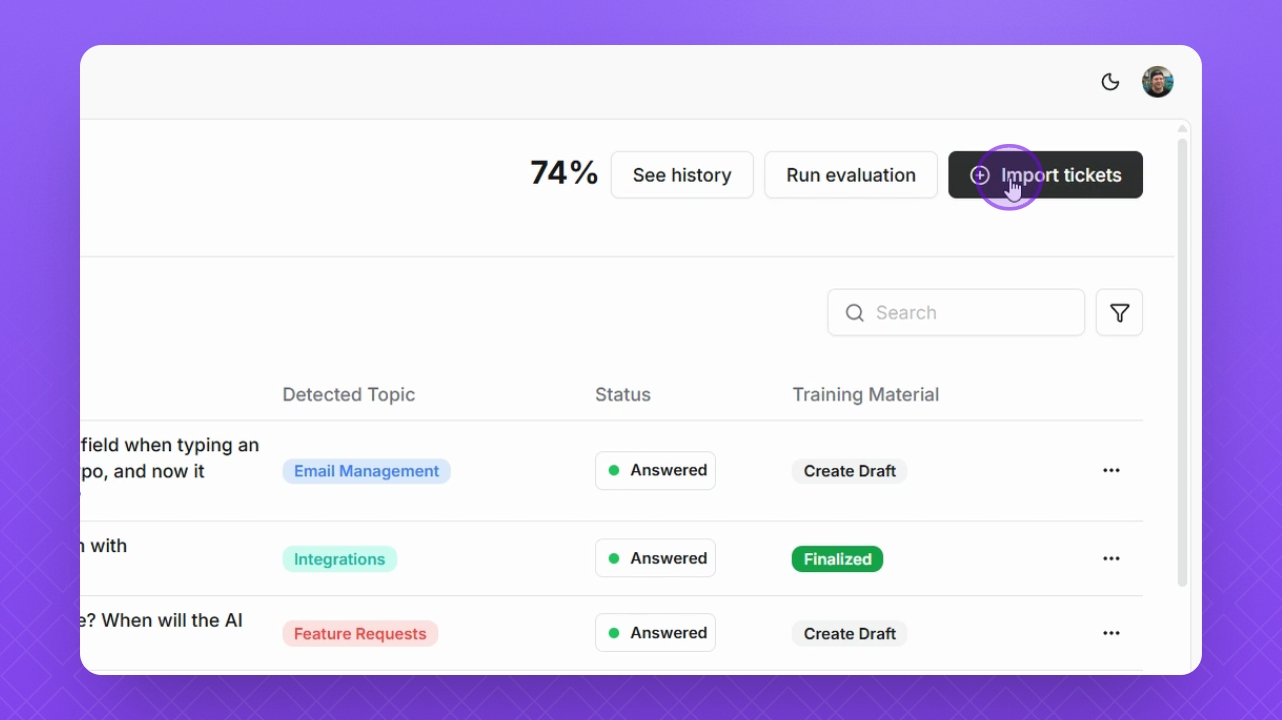
Step 10: Import data
In the top right corner, select Import to bring in data from your help desk.
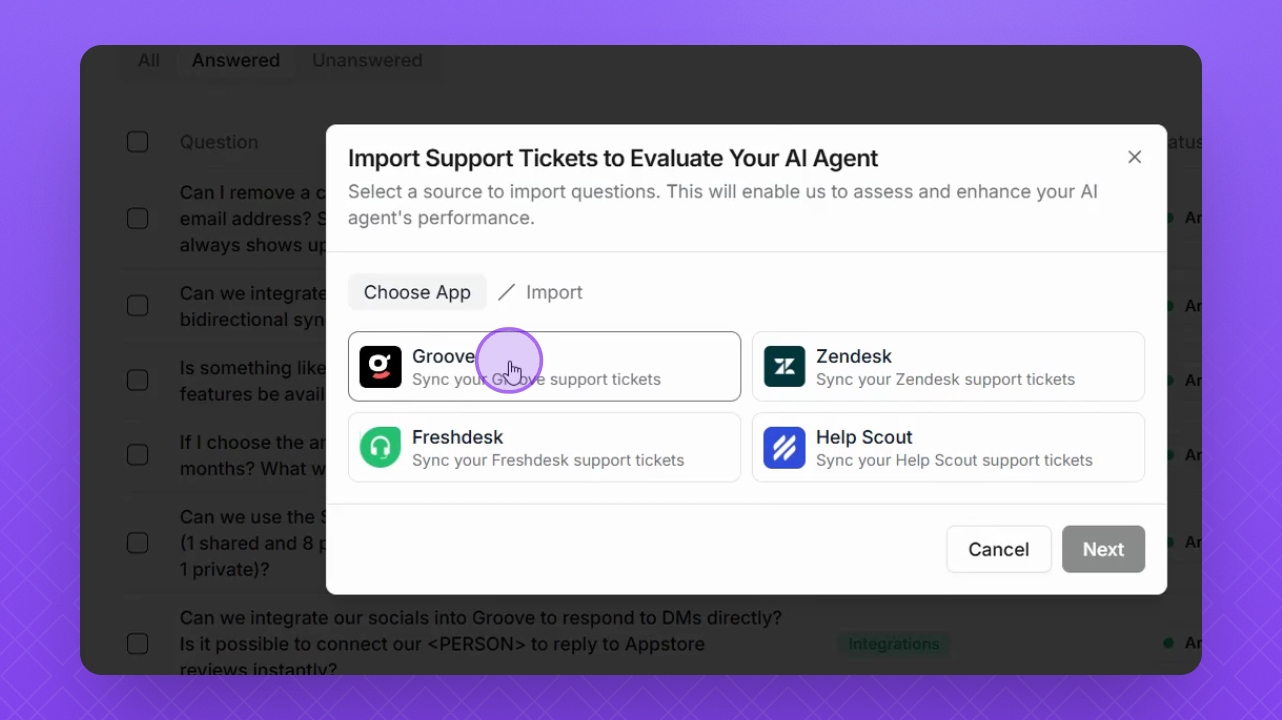
Step 11: Choose help desk
Select the help desk you want to import data from and click Next.
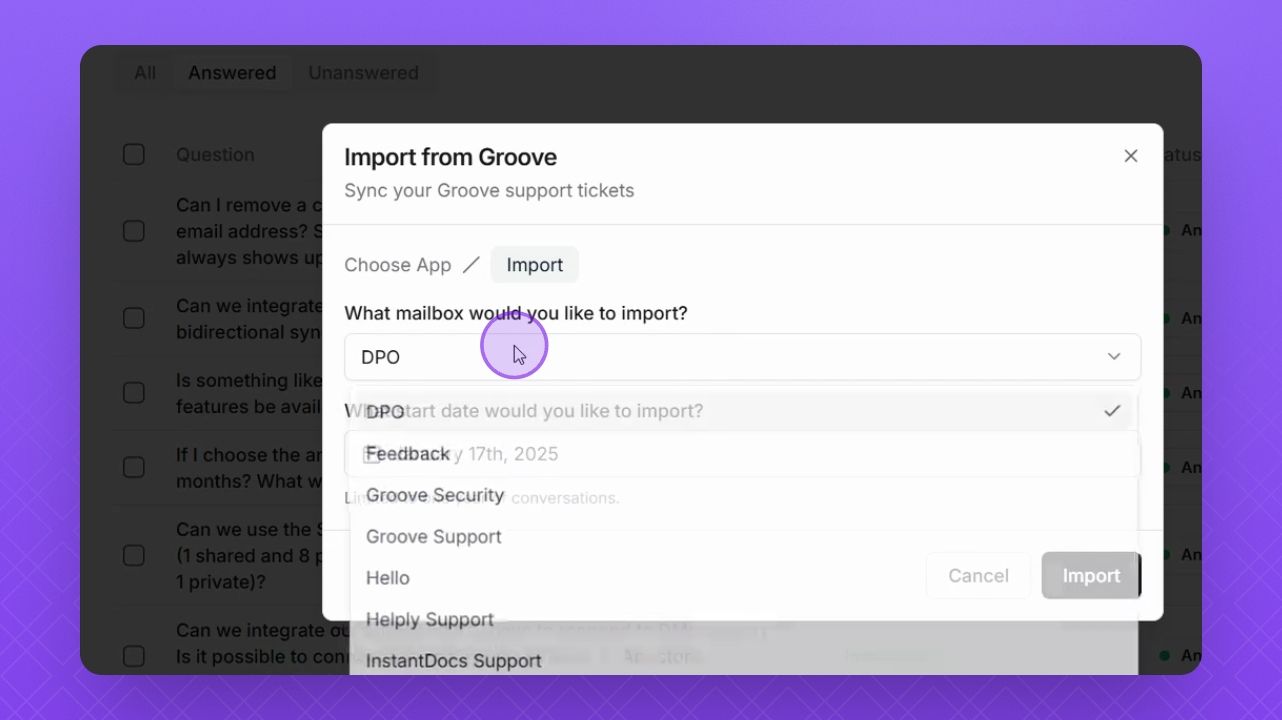
Step 12: Select inbox
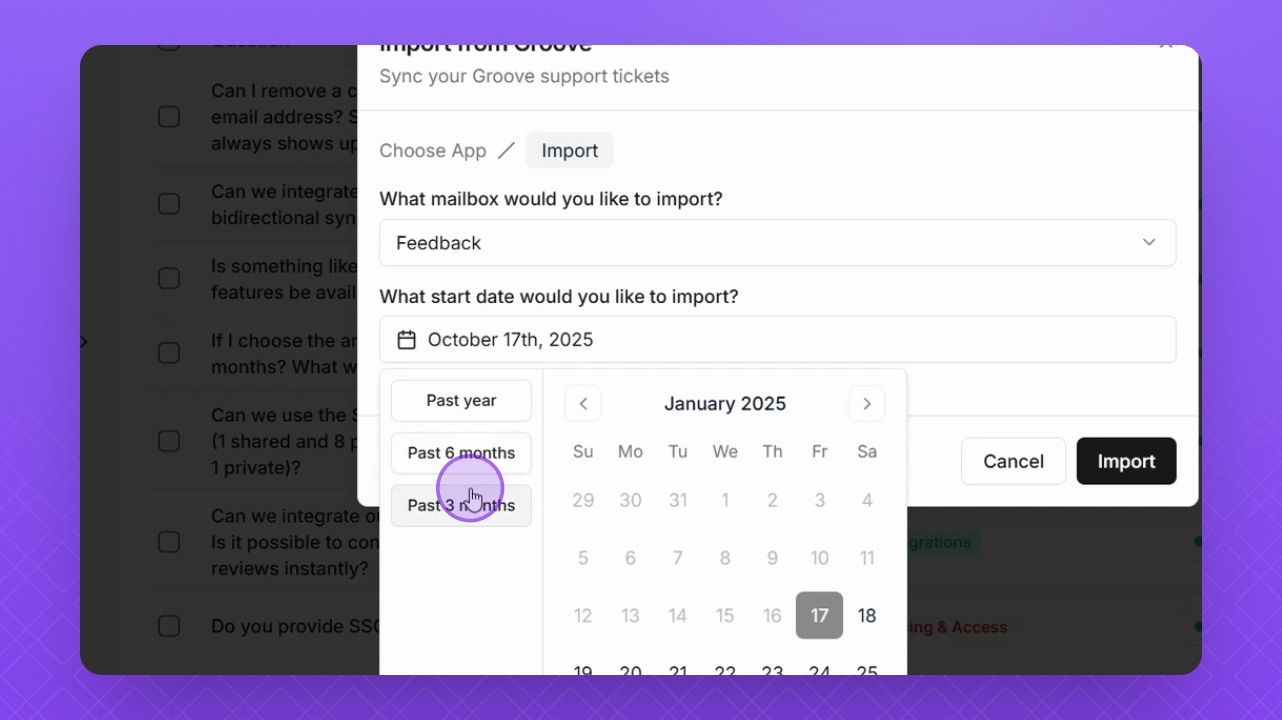
Choose the inbox to import from and set a date range for the tickets.
Step 13: Note import limits
You can only import ticket history from one year of conversations.
Step 14: Skip if imported
If you've already imported, you can skip this step.
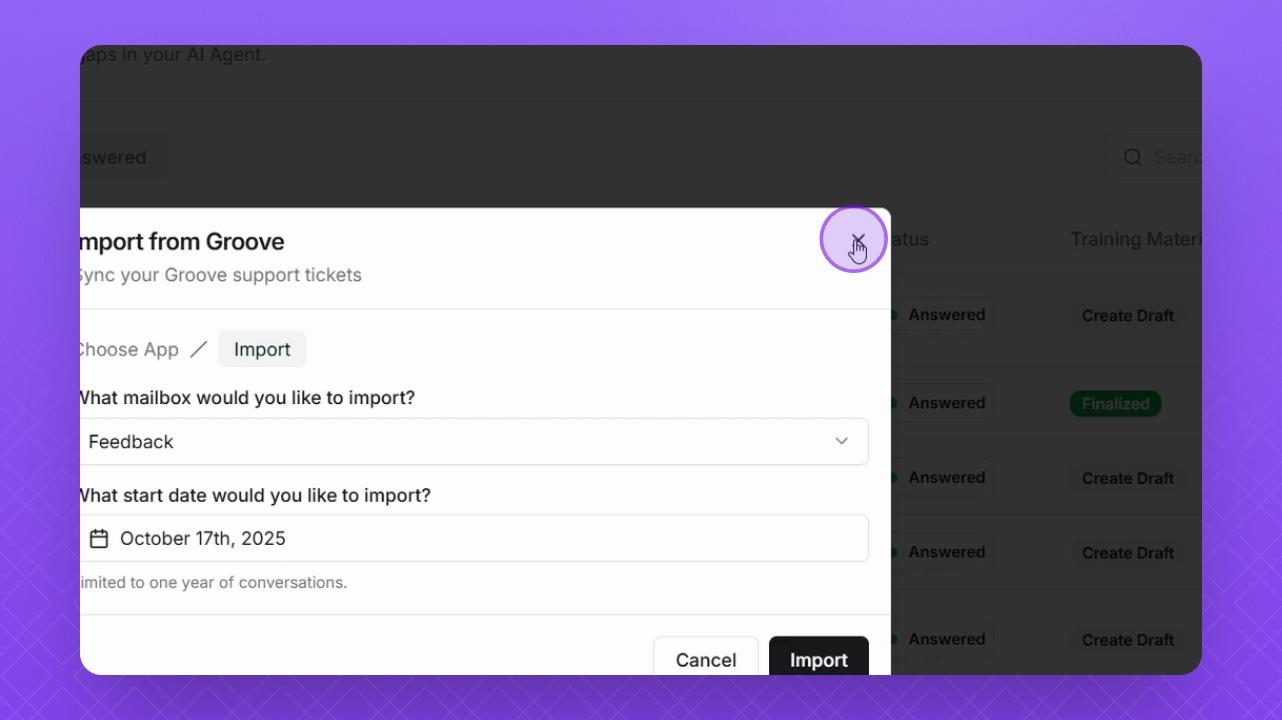
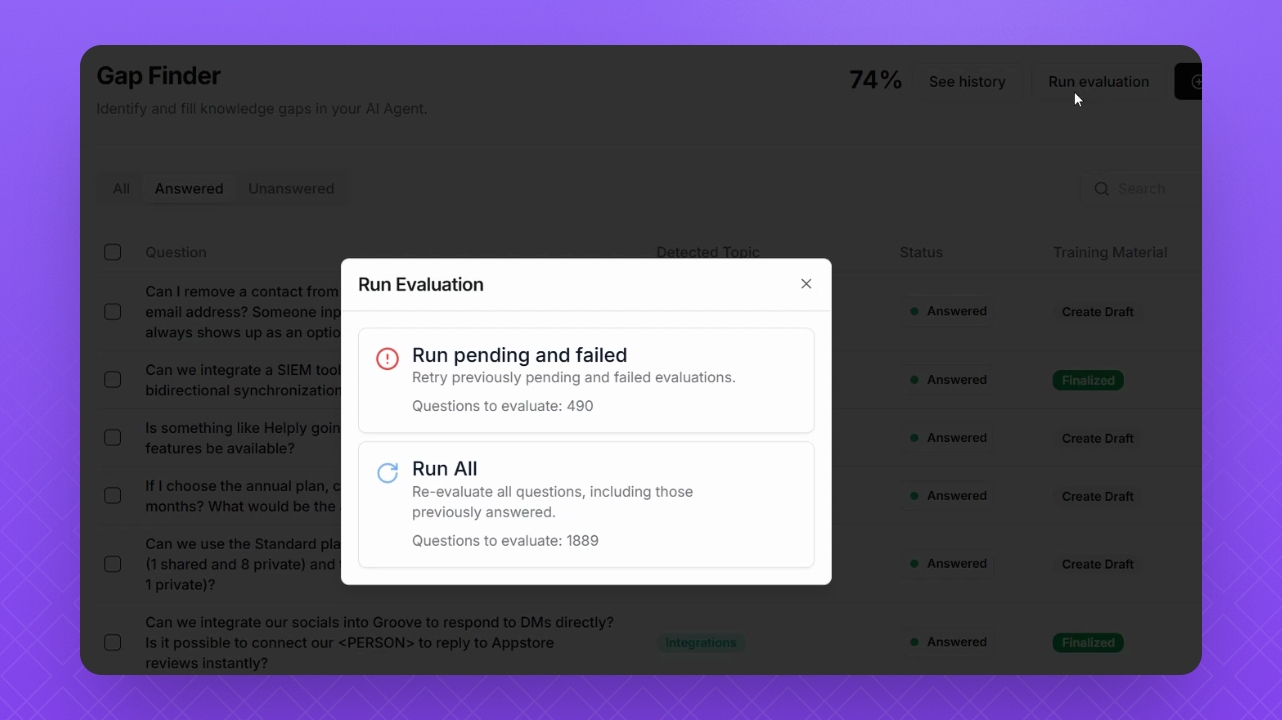
Step 15: Run evaluation
Run an evaluation to check for pending or failed evaluations in your Gapfinder history.
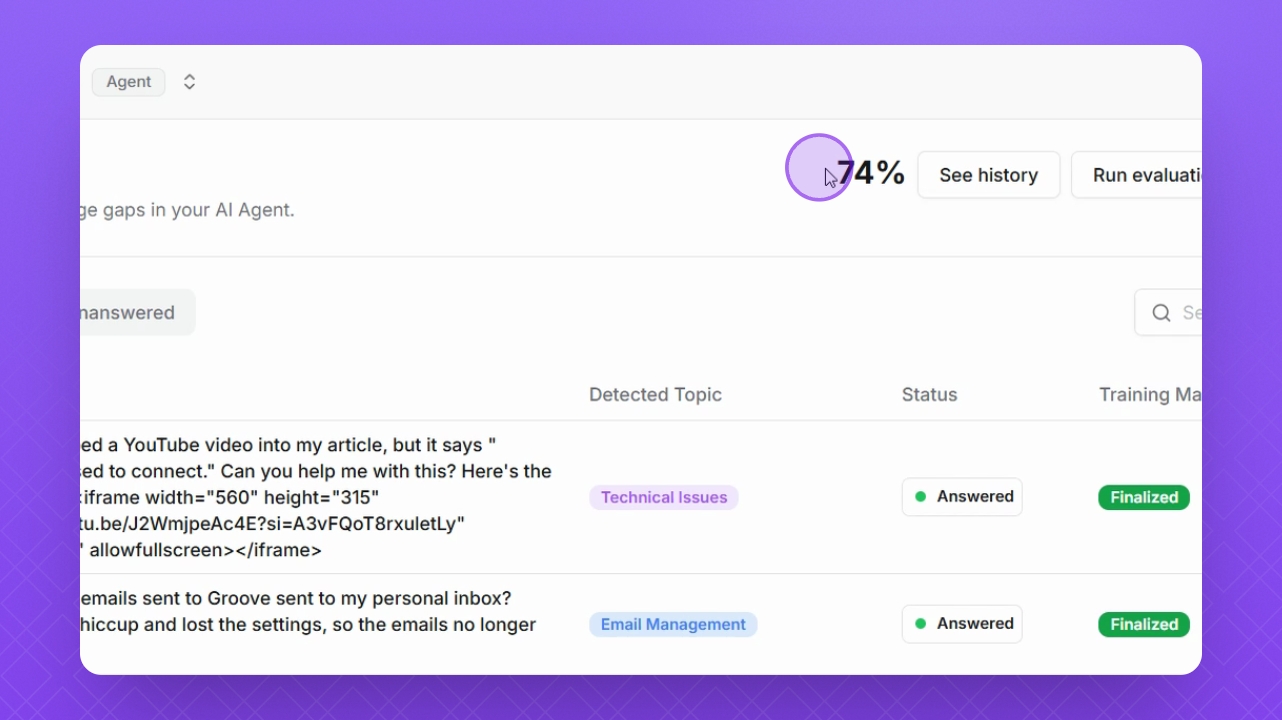
Step 16: Check completion
Review the percentage of knowledge gaps answered; 100% means all gaps are closed.
Step 17: Remove irrelevant data
Click the three dots next to a question and select Delete to remove irrelevant training material.