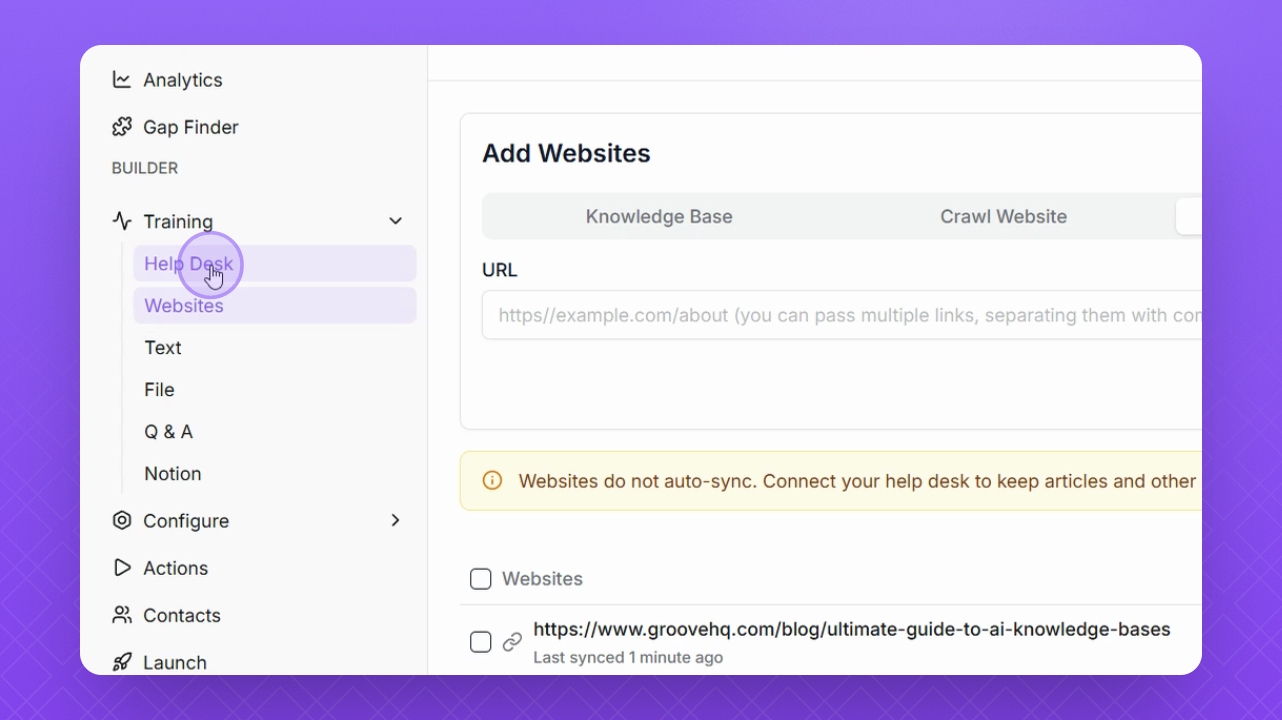
Let's do it together!
Step 1: Navigate to Training
On the left menu, click on Training.
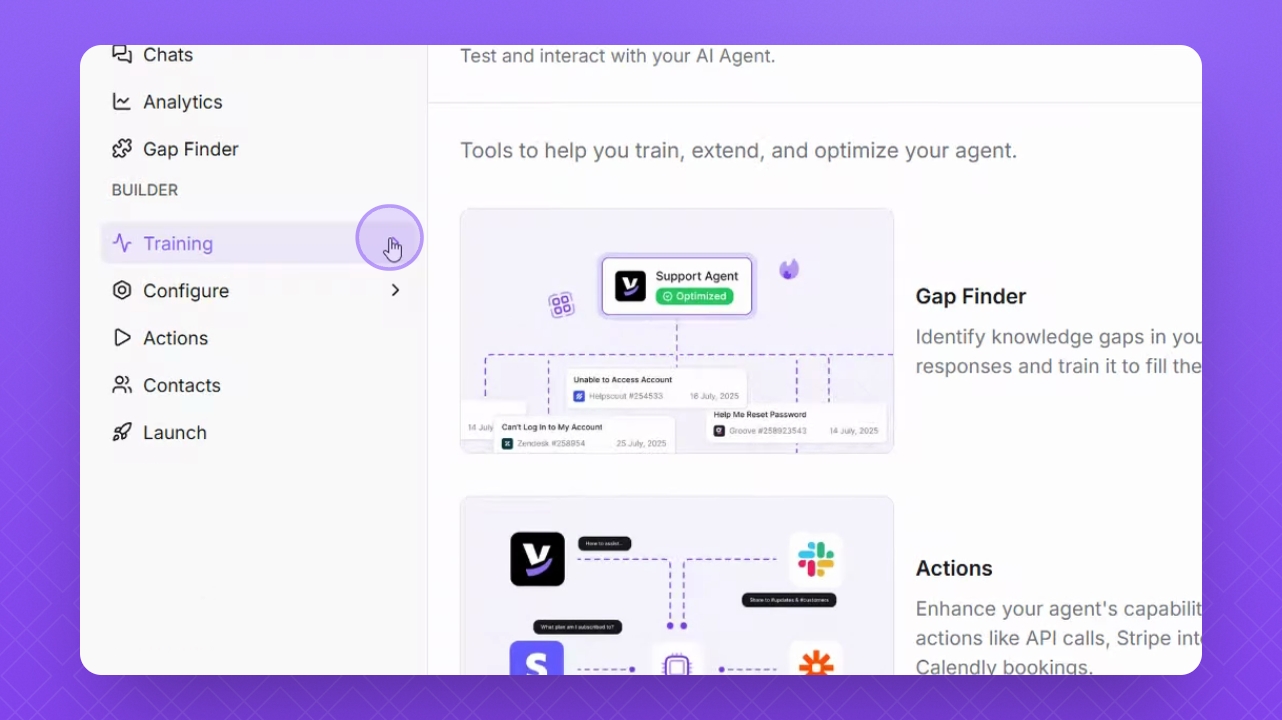
Step 2: Select Websites
Select Websites from the options available.
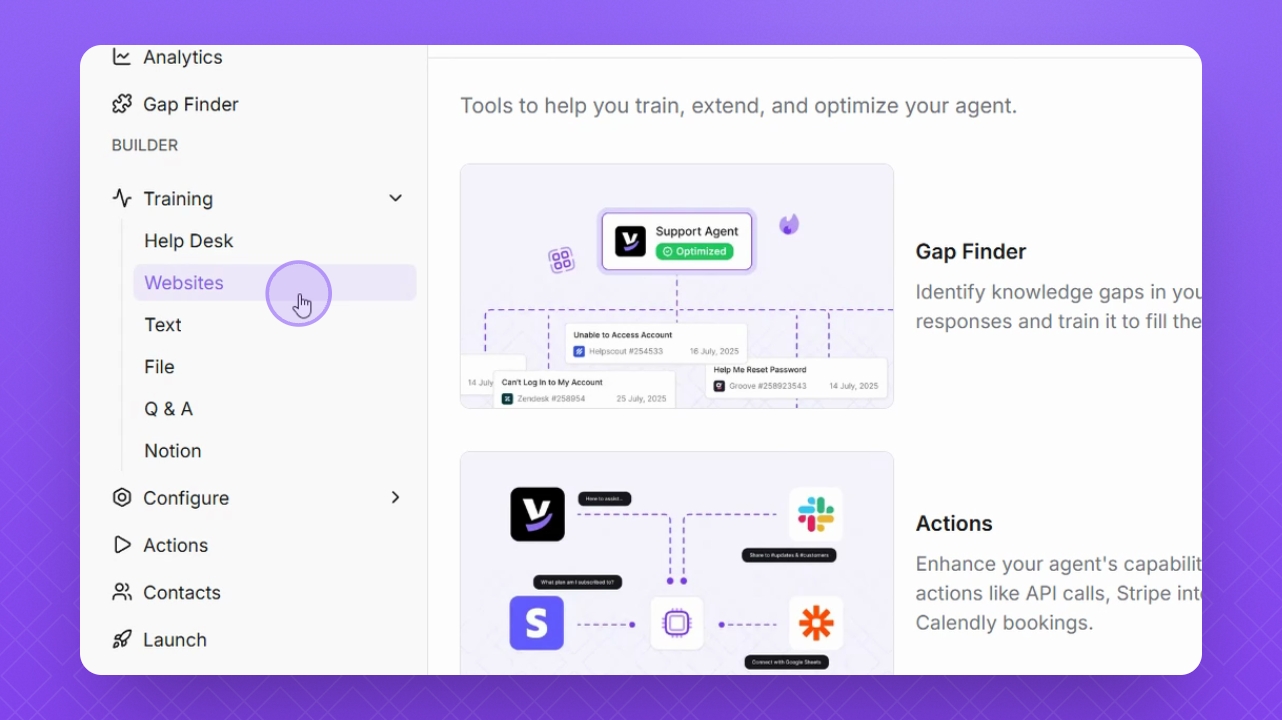
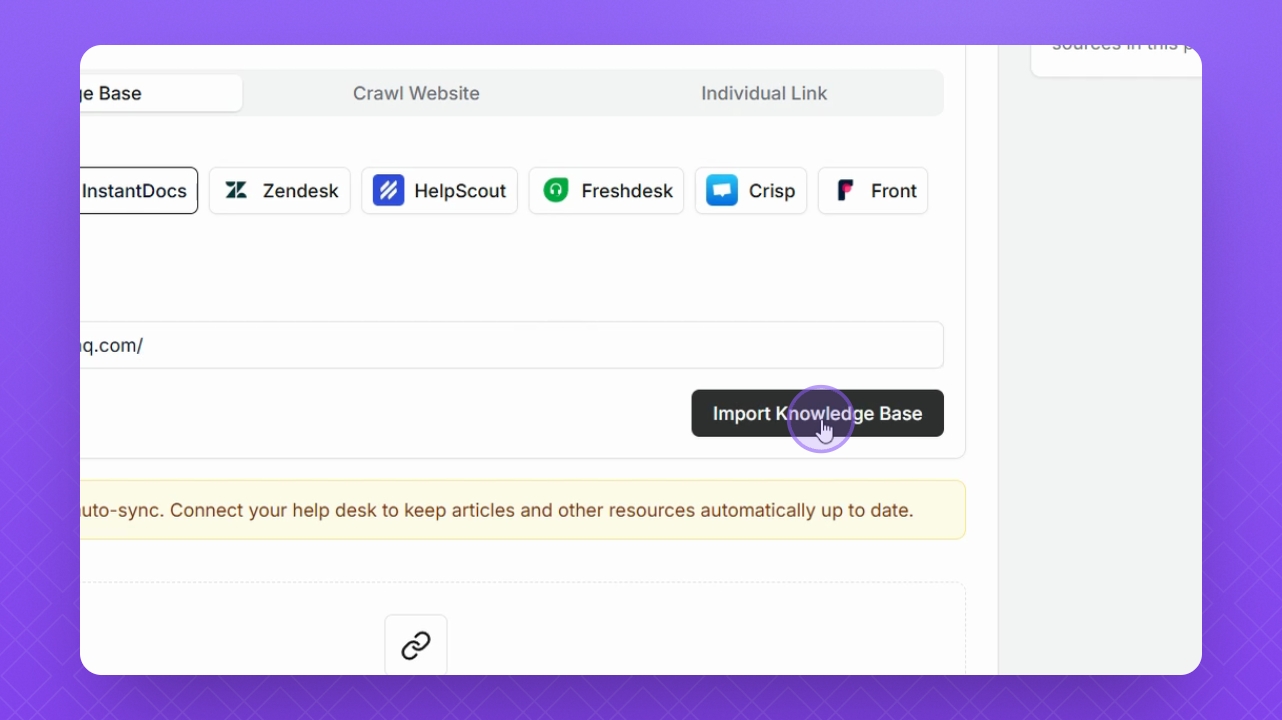
Step 3: Import Knowledge Base
To add your knowledge base, choose the Help Desk where it is hosted and enter the Knowledge Base URL.
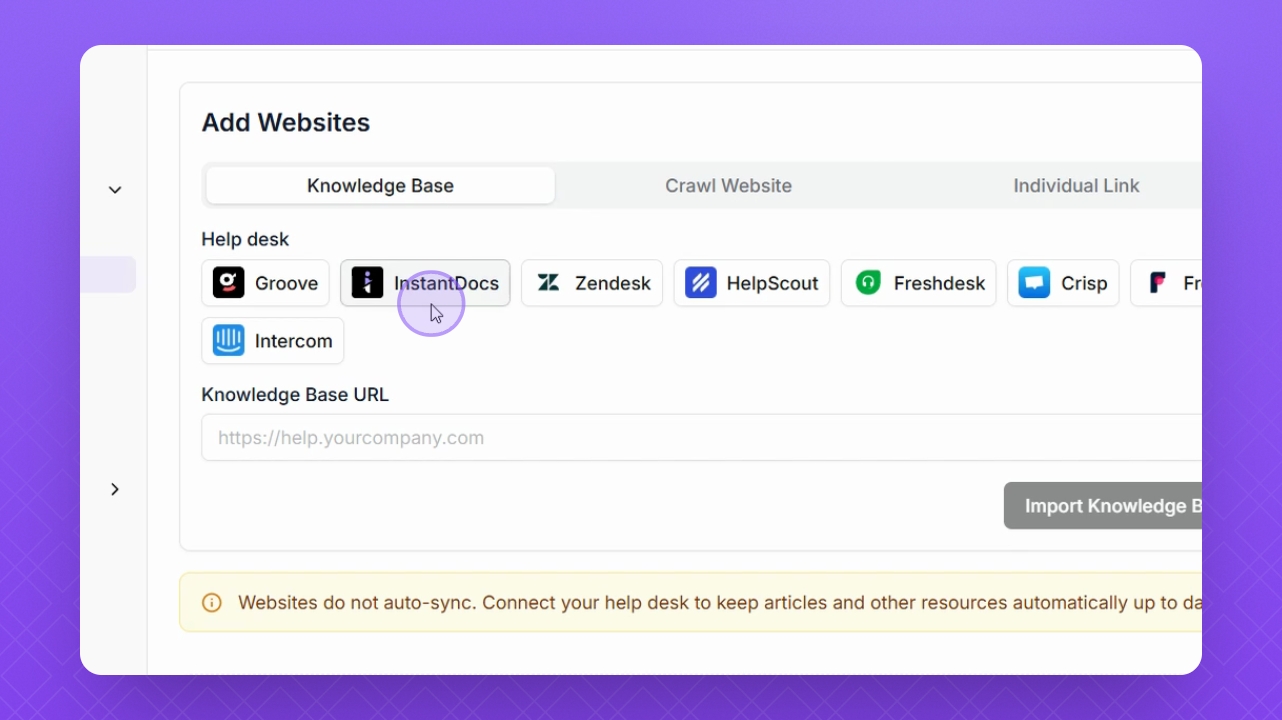
Step 4: Start Import
Select Import Knowledge Base to begin crawling and adding your knowledge base to the AI agent.
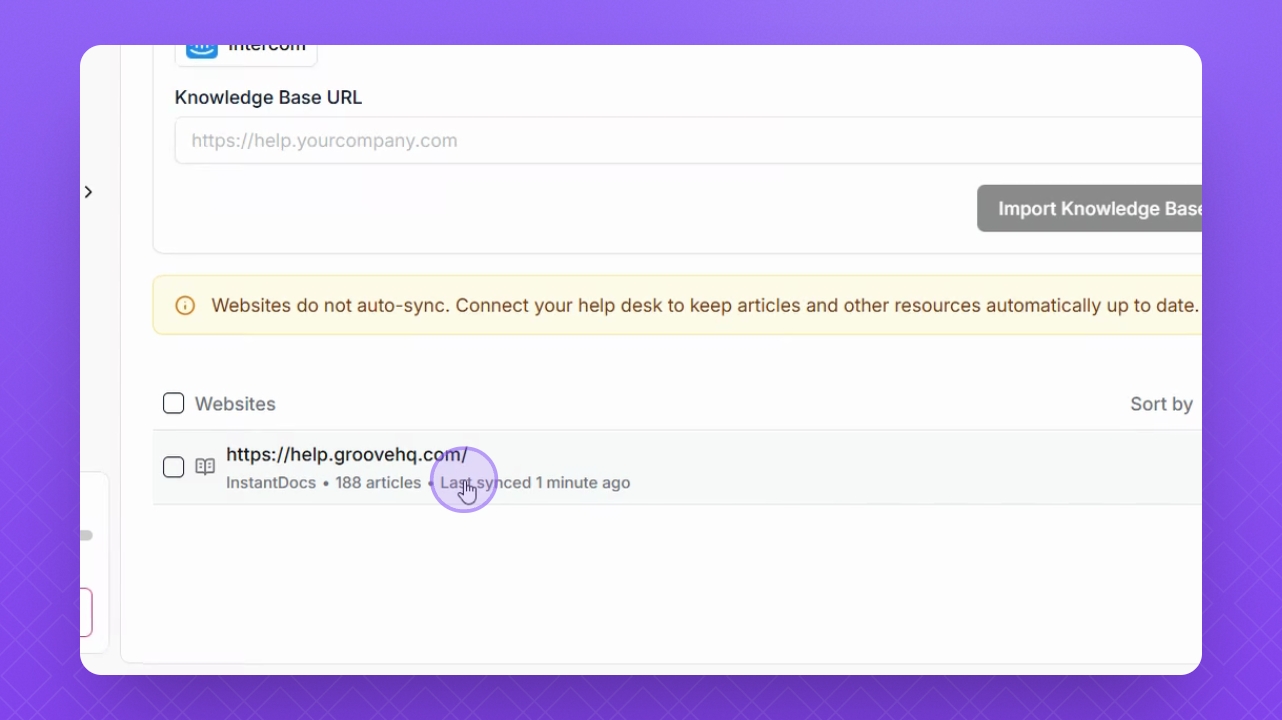
Step 5: Manage Source Data
Once imported, manage your source data by clicking the website in the Source list below.
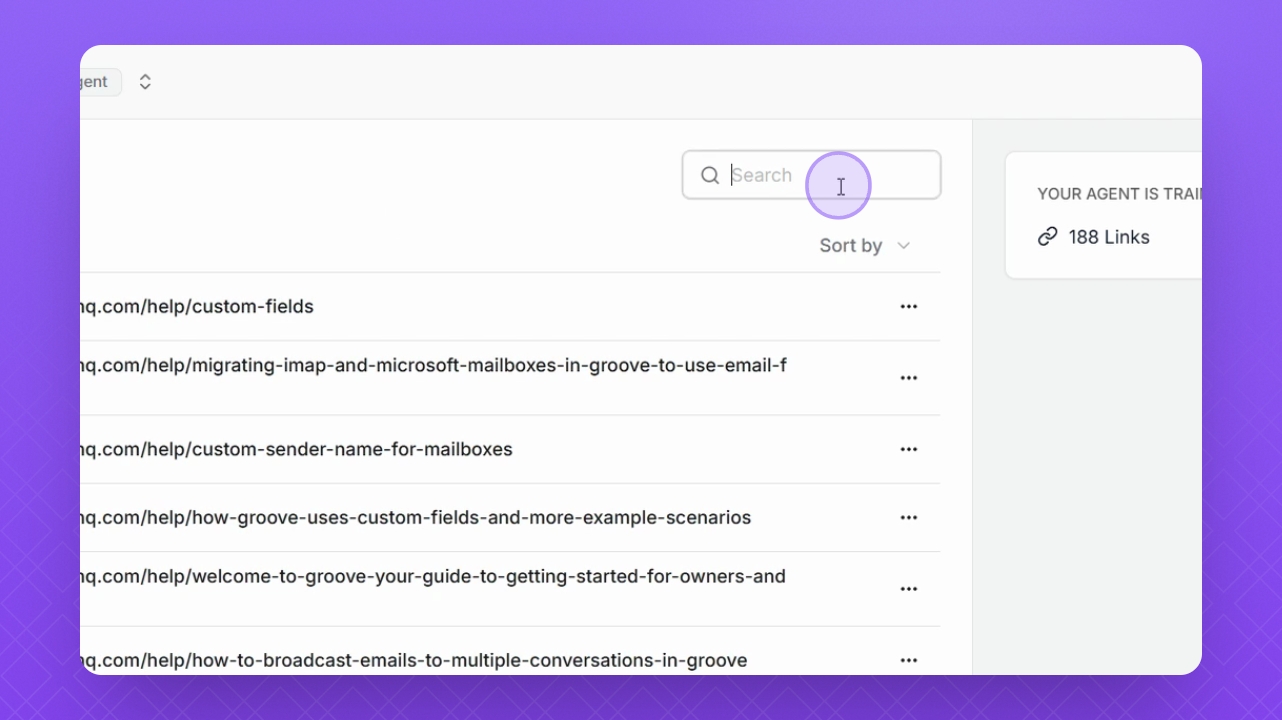
Step 6: Filter Documents
Filter documents using the Search field or the Sort by filter.
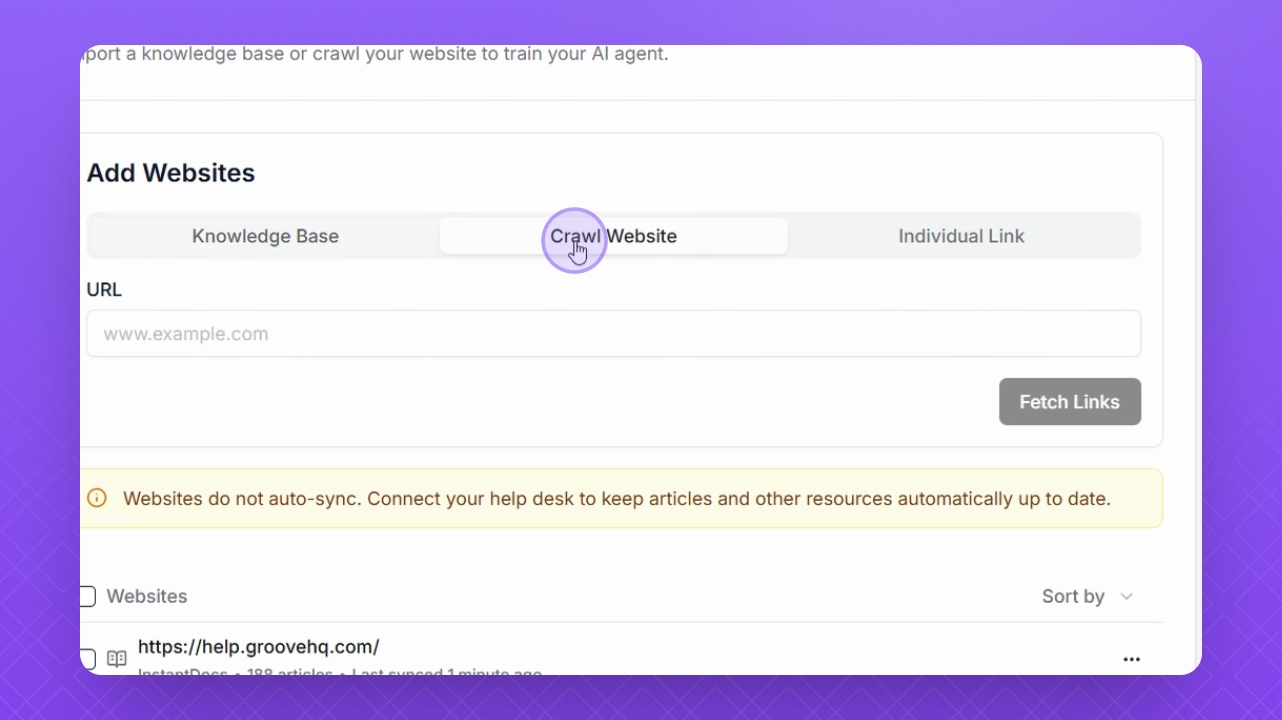
Step 7: Crawl Website
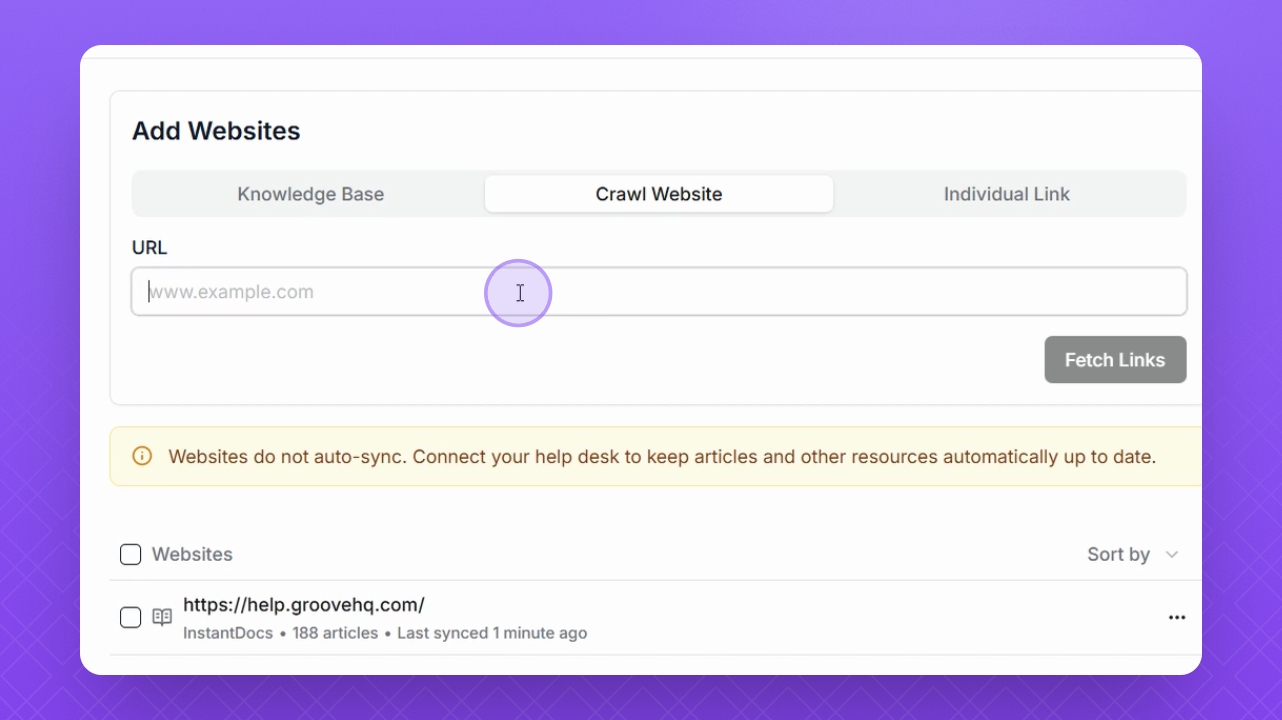
To import websites, select the Crawl Website tab to crawl the entire website.
Step 8: Add URL
Enter the URL in the URL field and click to crawl the website.
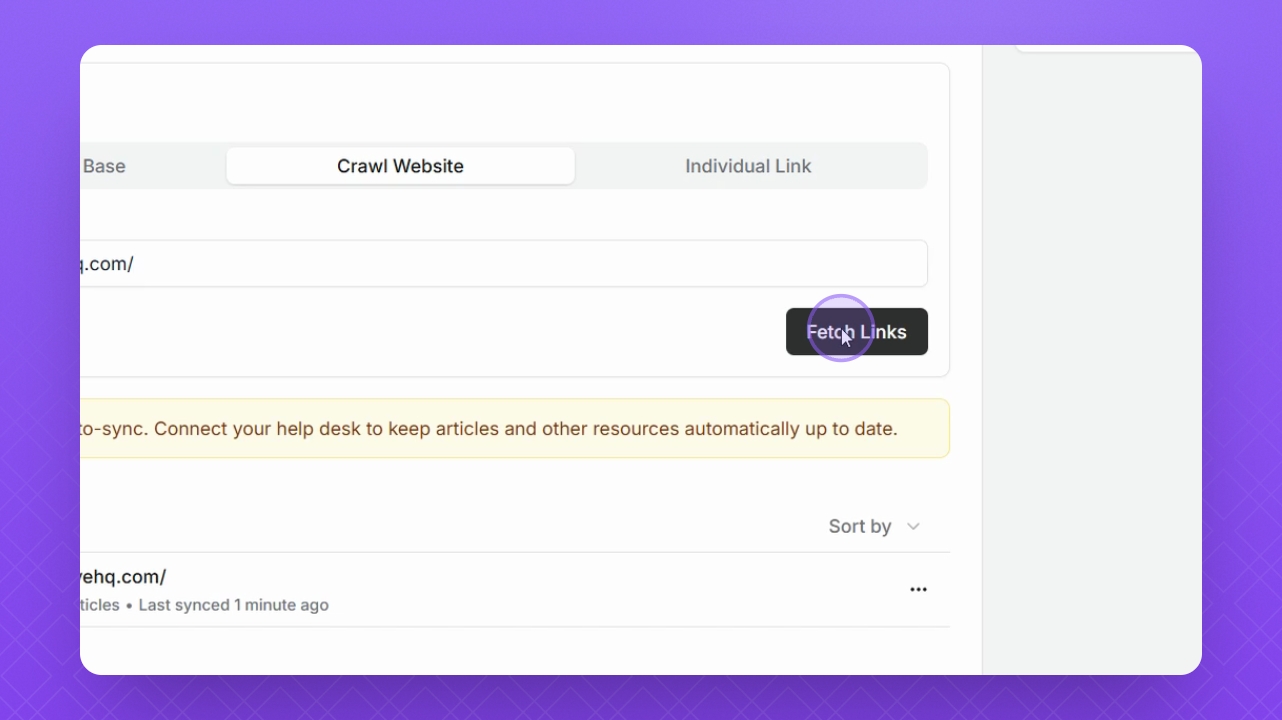
Step 9: Fetch Links
Select Fetch Links to begin crawling the website.
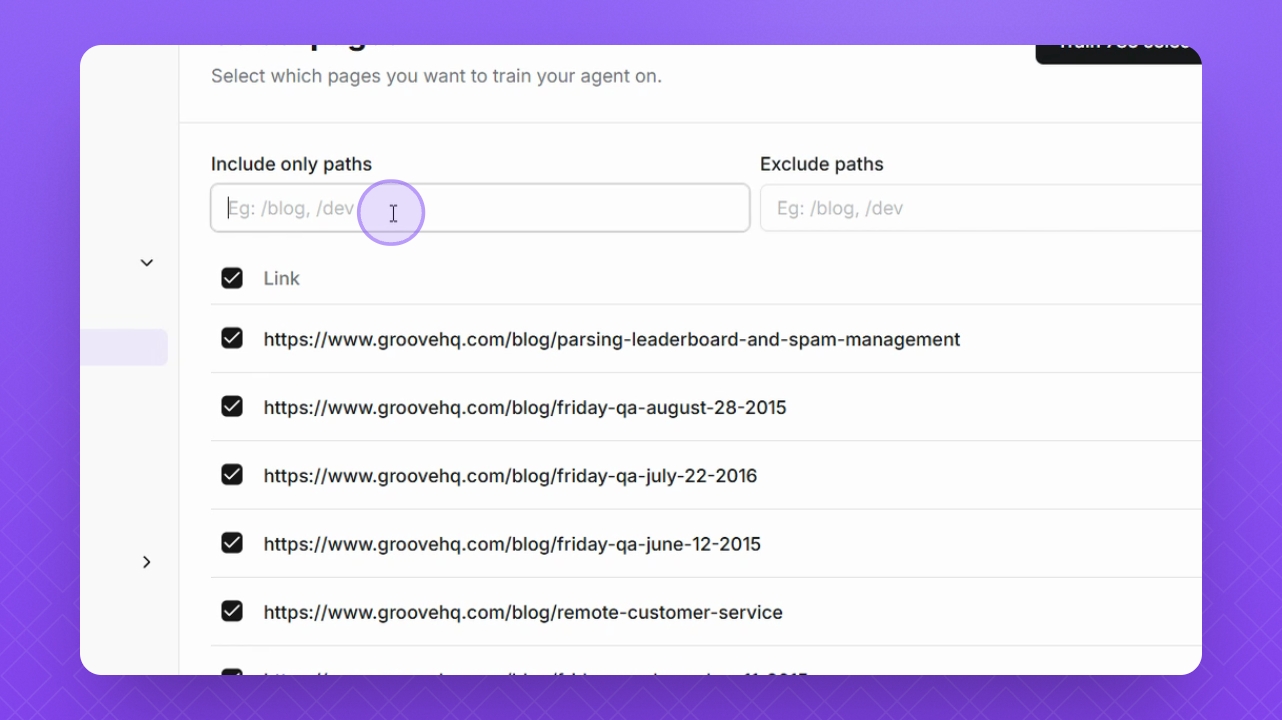
Step 10: Include/Exclude Paths
Use Include Only to specify allowed pages or Exclude path to limit certain pages.
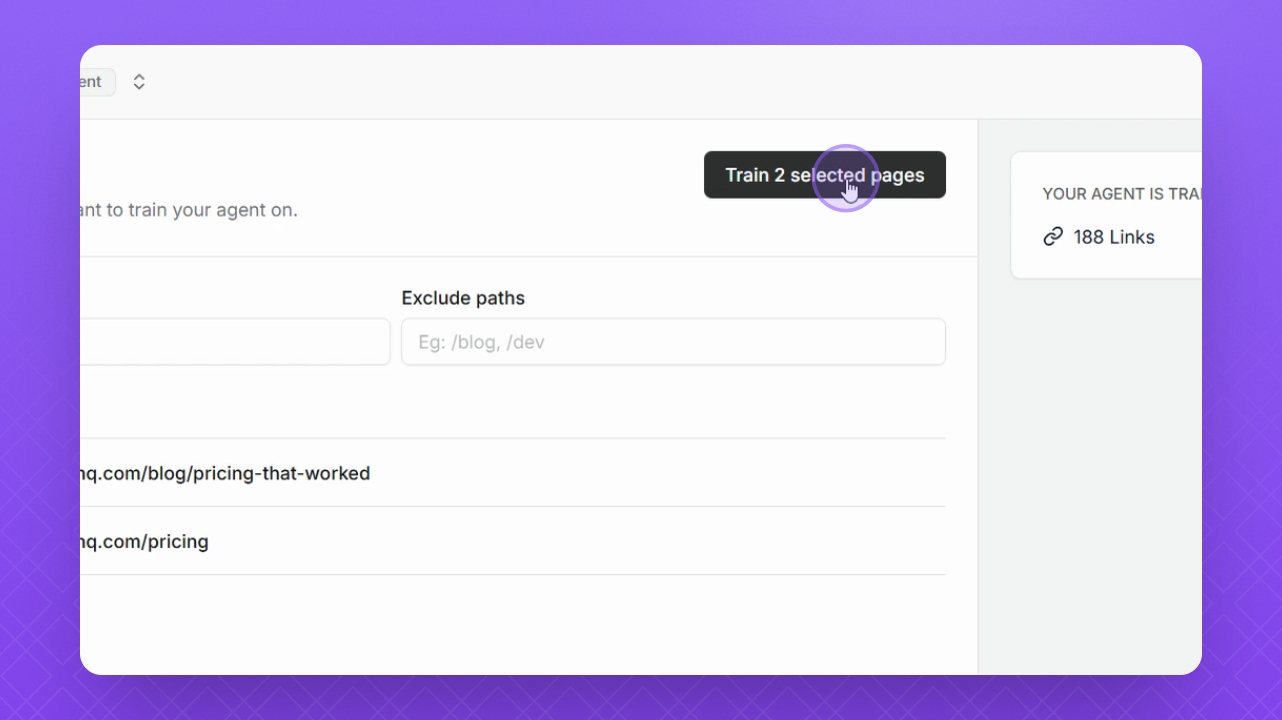
Step 11: Complete Path Setup
Once you finish adding paths, click the Train button in the top right corner.
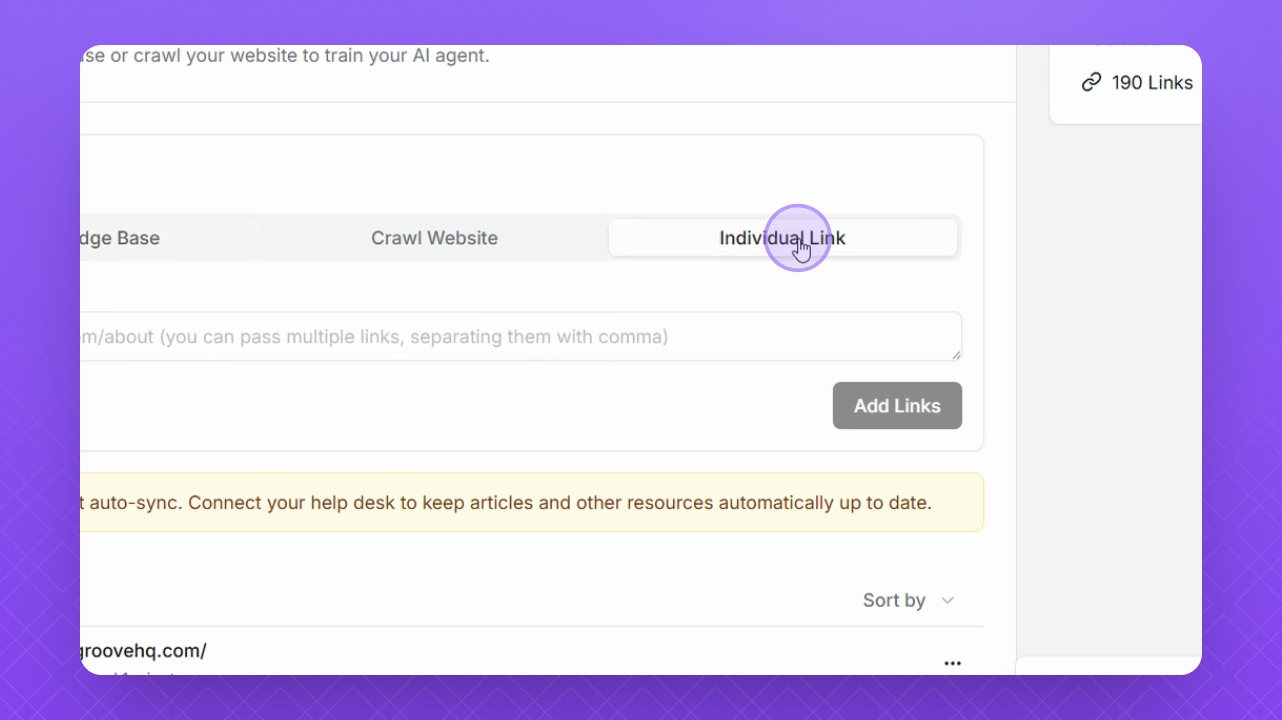
Step 12: Individual Links
Select the Individual Link tab to add individual links separated by commas.
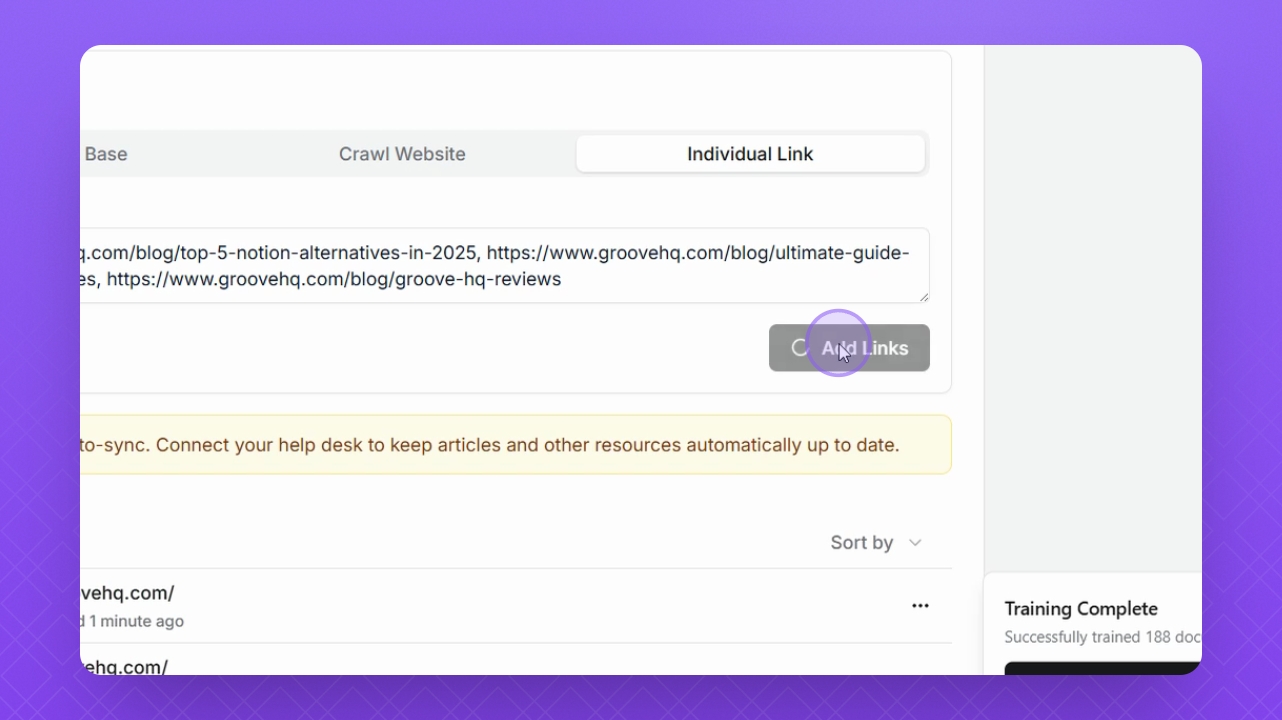
Step 13: Add Links
After adding your links, click the Add Links button.
Step 14: Sync Knowledge Base
To sync your knowledge base automatically, select the Help Desk tab and click Sync Help Desk.