

This article describes how a user can set up and configure Helply for Zendesk Tickets.
Let's look at the steps:
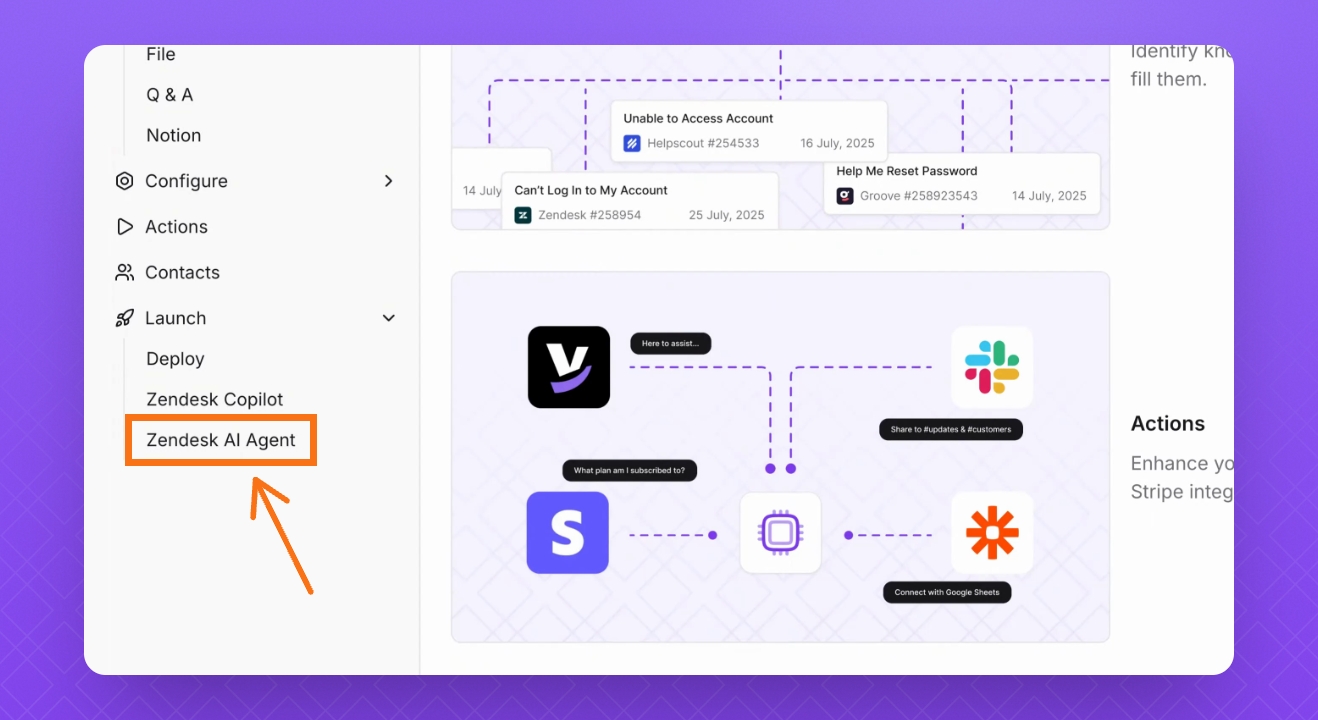
Step 1: Access Zendesk AI Agent
Go into the Zendesk AI Agent tab.
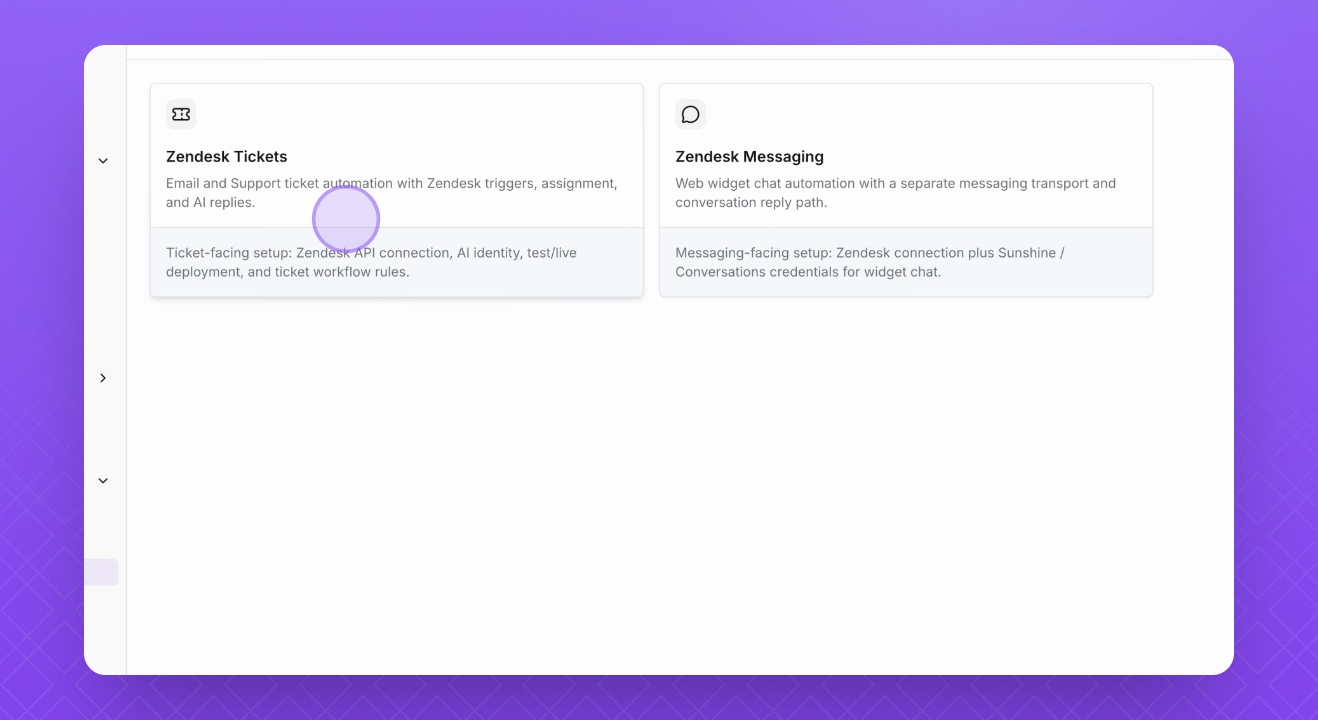
Step 2: Choose Zendesk Tickets
Select Zendesk Tickets from the options.
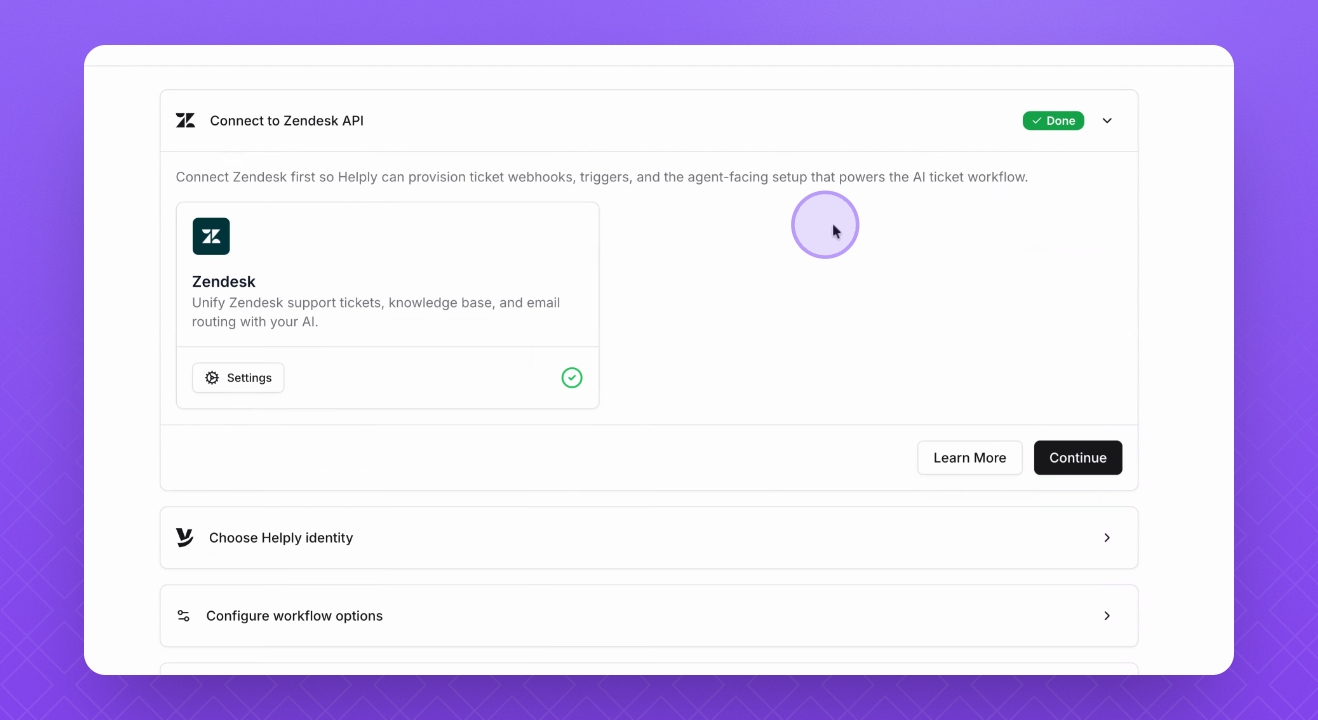
Step 3: Connect Zendesk Integration
Connect the Zendesk integration.
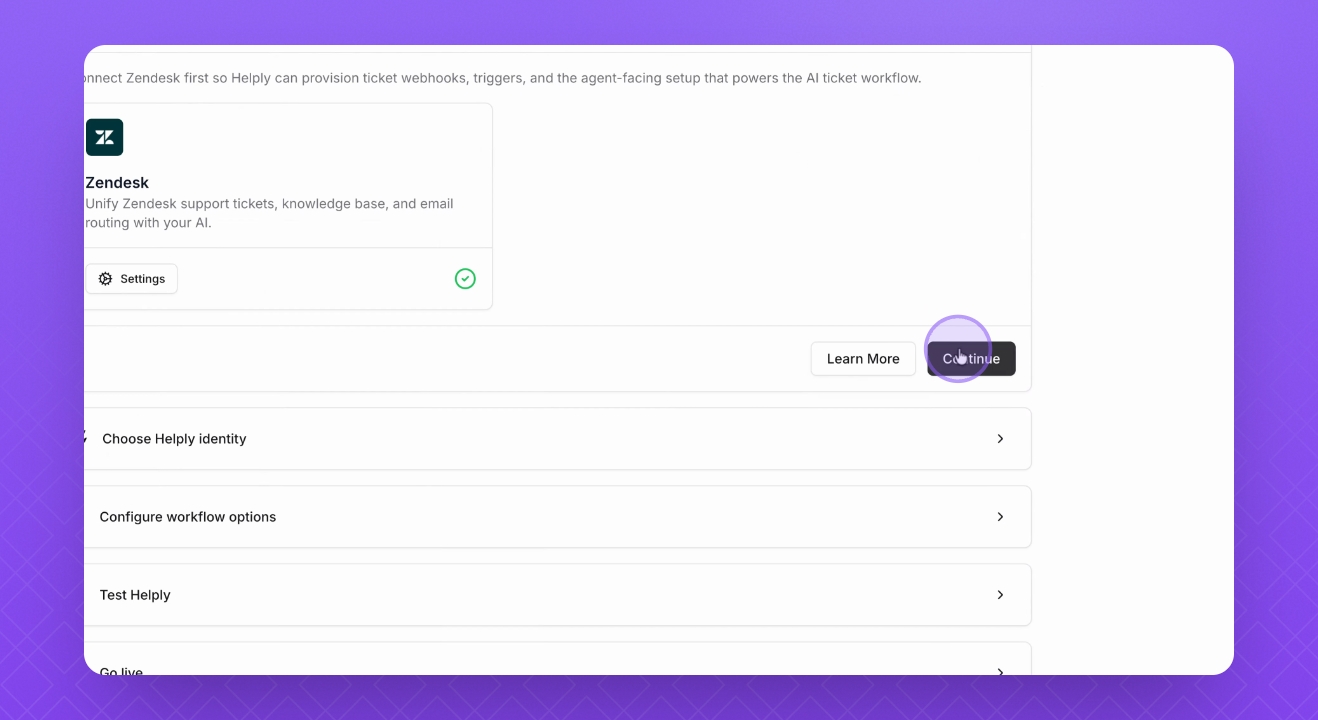
Step 4: Continue If Connected
If already connected, just click Continue.
Step 5: Assign AI Agent Identity
Give the Helply AI agent an identity by creating a dedicated Zendesk user. You can use your own email address by appending “+helply” to the name (e.g. dean+helply@examply.io).
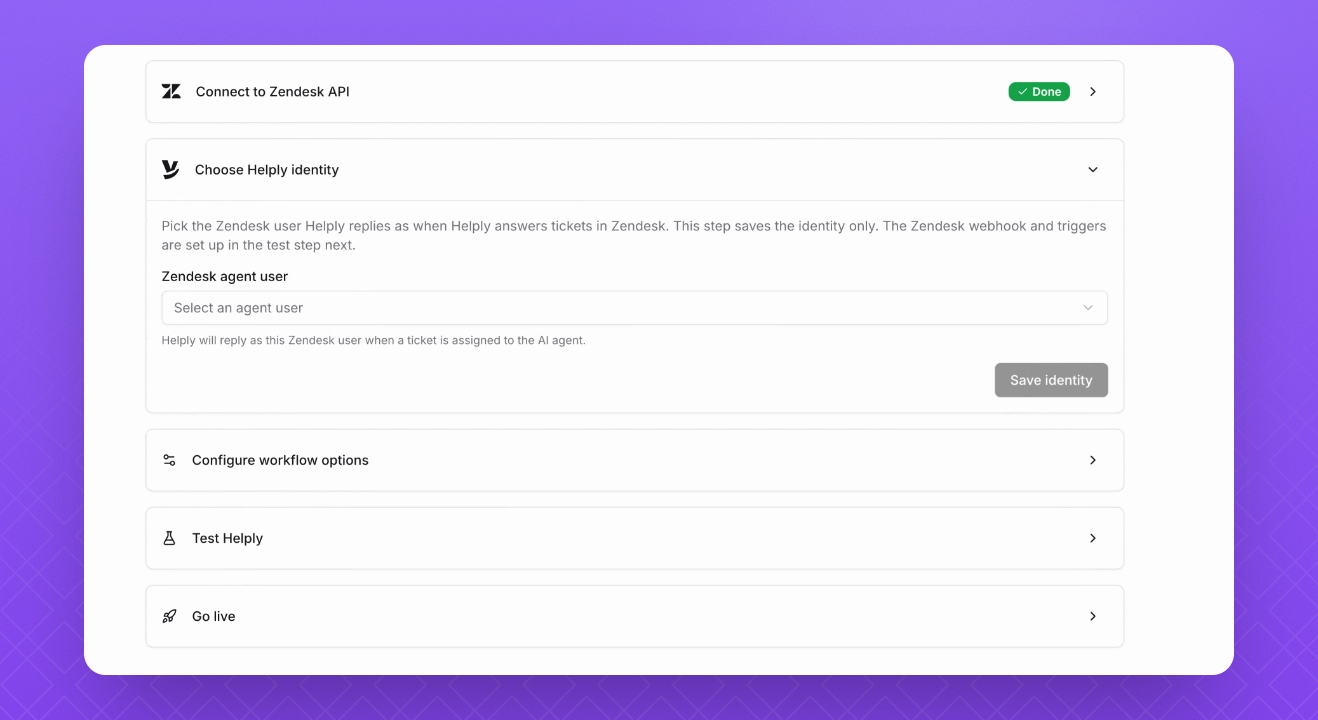
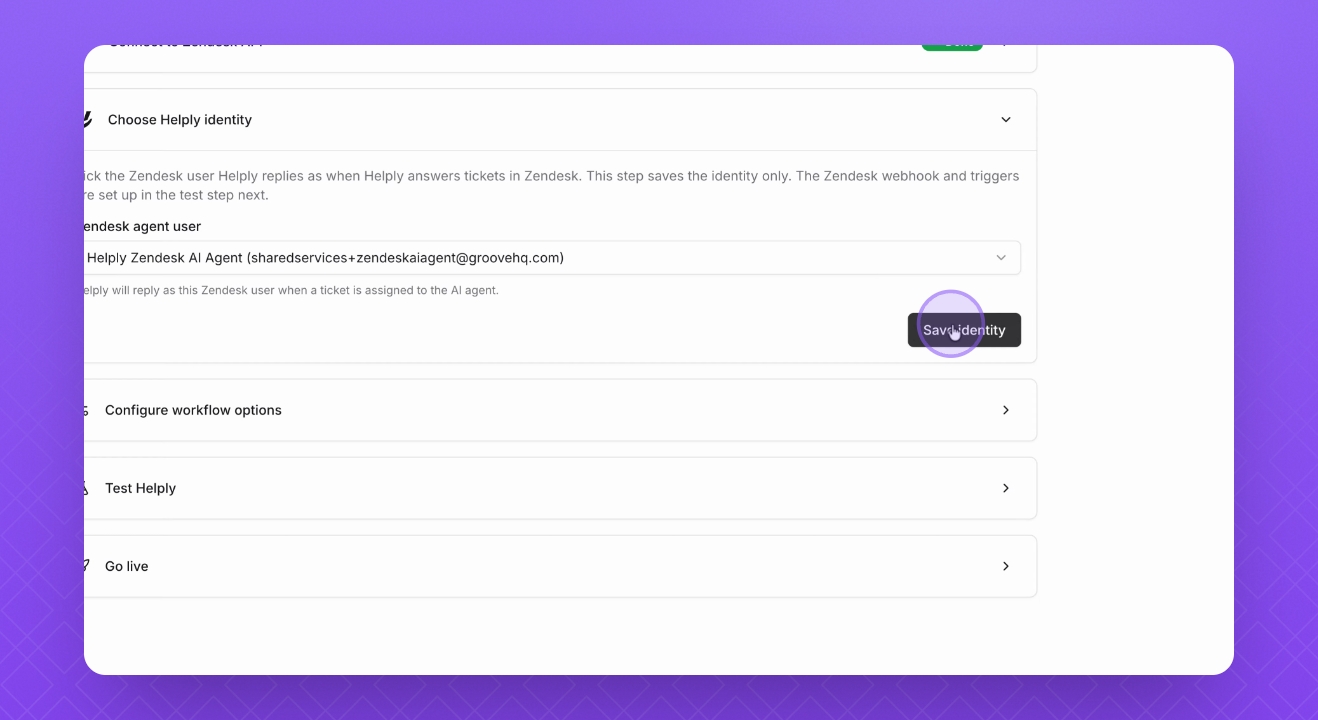
Step 6: Save Identity
If you have already created a user, choose it from the drop-down and click Save Identity.
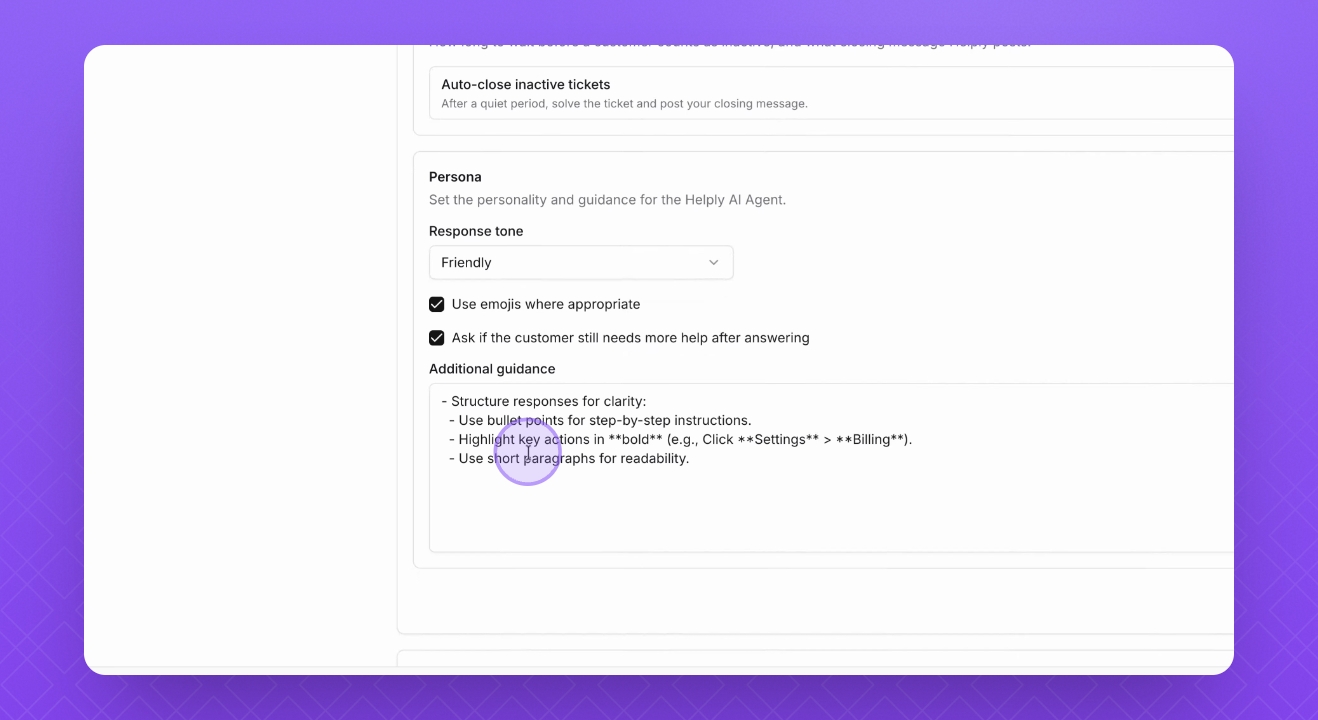
Step 7: Configure Options
Configure options for how the AI should behave regarding inactive conversations and appearance.
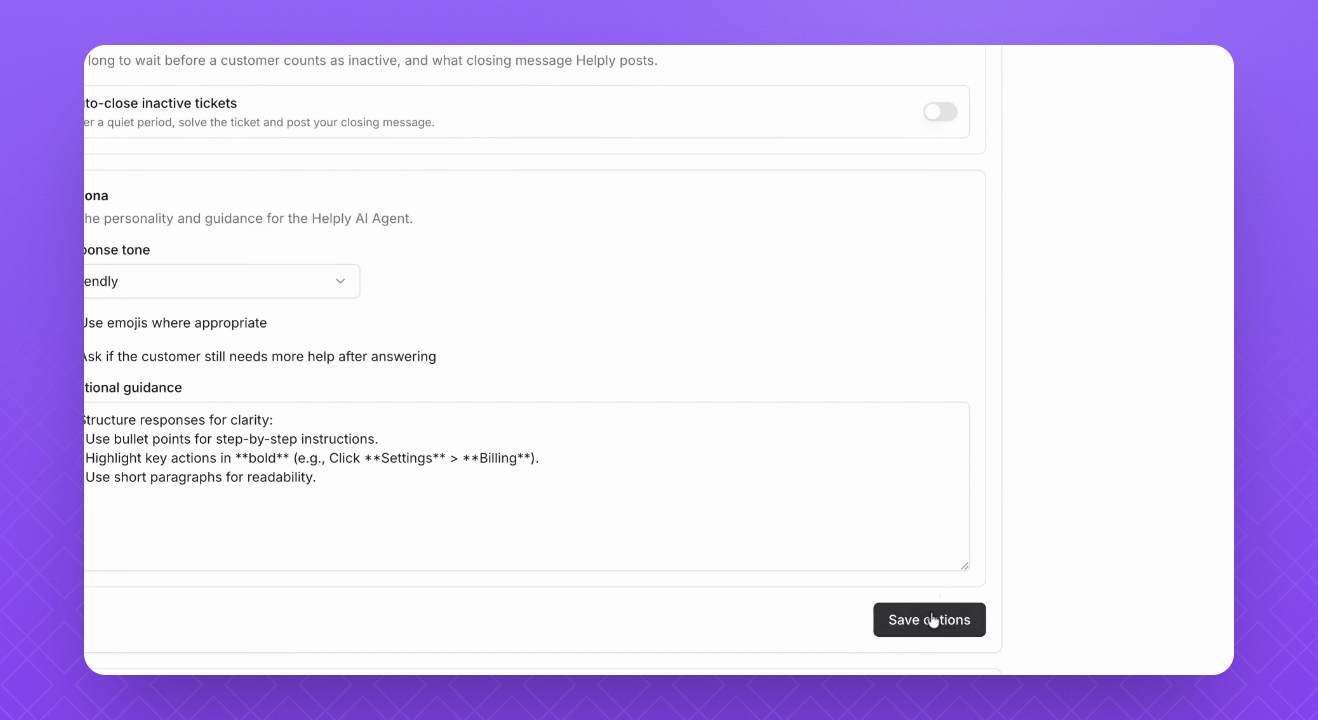
Step 8: Save Configuration
If satisfied with the configuration, click Save Options.
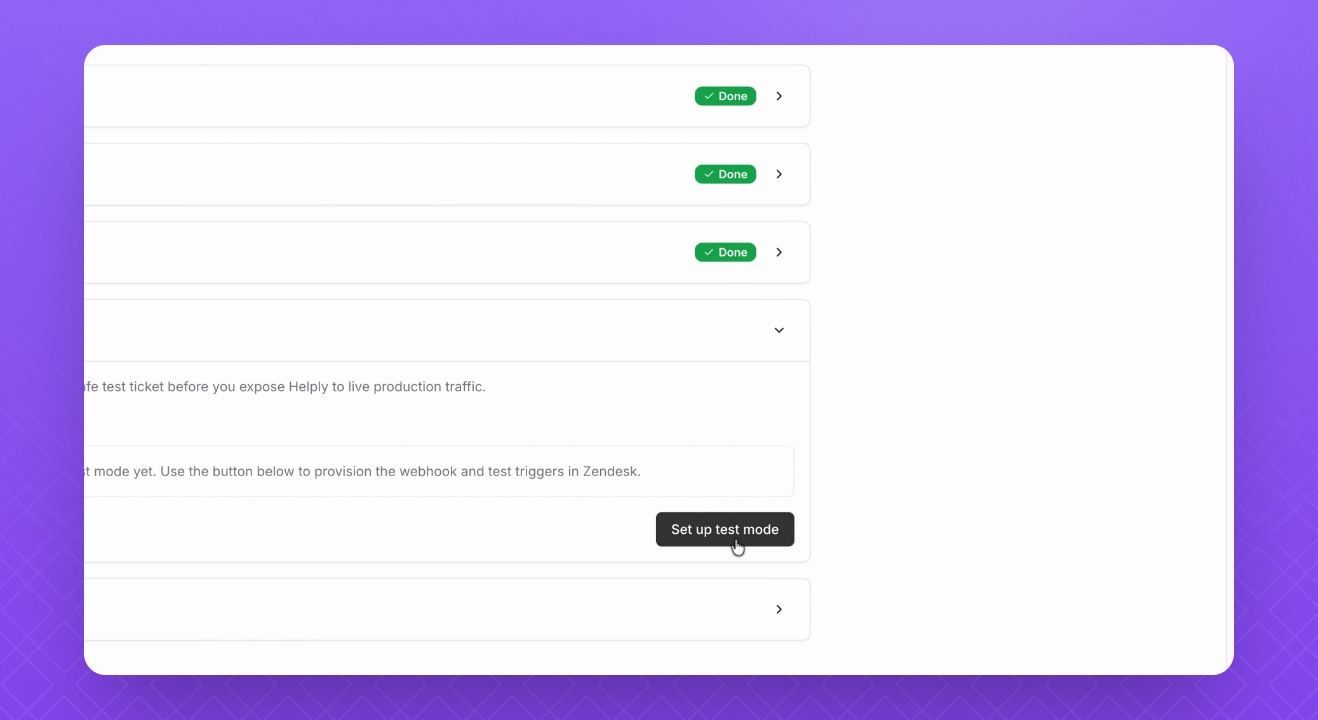
Step 9: Set Up Test Mode
Click Setup Test Mode to test the Helply AI agent before going live.
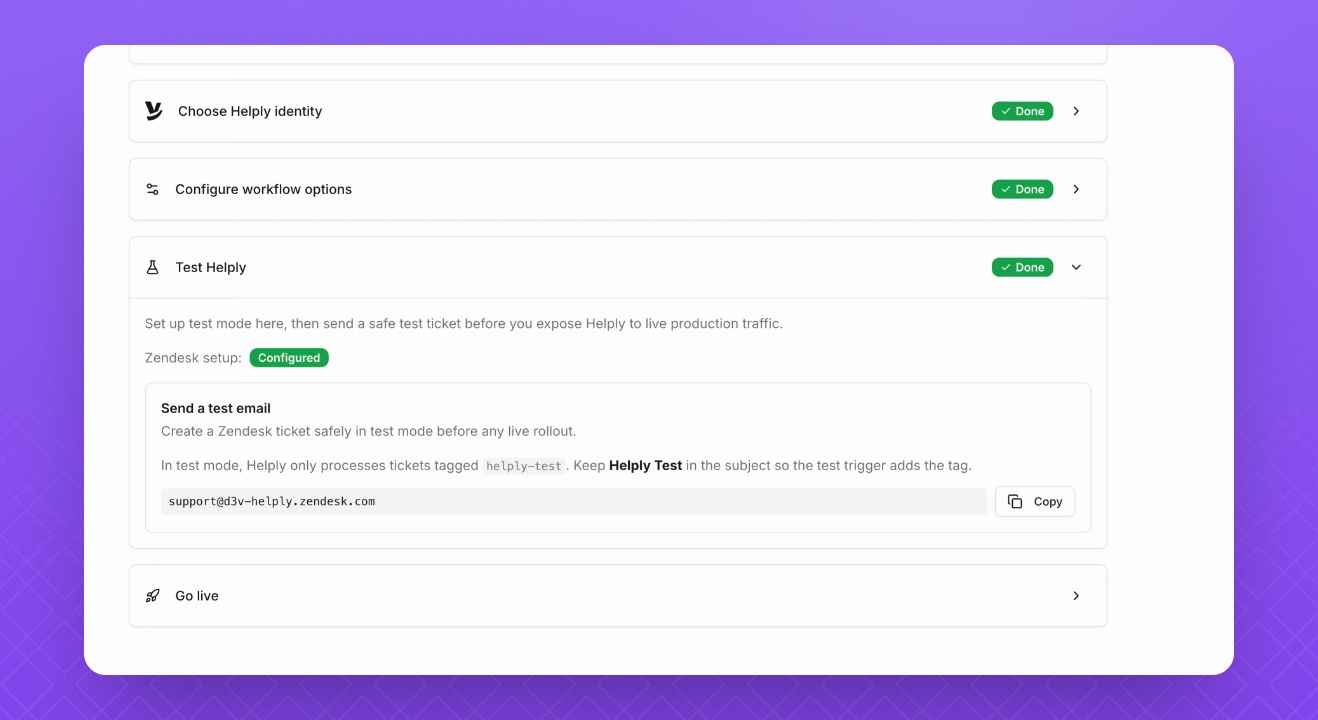
Step 10: Test Email
Copy your inbox email and send a test email, remembering to include "Helply Test" text in the subject line.
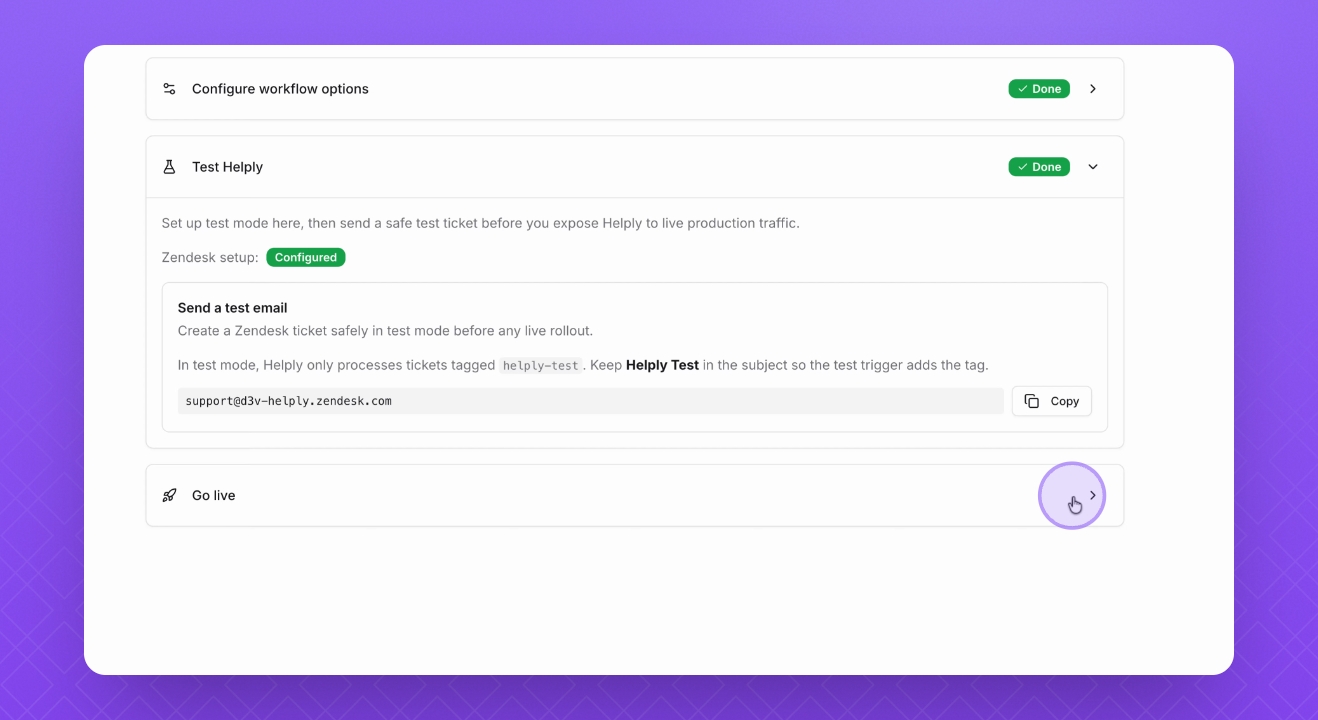
Step 11: Go Live
After testing, you can go live.
FAQ: Tags
What tags does Helply use on Zendesk tickets?
Helply uses these system tags: helply-involved, helply-resolved, helply-soft-resolution, helply-hard-resolution, helply-routed-to-team, helply-unresolved, helply-failed, helply-auto-closed-inactive.
What happens when AI replies successfully?
The ticket is set to pending and Helply adds helply-involved, helply-resolved, helply-soft-resolution. It also removes conflicting tags like helply-hard-resolution, helply-auto-closed-inactive, helply-routed-to-team, and helply-unresolved.
What happens when Helply escalates to a human?
Helply marks the ticket as open, routes it based on workflow settings, adds helply-routed-to-team + helply-unresolved, and removes resolution tags (helply-resolved, helply-soft-resolution, helply-hard-resolution).
What is soft vs hard resolution?
helply-soft-resolution means “AI replied, waiting for customer.”
helply-hard-resolution means “terminally resolved” (e.g., customer confirmed resolution or auto-close due to inactivity).
Can tags change again after a customer replies later?
Yes. If a previously terminally-resolved ticket gets new activity and returns to AI handling, terminal resolution tags are stripped so the ticket can continue through the normal lifecycle.
What is helply-failed used for?
It is a failsafe signal for stalled AI handling; Helply can unassign/reopen for human takeover and tag with helply-failed.
FAQ: Resolution
When does Helply auto-resolve inactive conversations?
Default behavior is 2 hours of inactivity.
Can this be different from 2 hours?
Yes. Zendesk Tickets workflow settings can override the timeout:
If configured shorter than 2h: Helply resolves earlier
If configured longer than 2h: Helply waits longer
How does Helply decide resolution state for analytics/billing?
Tag-driven mapping:
helply-routed-to-team or helply-failed -> escalated
helply-hard-resolution or helply-auto-closed-inactive -> resolved
Otherwise -> Pending.