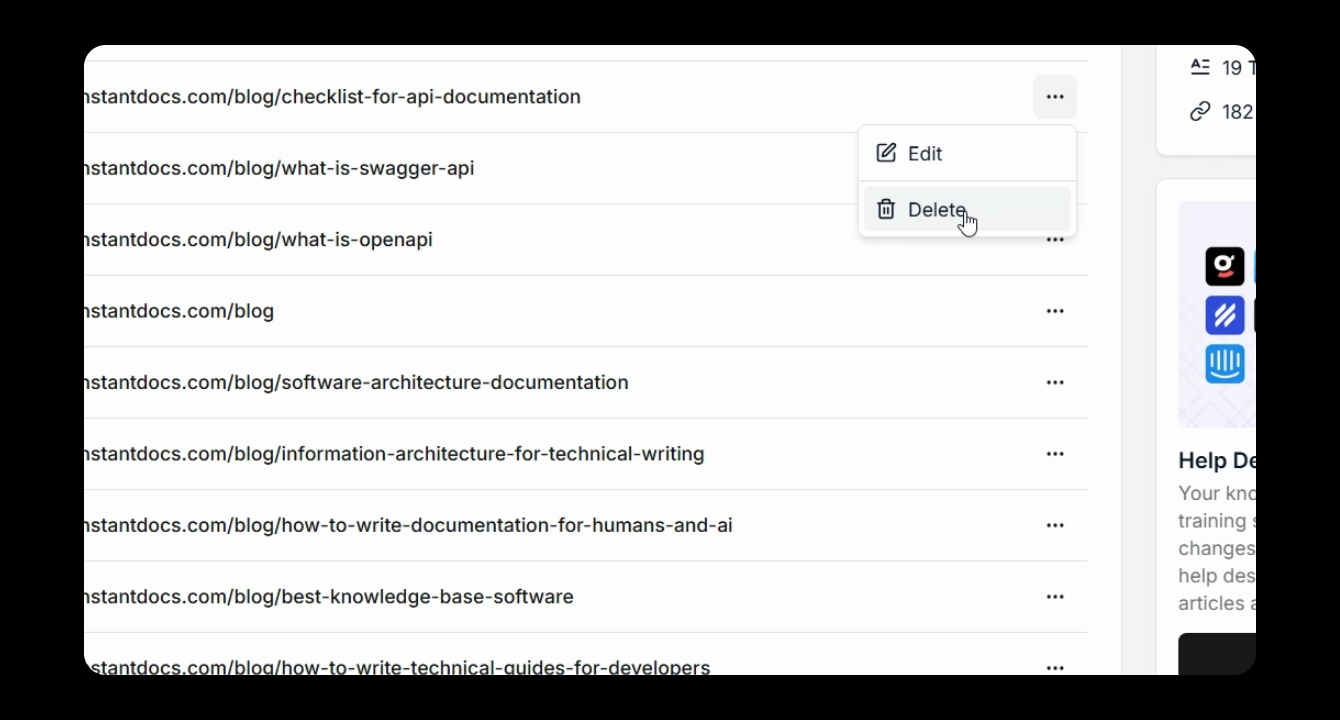

If your AI agent is giving outdated or incorrect answers, you can use the AI Trace tool to troubleshoot. Let's look at the steps:
Step 1: Open the Relevant Chat
Navigate to chats on the left, then select the chat that was giving the incorrect or outdated information.
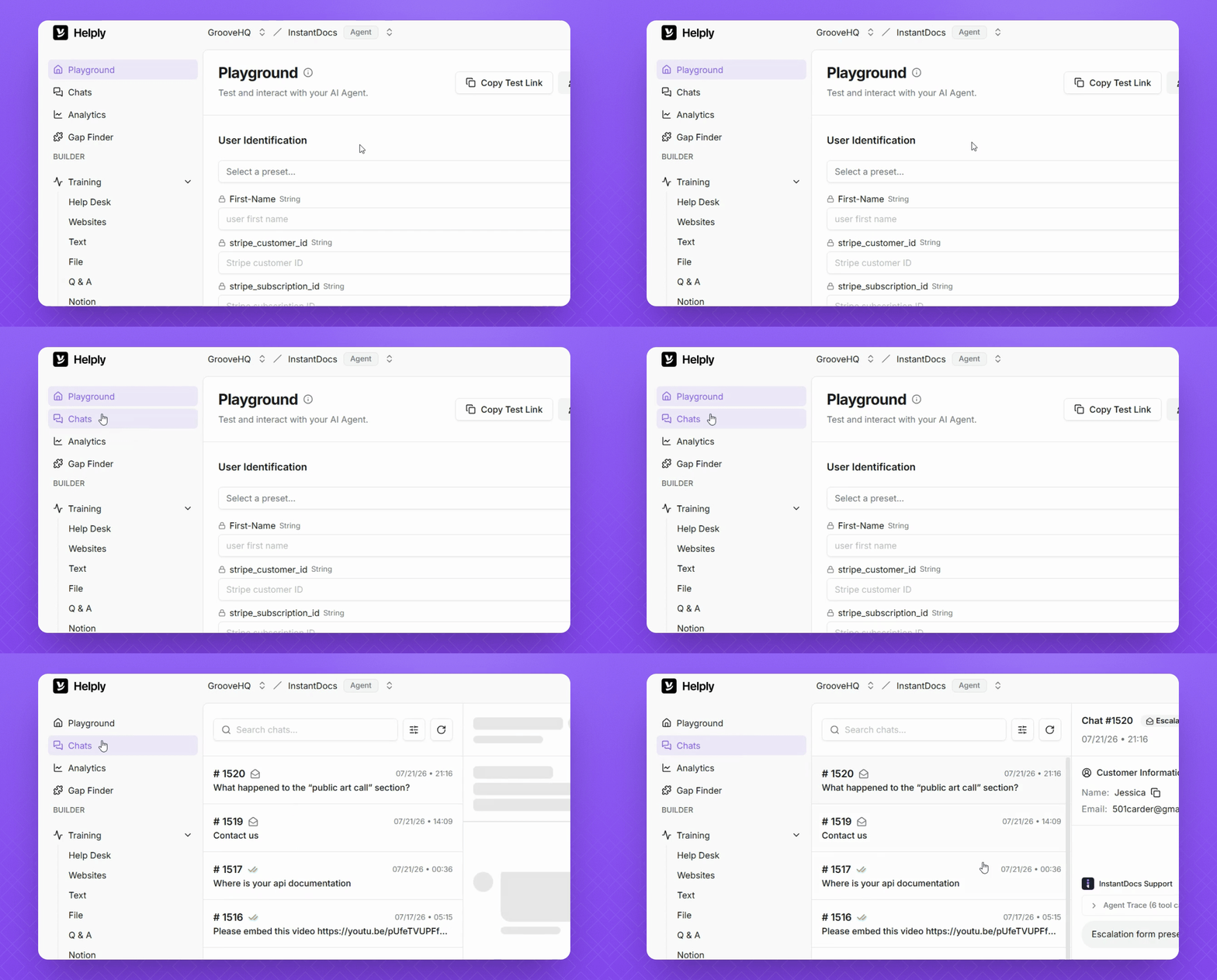
Step 2: View Agent Trace Steps
Click the Agent Trace dropdown to see the exact steps the AI took to provide the answer.
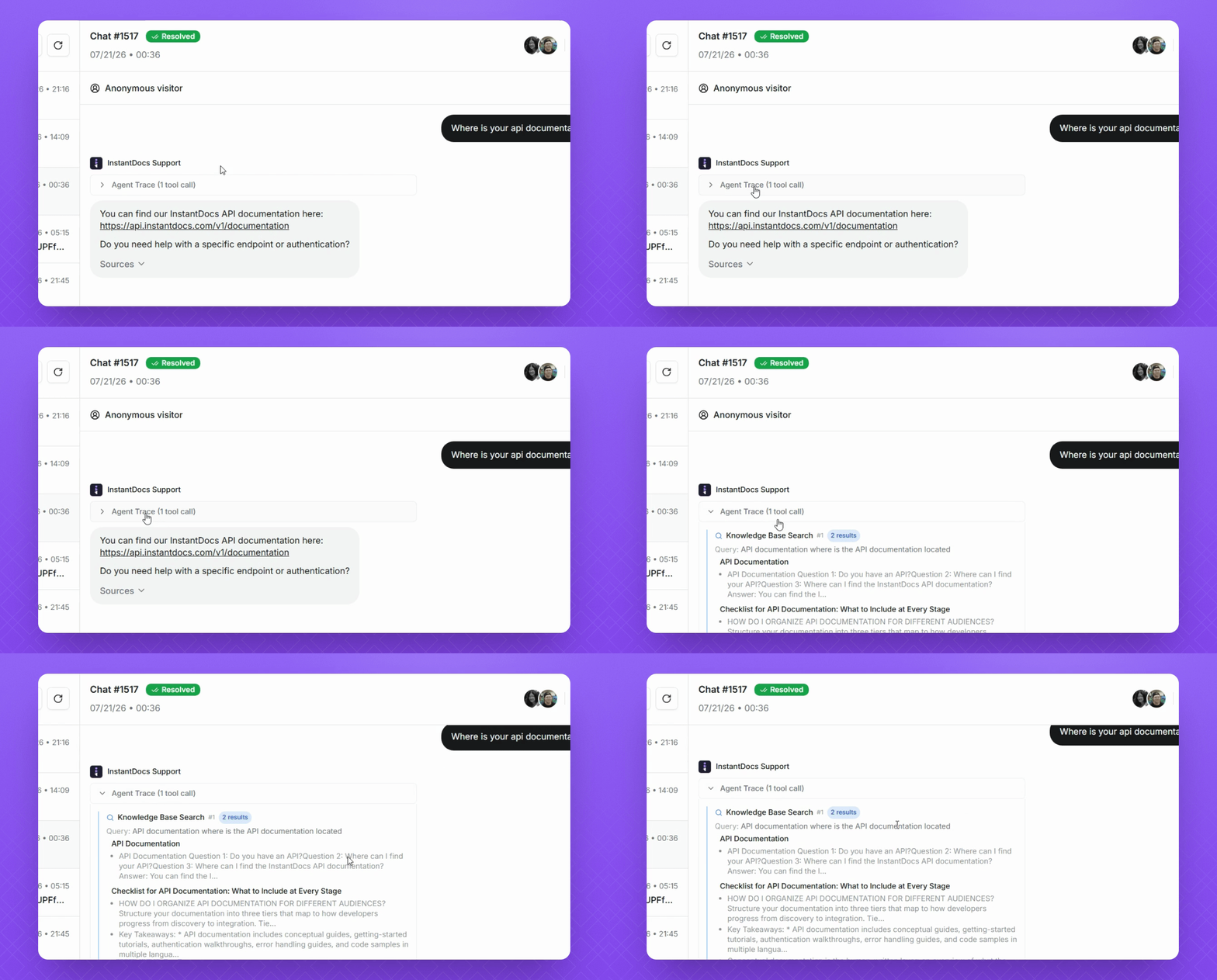
Step 3: Access Training Material
Hover over the hyperlinks to directly access the agent's training material.
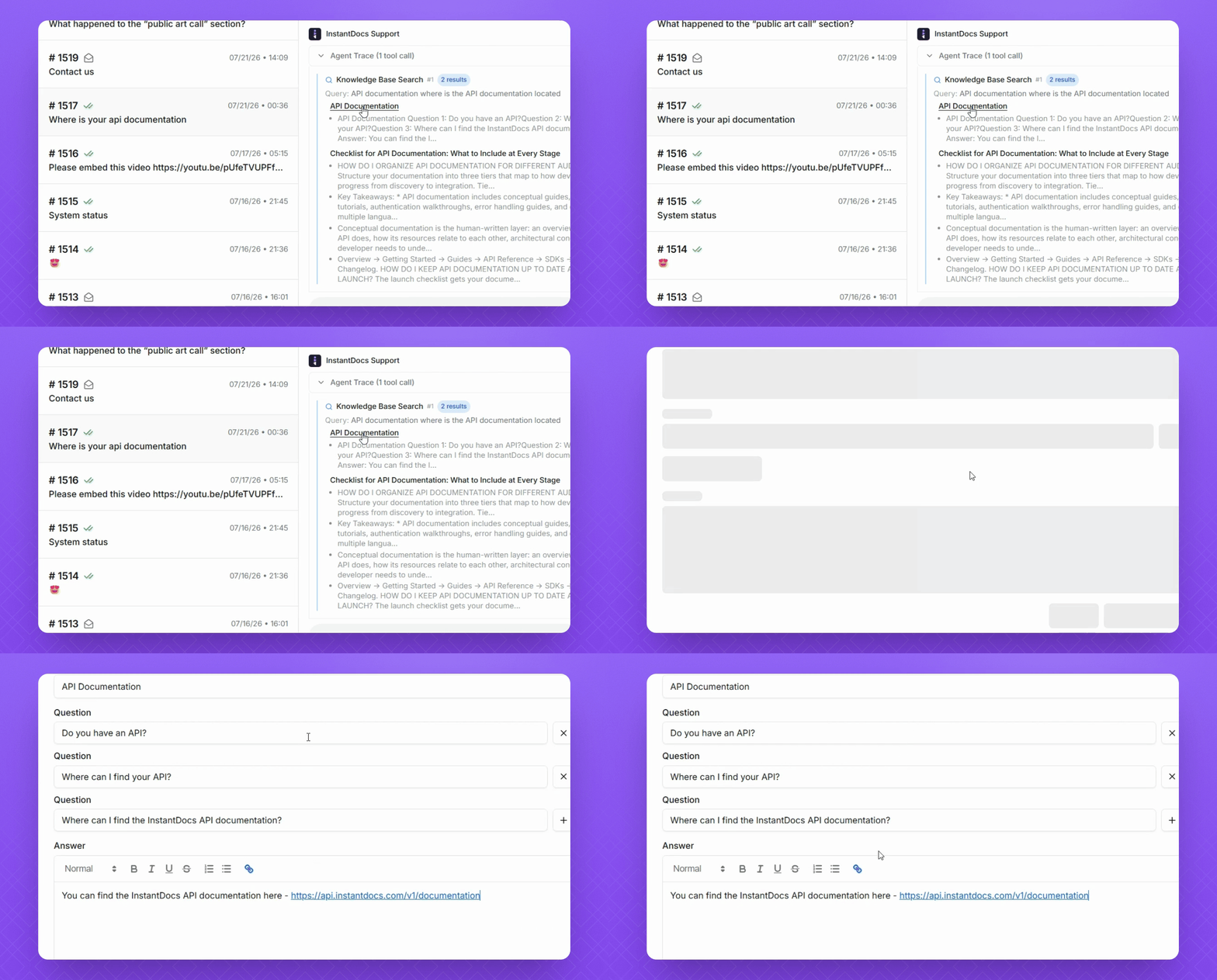
Step 4: Update Training Material
Select the hyperlink and update the training material as needed.
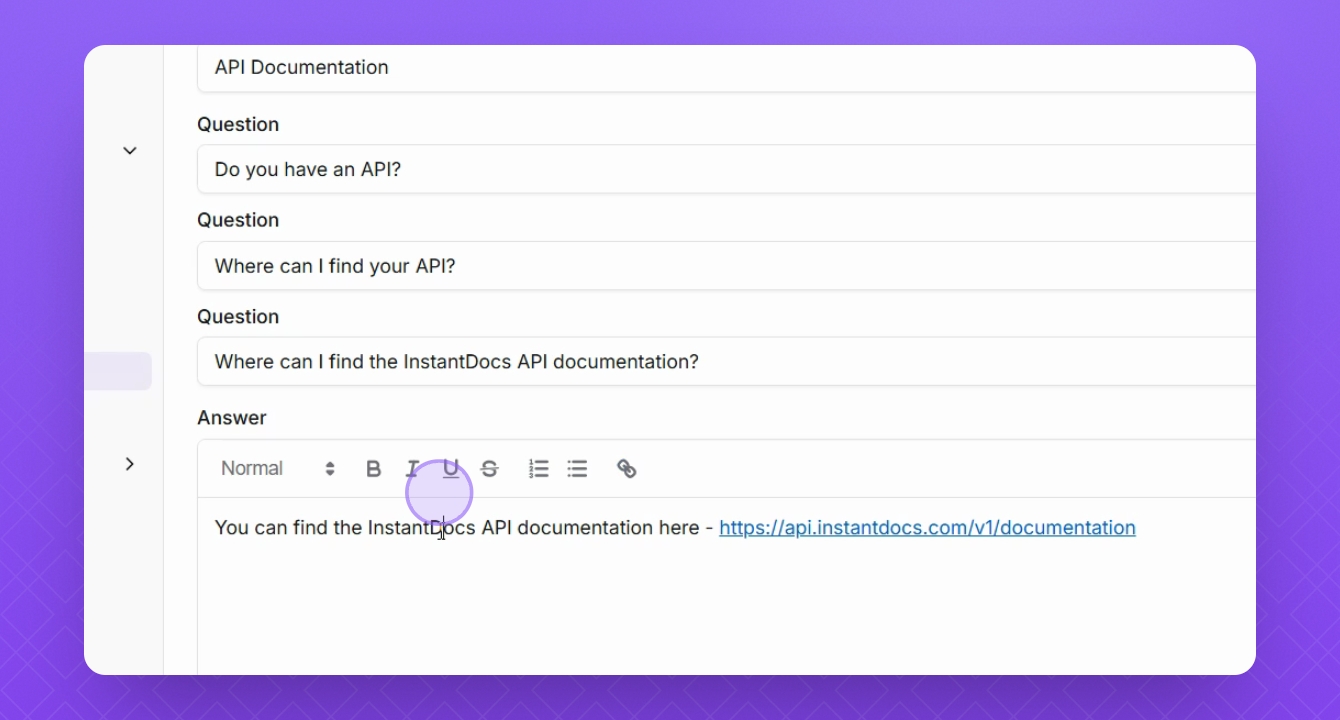
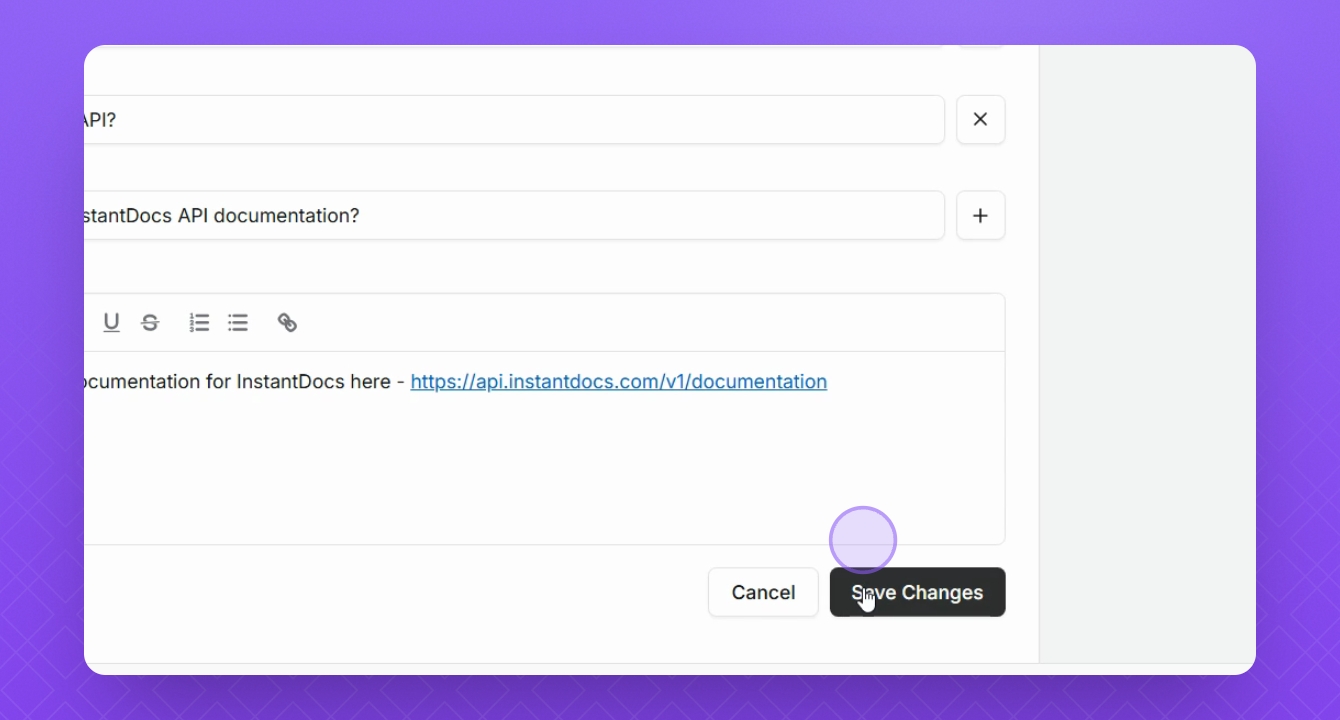
Step 5: Save Your Changes
After making your changes, click Save Changes.
Step 6: Update or Remove URLs from Website Training material
You can also add training material through websites. Click the hyperlink to navigate directly to website training material.
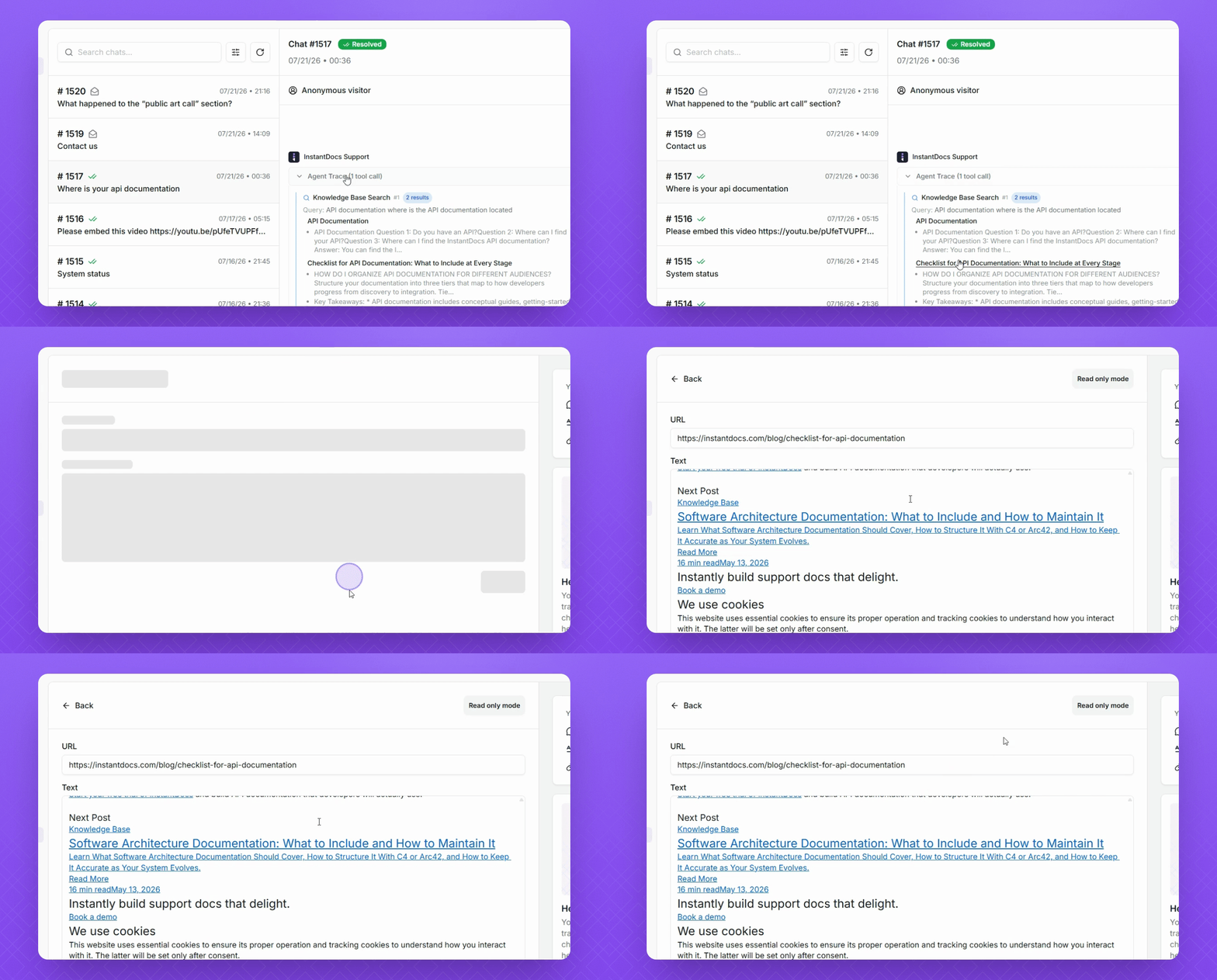
Please note: Website training material is read-only and cannot be edited directly in Helply. To update the content, you must either update the information on the source website or remove the website link from your training material. Any changes made to the source website will automatically sync to Helply within a day (approximately 24 hours).
Step 7: Locate the Source Website
Check the URL bar to see where the AI agent is sourcing the training material from.
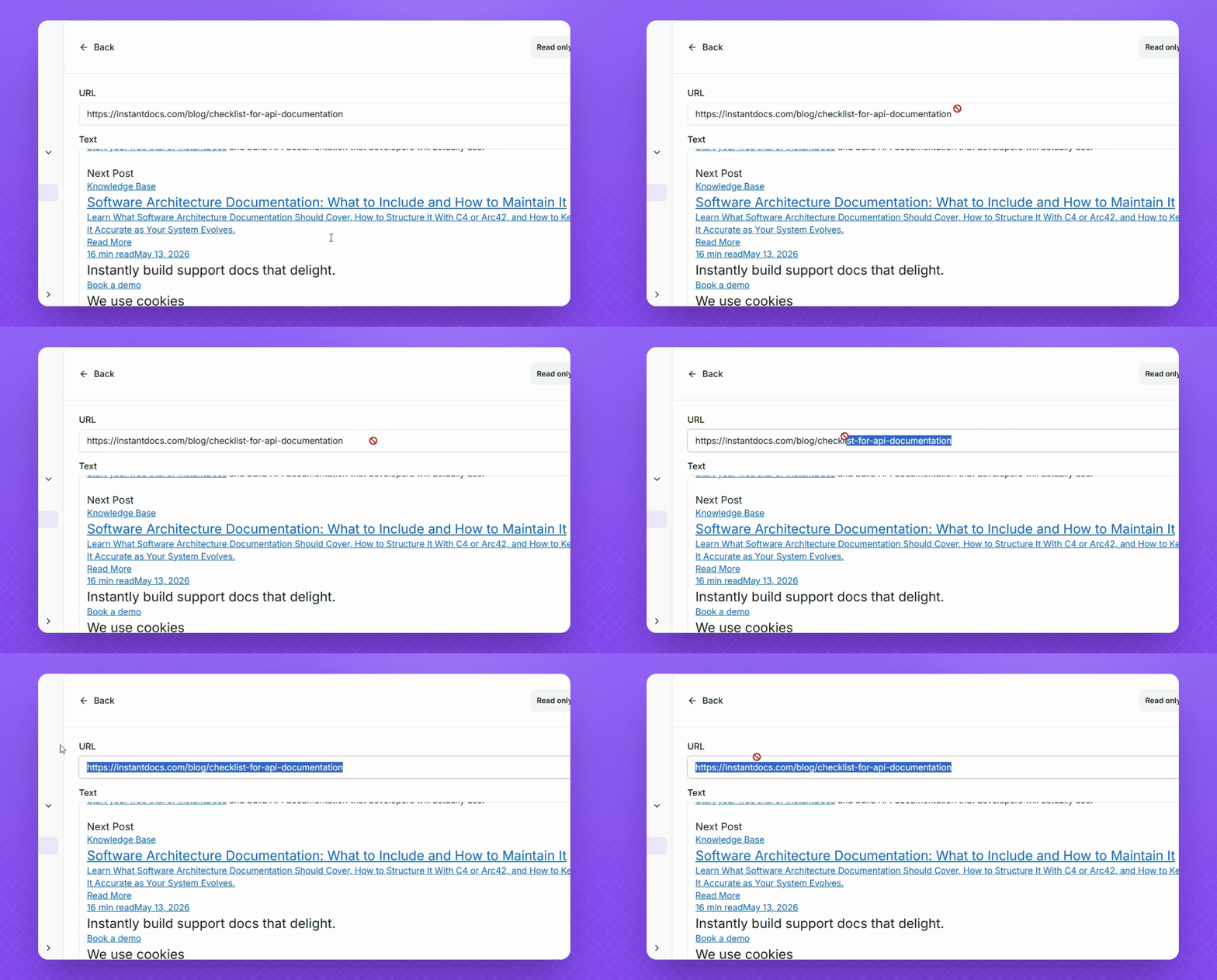
Step 8: Update the Source Website
Navigate to the URL and update the information on that page. The AI agent will resync and update accordingly.
Please note: Website training material takes 1 day to sync once updated at the source.
Step 9: Remove Website Training Source
Alternatively, click the back button and select the training source from the website list. Use the search bar to find the material, open the Context menu, and hit Delete to remove the URL.