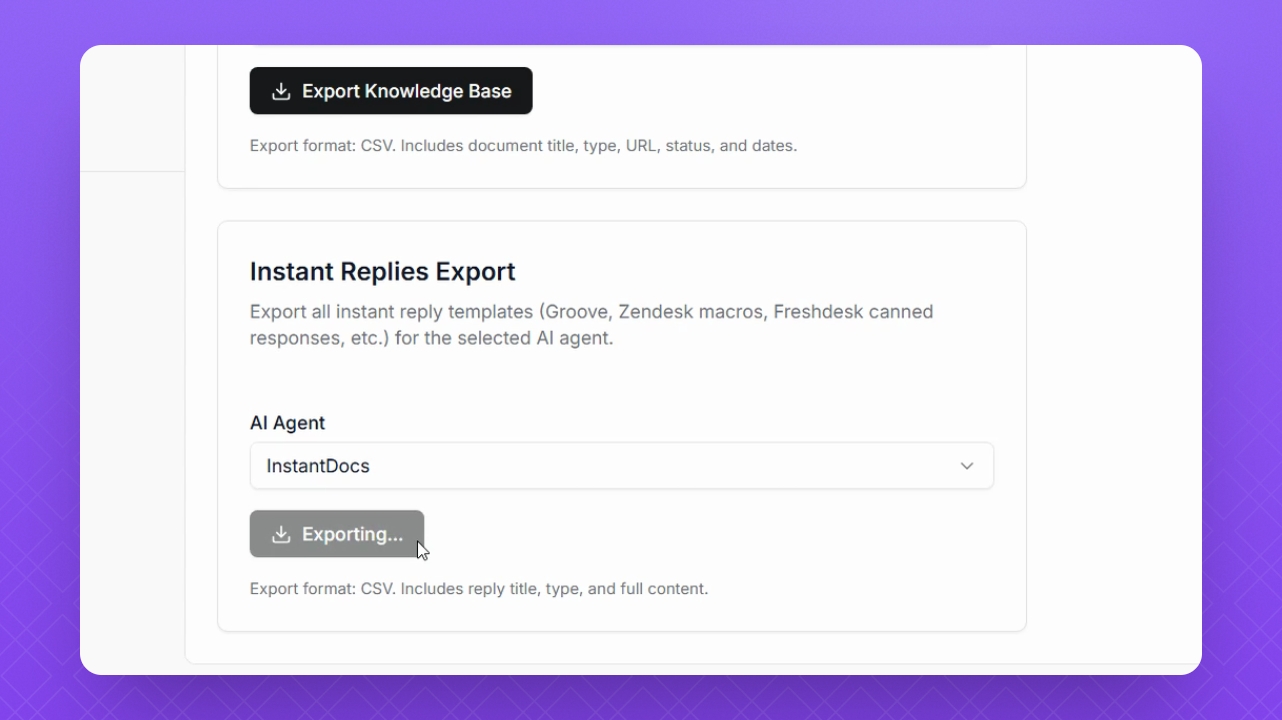

This guide explains how to export chat messages, knowledge base content, and instant replies from Helply. Let's look at the steps:
Open Export Settings
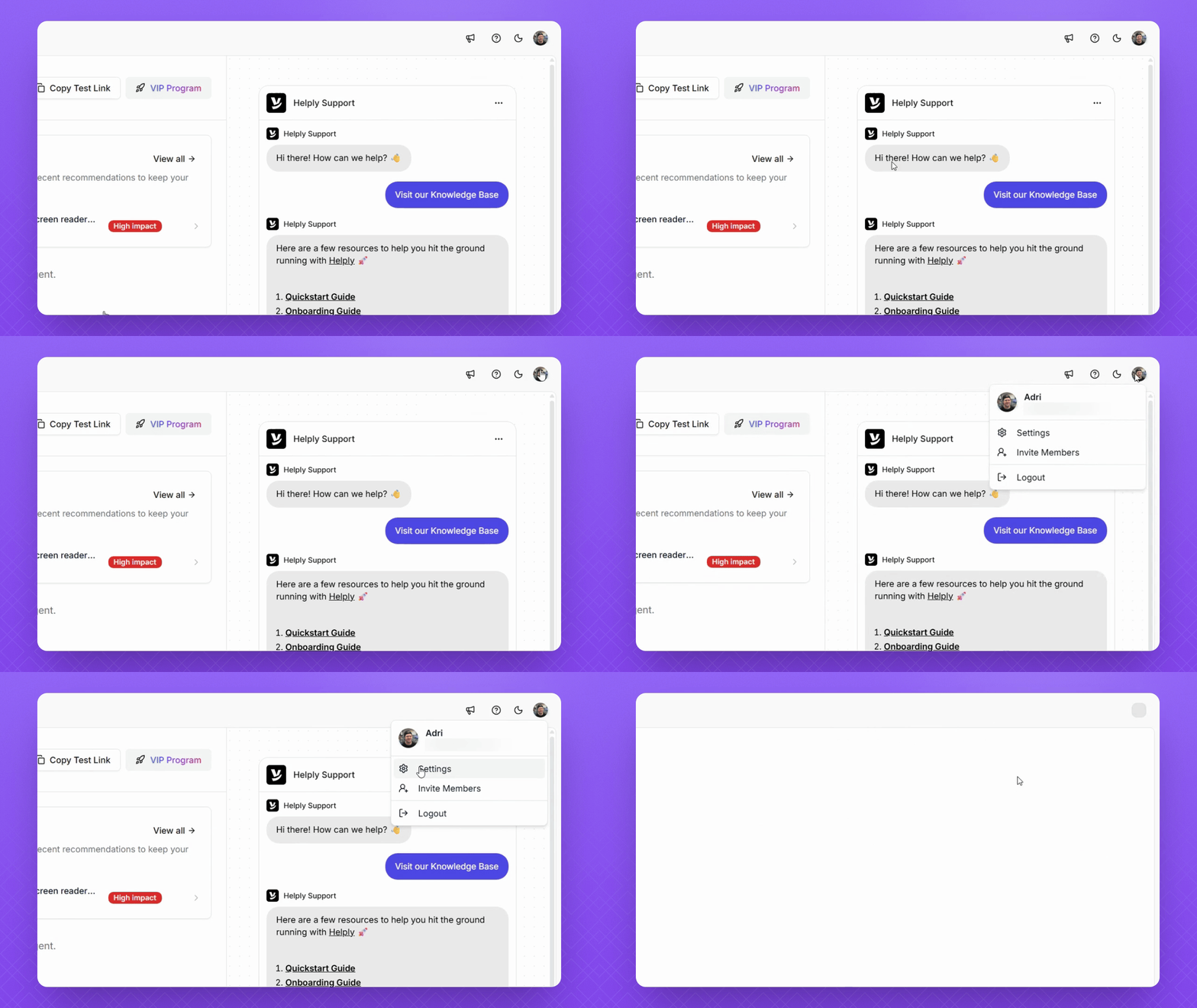
Click your profile icon in the top right corner, then select Settings.
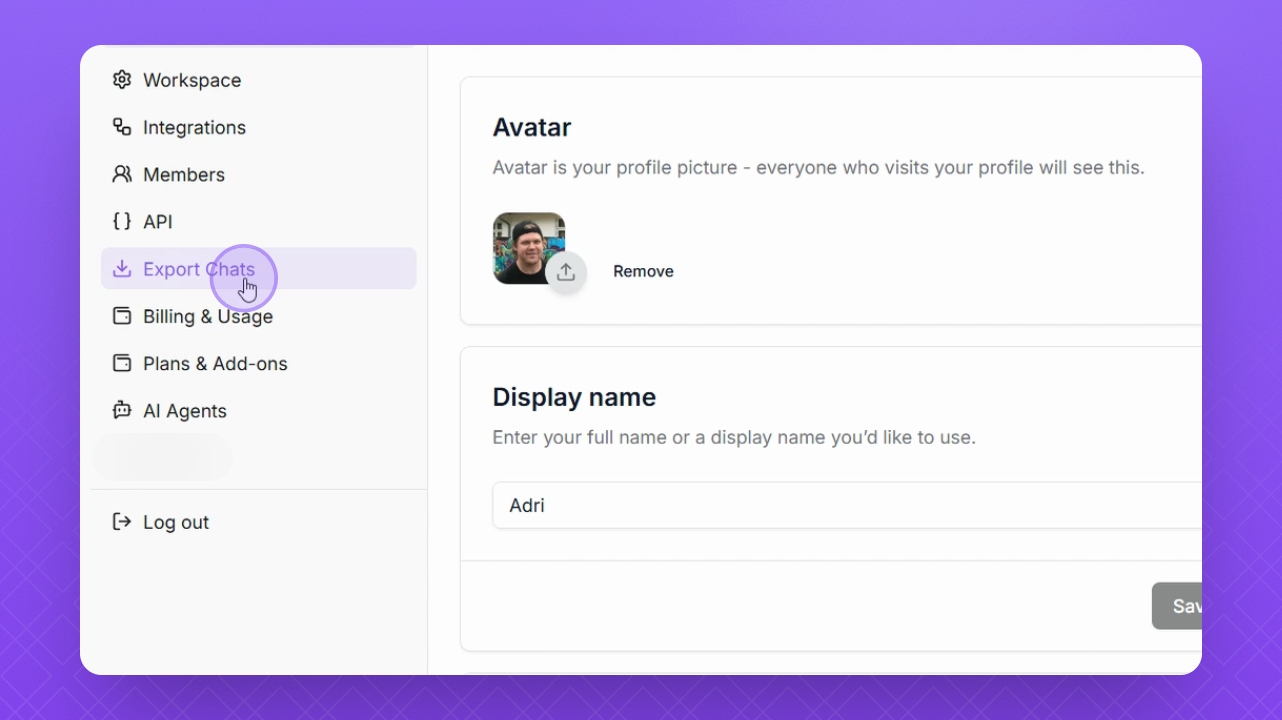
Go to Export Chat
Navigate to the left panel and select Export Chat.
Export Chat Messages
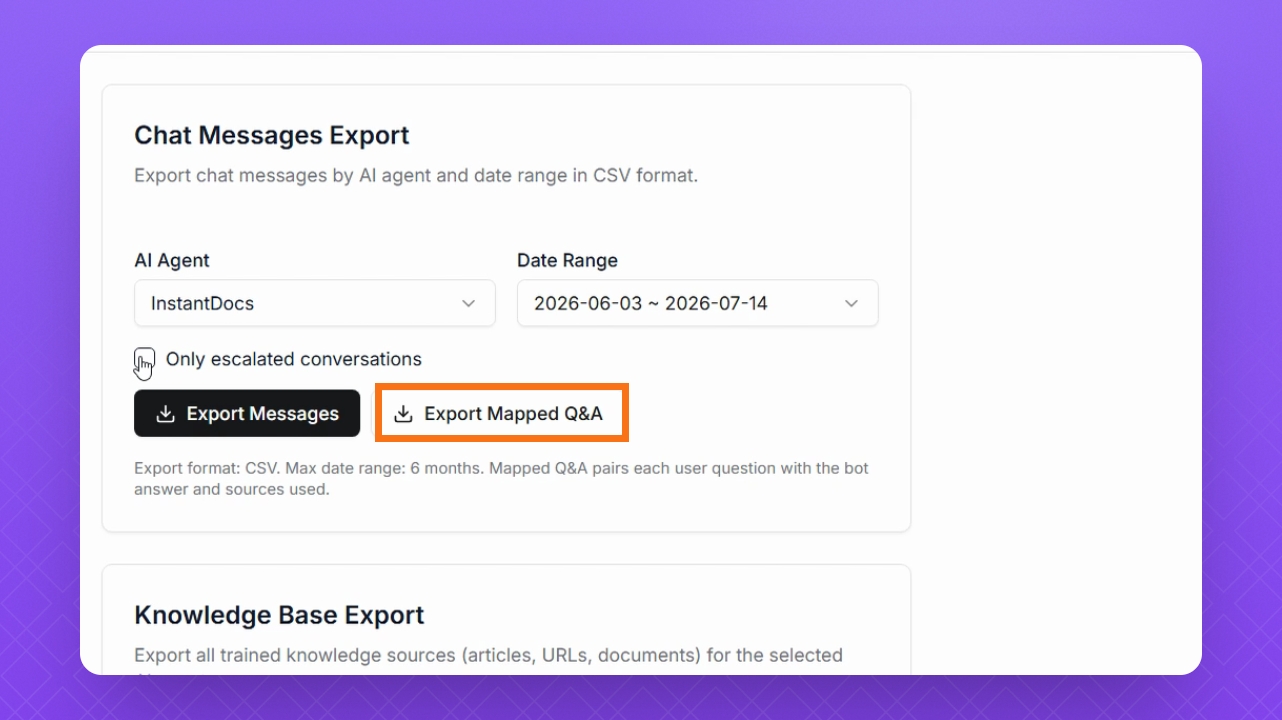
You can export chat messages from your AI agent in CSV format:
Use the AI Agent dropdown to select the agent
Set the Date range for export.
Optionally, check Only Escalated Conversations to export only escalated chats.
Click Export Messages to download the file.
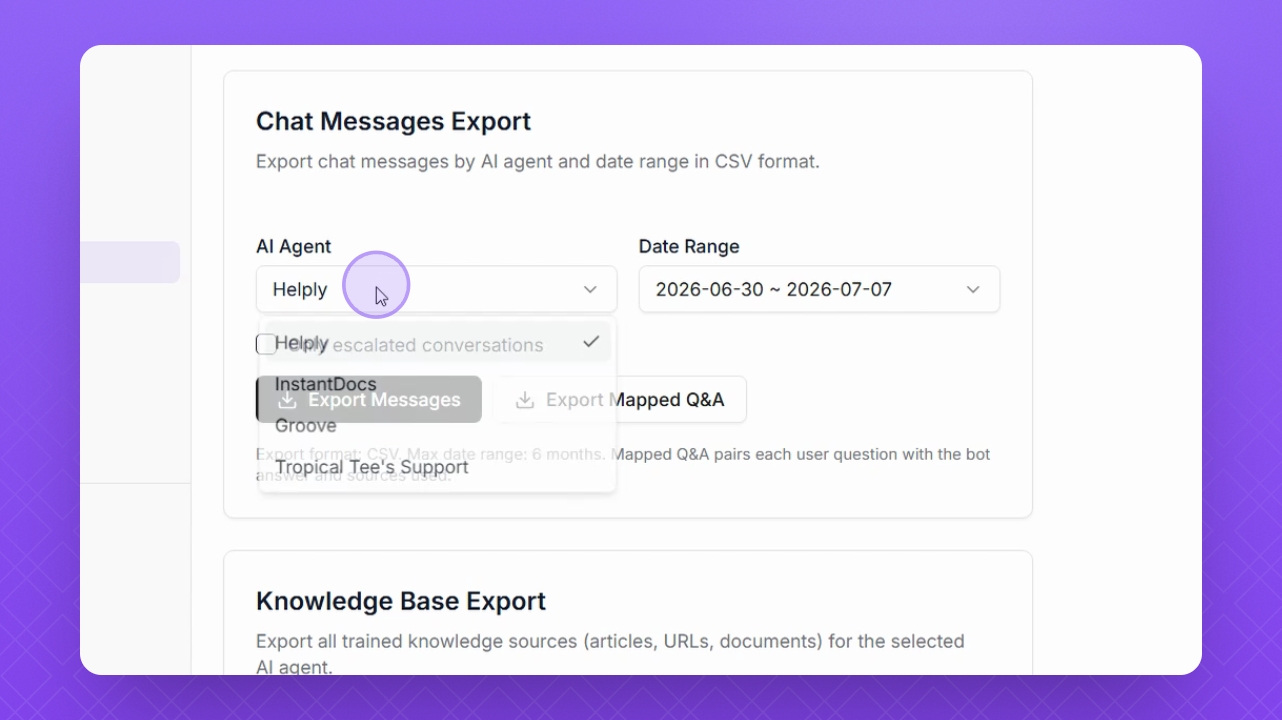
Please note: You can only export Chats within a date range of 6 months.
Export Mapped QA Messages
You can also export mapped QA messages, which pair each user question with the bot answers and sources used.
Export Knowledge Base
Navigate to Knowledge Base export to export all trained knowledge sources, including articles, URLs, and documents from the selected agent. Use the Agent dropdown to choose the agent, then click Export Knowledge Base.
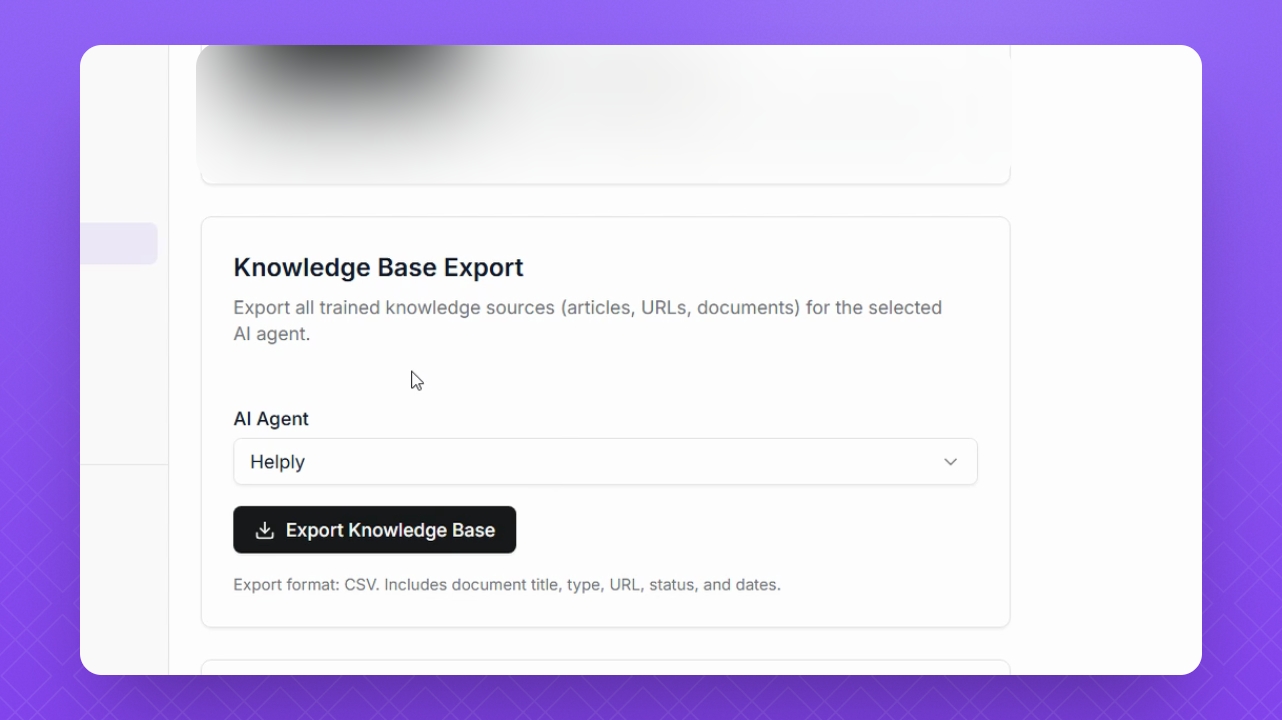
The export format for knowledge bases includes document title, type, URL, status, and dates.
Export Instant Replies
Choose Instant Replies export to export all instant reply templates, including platforms such as Groove, Zendesk macros, Freshdesk, canned responses, and more. Use the AI Agent dropdown to select the agent, then click Export Instant Replies.